Most settings on this page require the Admin role. Numbered markers in each screenshot match the numbered items in the text.
Organization
Members
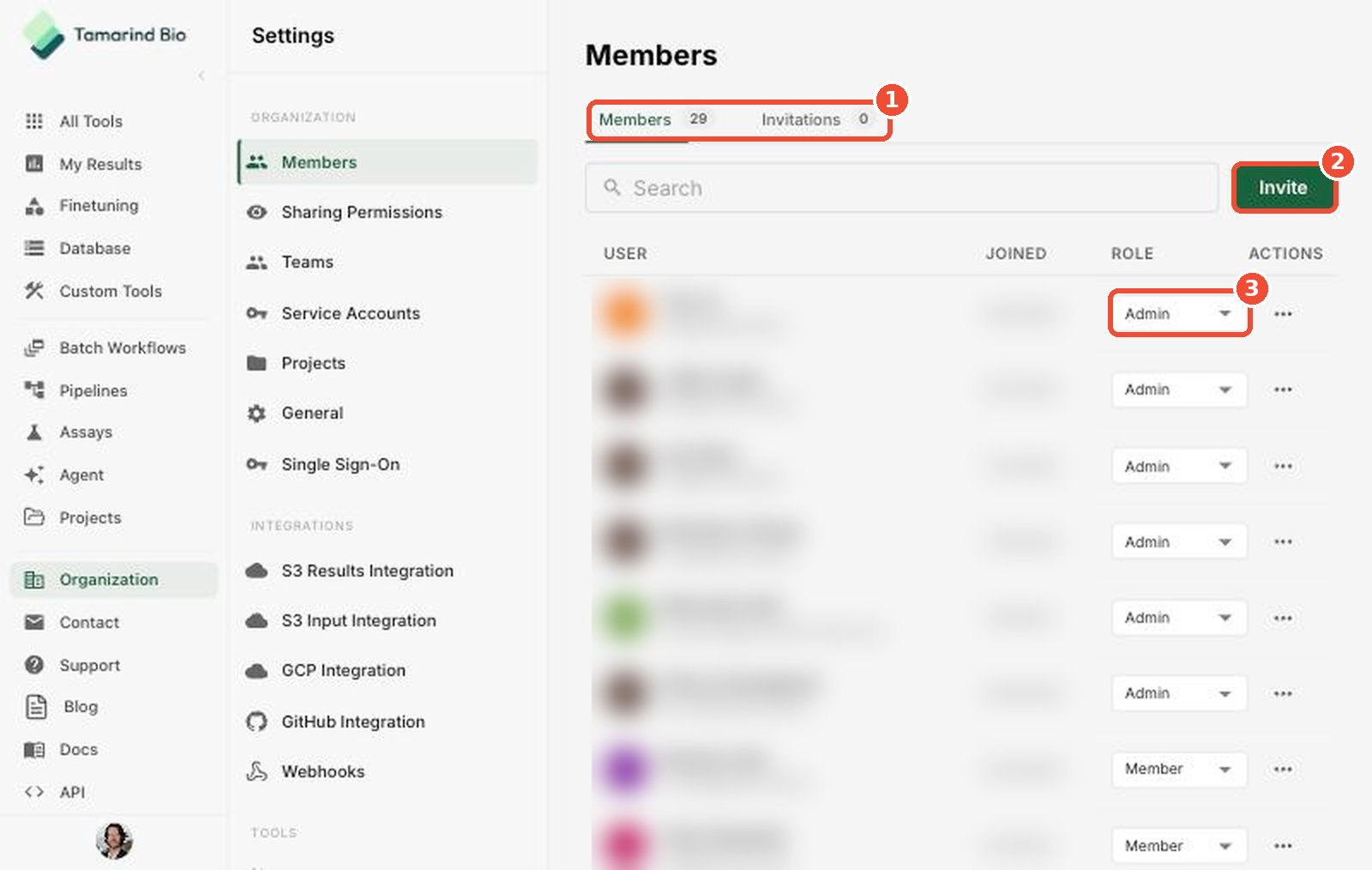
See everyone in your organization and manage their roles.- Members / Invitations — switch between current members and pending invitations.
- Invite — invite new people to your organization by email.
- Role — change a member between Admin and Member. Use the ⋯ menu in the Actions column for other options.
Sharing Permissions
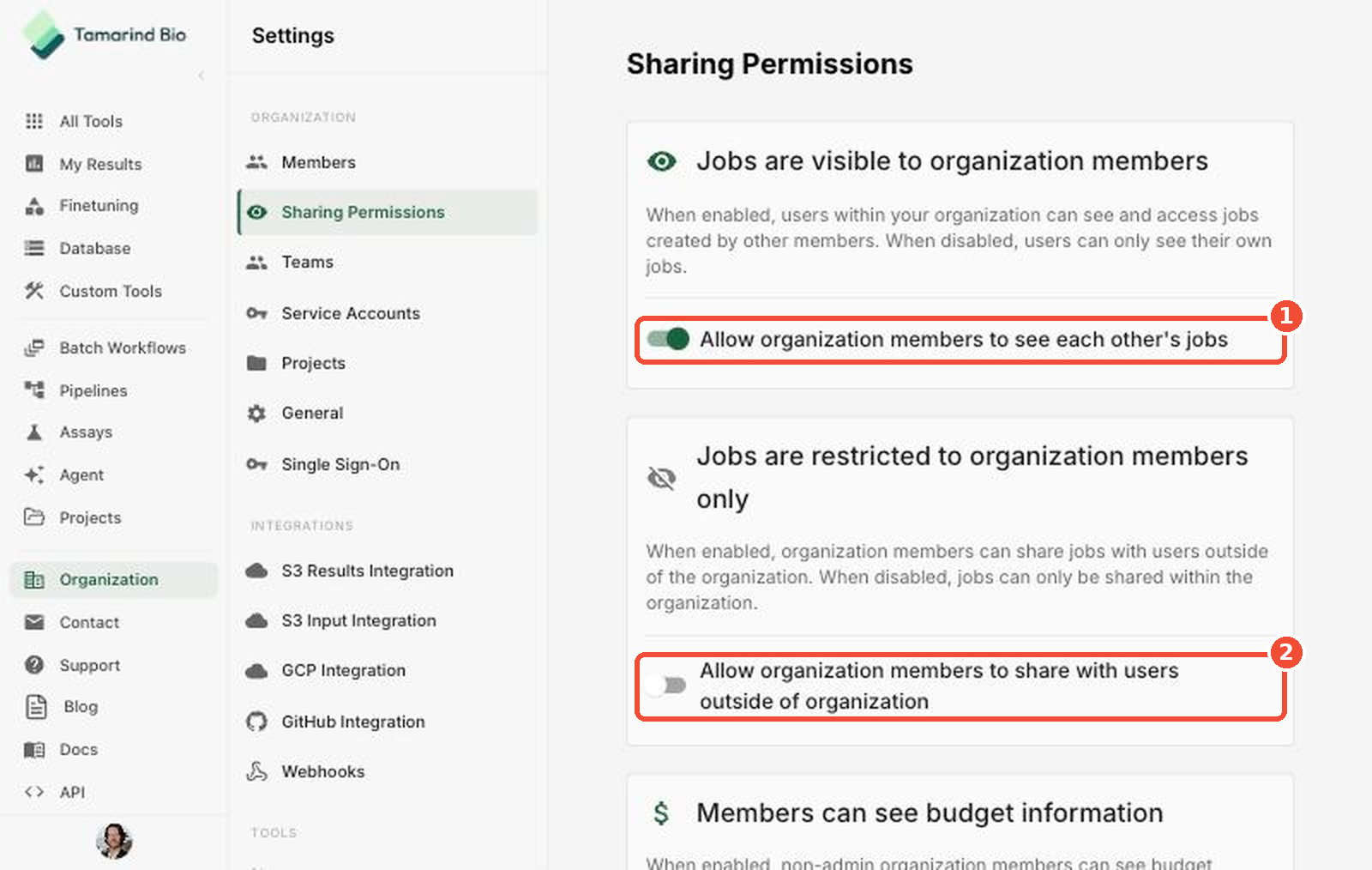
Control who can see jobs and budget information. Click Save Permissions at the bottom of the page after making changes.- Allow organization members to see each other’s jobs — when on, members can see and access jobs created by others in your organization. When off, members only see their own jobs.
- Allow organization members to share with users outside of organization — when on, members can share jobs with people outside your organization. When off, jobs can only be shared internally.
Teams
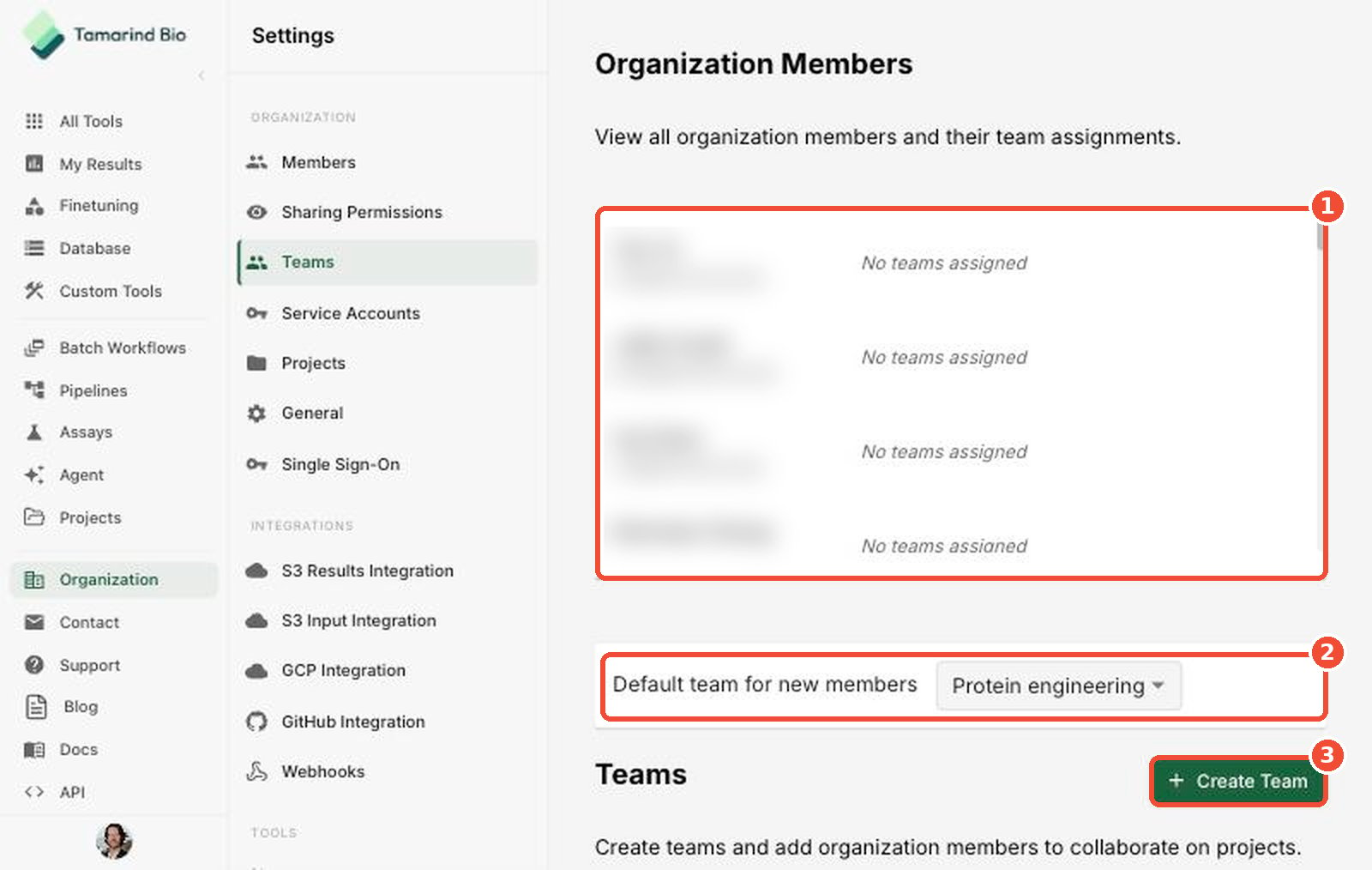
Group members into teams to collaborate and to apply shared budgets.- Organization Members — every member and the teams they belong to.
- Default team for new members — new members are added to this team automatically.
- Create Team — create a new team.
Service Accounts
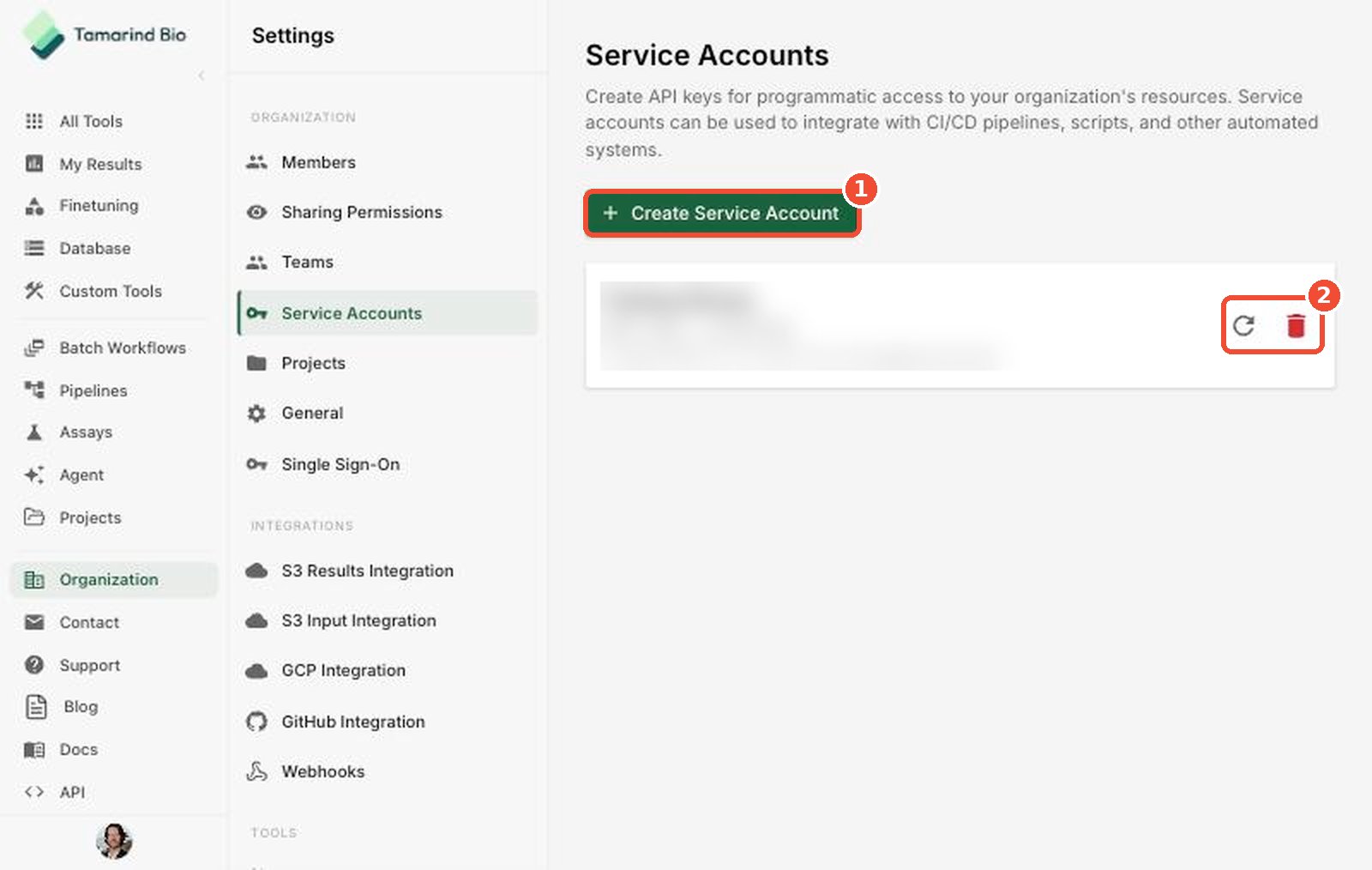
Create API keys for programmatic access — for example, from CI/CD pipelines, scripts, and other automated systems.- Create Service Account — create a new service account and API key.
- Rotate / Delete — rotate a service account’s API key, or delete the service account.
Projects
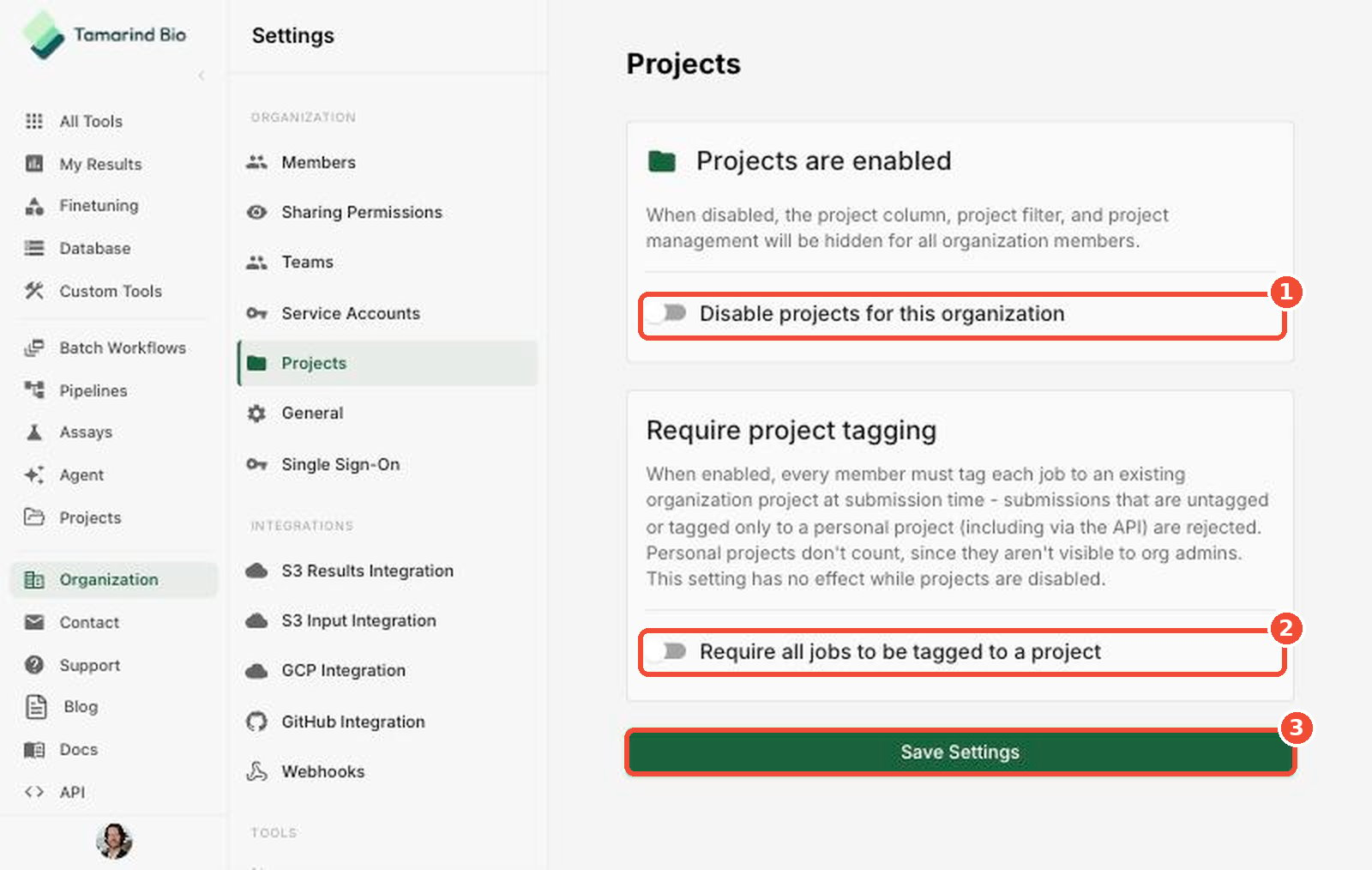
Control how projects work across your organization. Click Save Settings (3) after making changes.- Disable projects for this organization — hides the project column, project filter, and project management for all members.
- Require all jobs to be tagged to a project — every job must be tagged to an existing organization project at submission time. Untagged jobs, or jobs tagged only to a personal project (including via the API), are rejected. Personal projects don’t count because org admins can’t see them. This setting has no effect while projects are disabled.
General
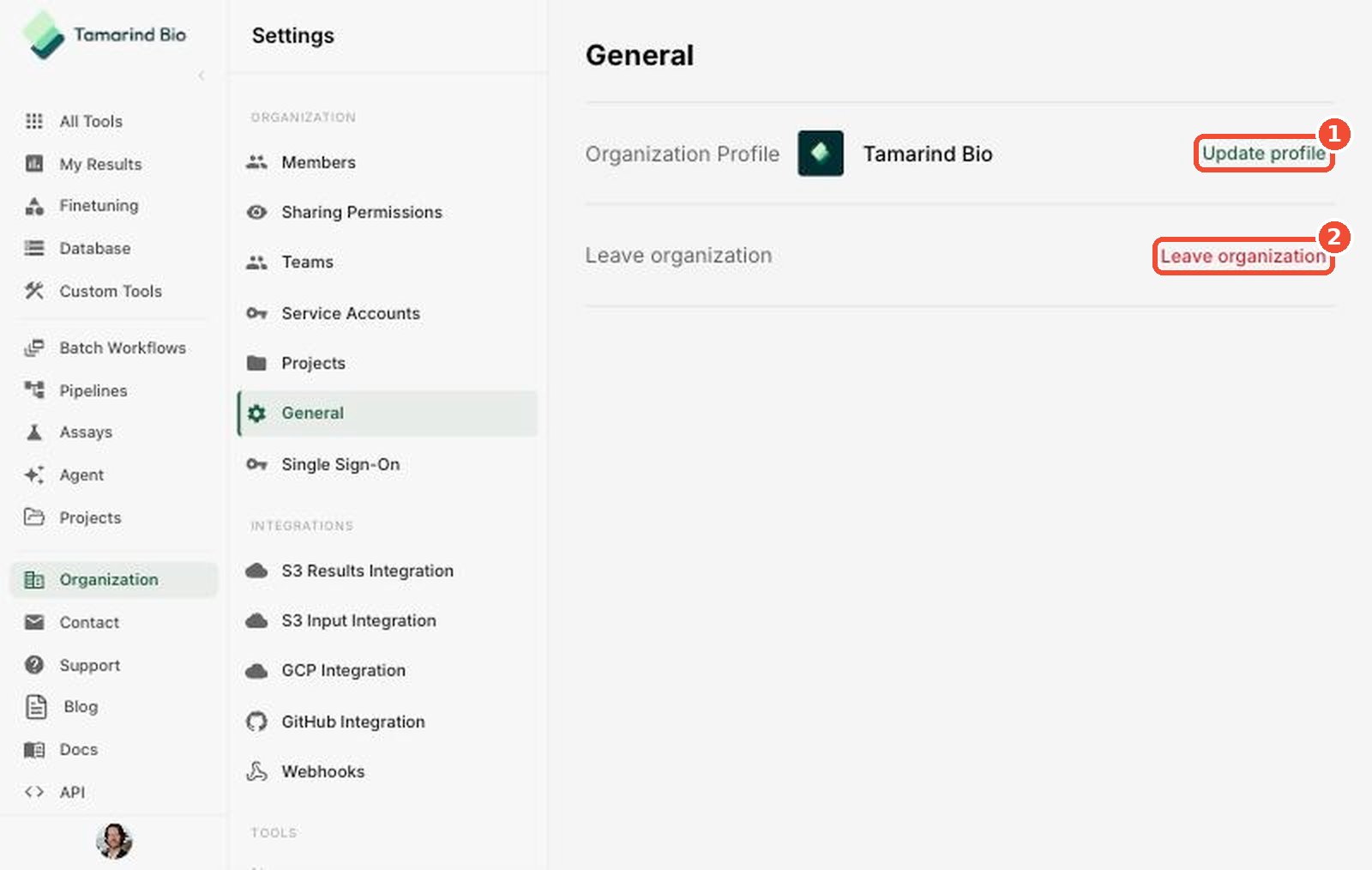
- Update profile — edit your organization’s profile.
- Leave organization — remove yourself from the organization.
Single Sign-On
Connect your identity provider (Okta, Microsoft Entra ID, Google Workspace, or another SAML provider) so your team signs in with their company account. For step-by-step instructions, see Set up Single Sign-On (SSO).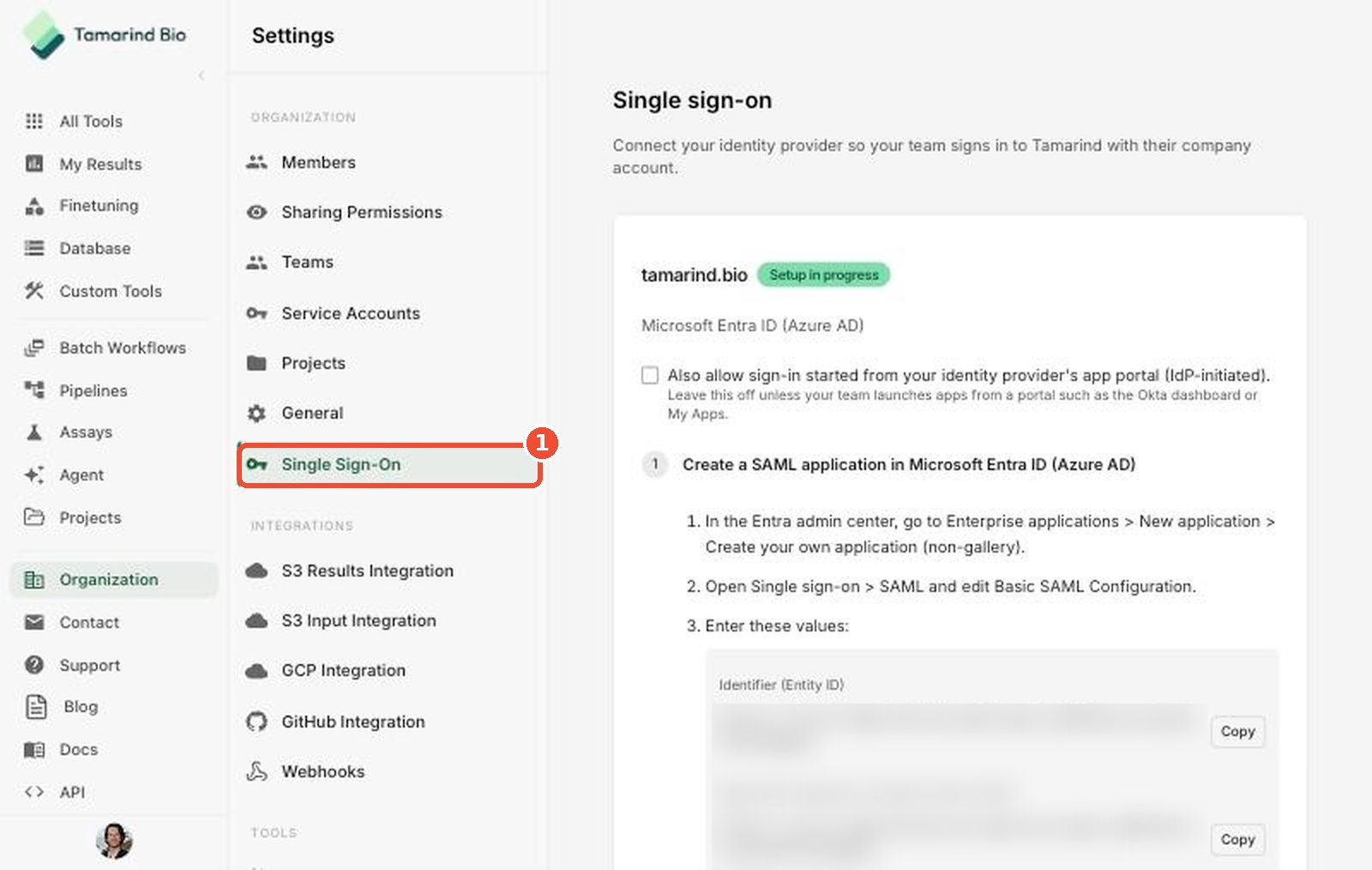
Integrations
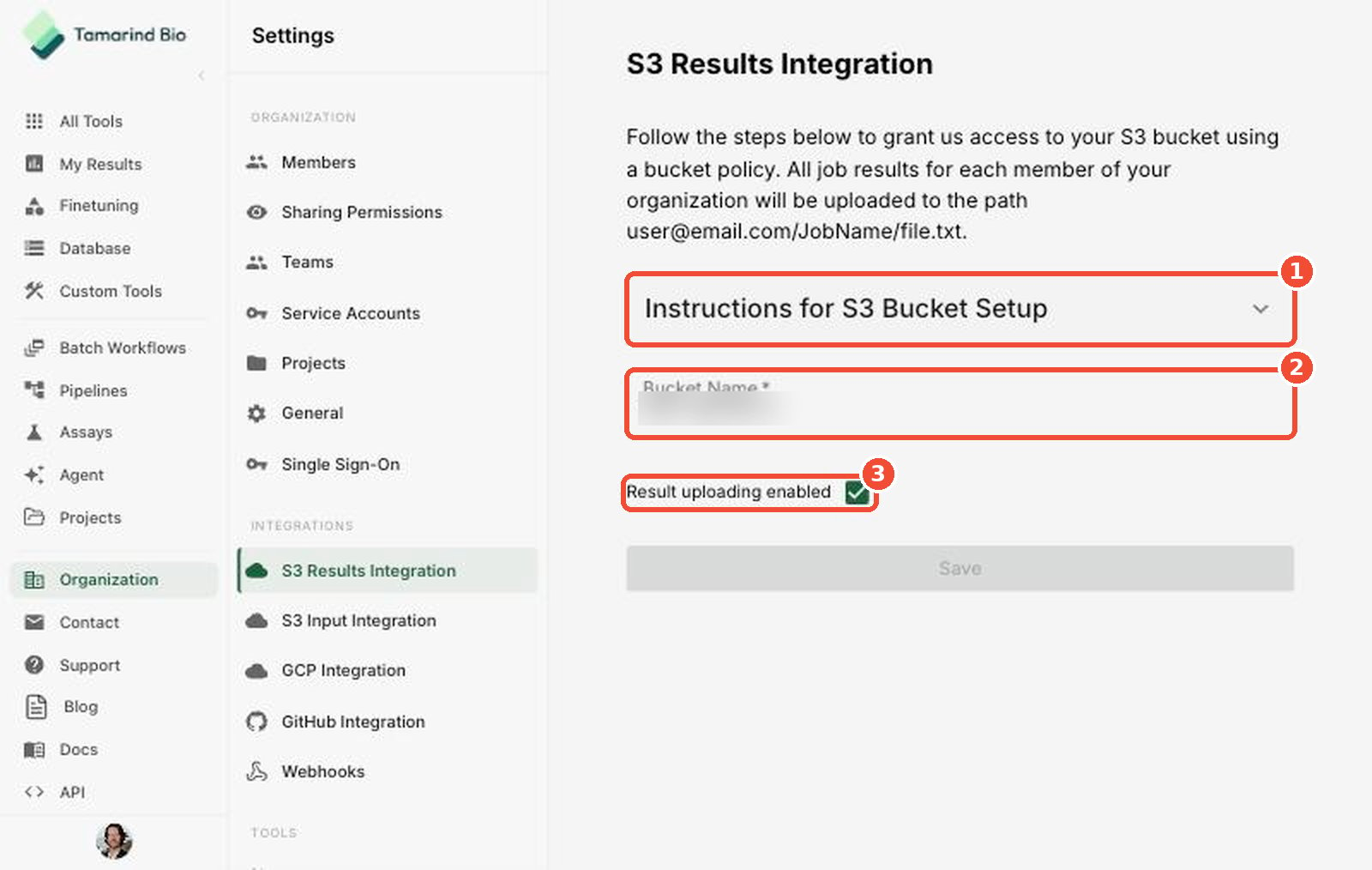
S3 Results Integration
Automatically upload job results to your own Amazon S3 bucket. Results for each member are uploaded to the pathuser@email.com/JobName/file.txt.
- Instructions for S3 Bucket Setup — expand for the bucket policy that grants Tamarind access to your bucket.
- Bucket Name — the name of your S3 bucket.
- Result uploading enabled — turn uploads on or off.
S3 Input Integration
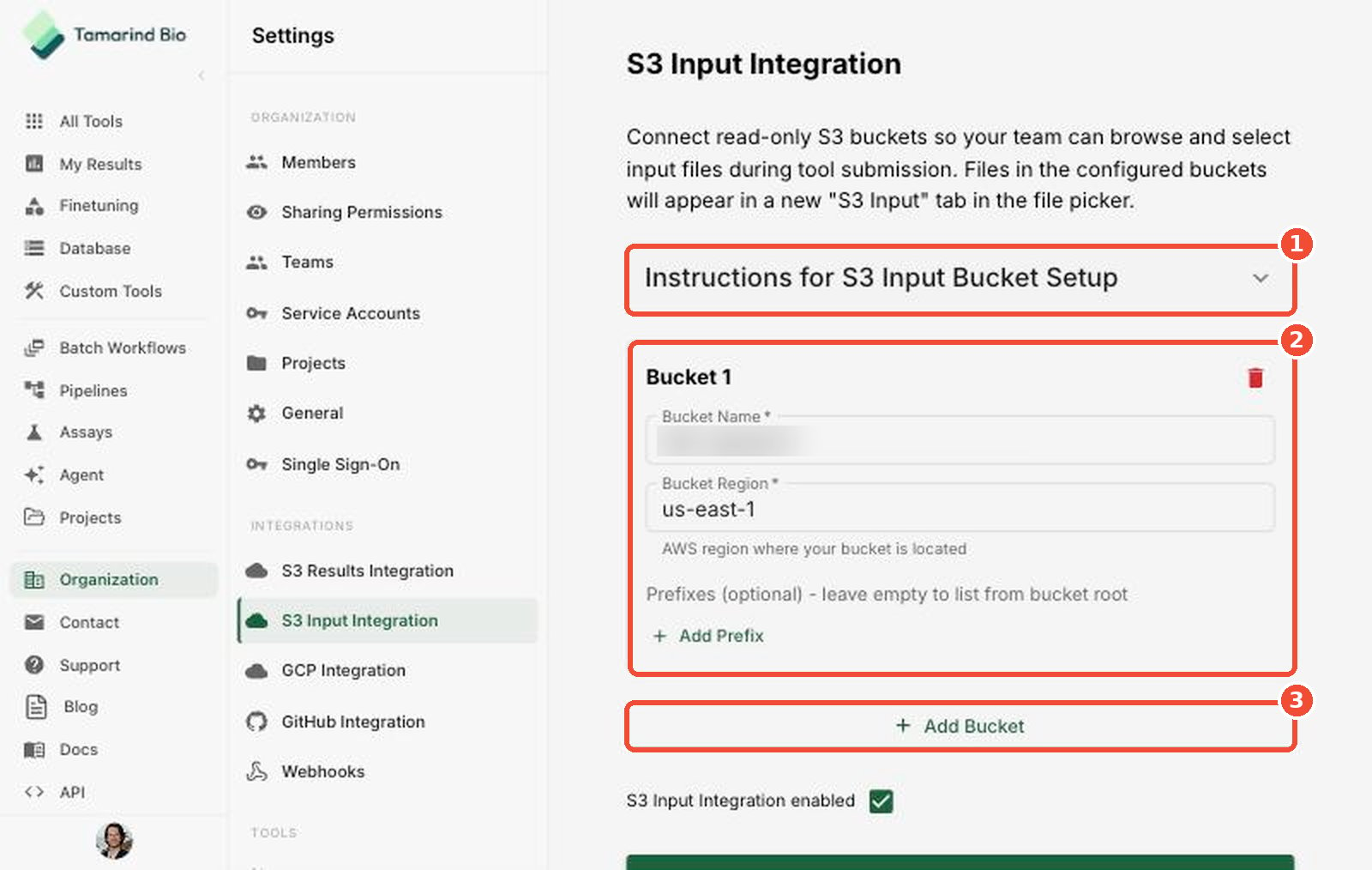
Connect read-only S3 buckets so your team can browse and select input files when submitting jobs. Files in these buckets appear in a new S3 Input tab in the file picker.- Instructions for S3 Input Bucket Setup — expand for setup steps.
- Bucket — enter the Bucket Name and Bucket Region (for example,
us-east-1). Optionally click Add Prefix to limit which folders are listed. Leave prefixes empty to list from the bucket root. - Add Bucket — connect another bucket.
GCP Integration
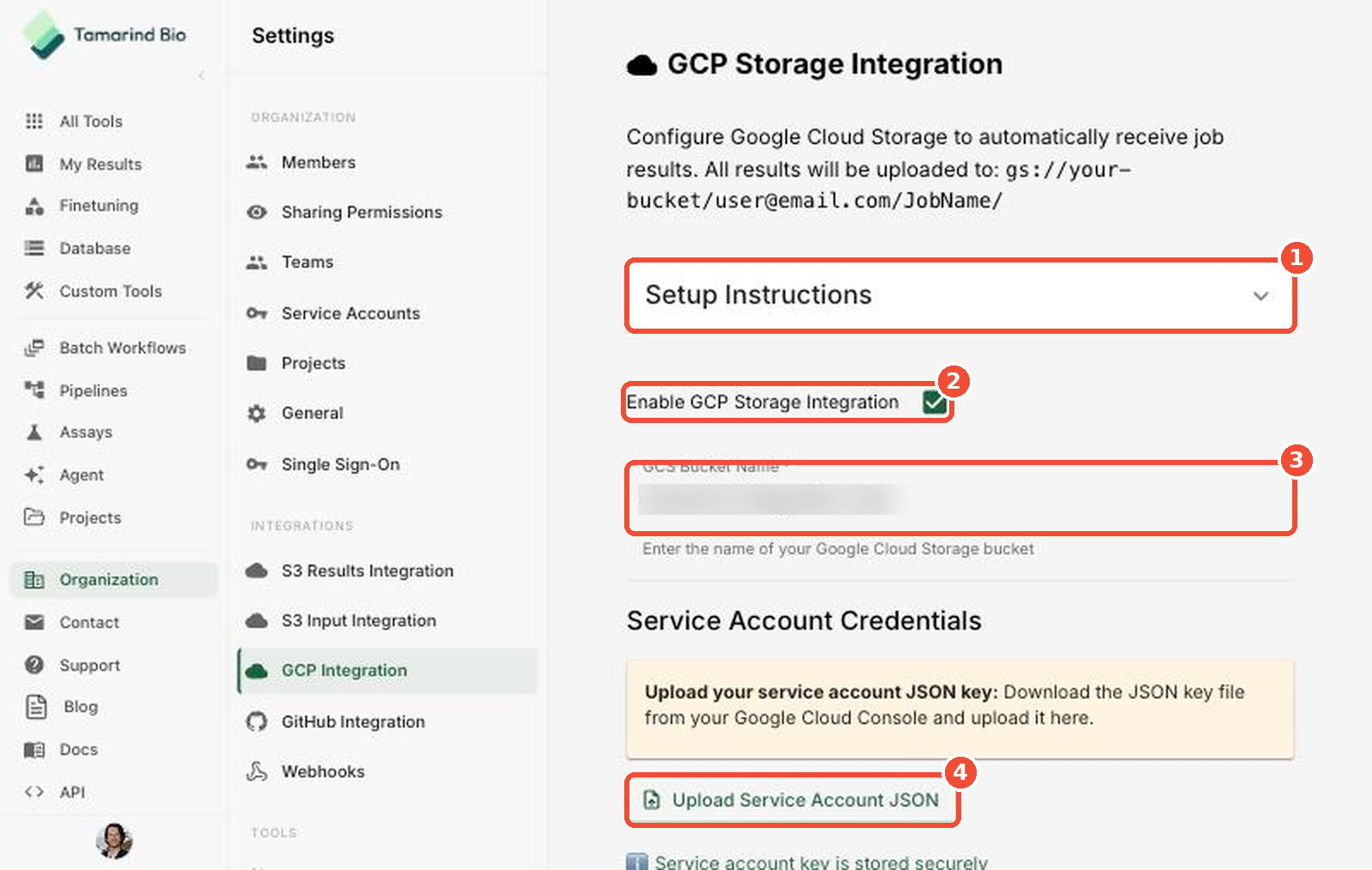
Automatically upload job results to Google Cloud Storage, atgs://your-bucket/user@email.com/JobName/.
- Setup Instructions — expand for setup steps.
- Enable GCP Storage Integration — turn uploads on or off.
- GCS Bucket Name — the name of your Google Cloud Storage bucket.
- Upload Service Account JSON — upload the service account JSON key file you downloaded from the Google Cloud Console. The key is stored securely.
GitHub Integration
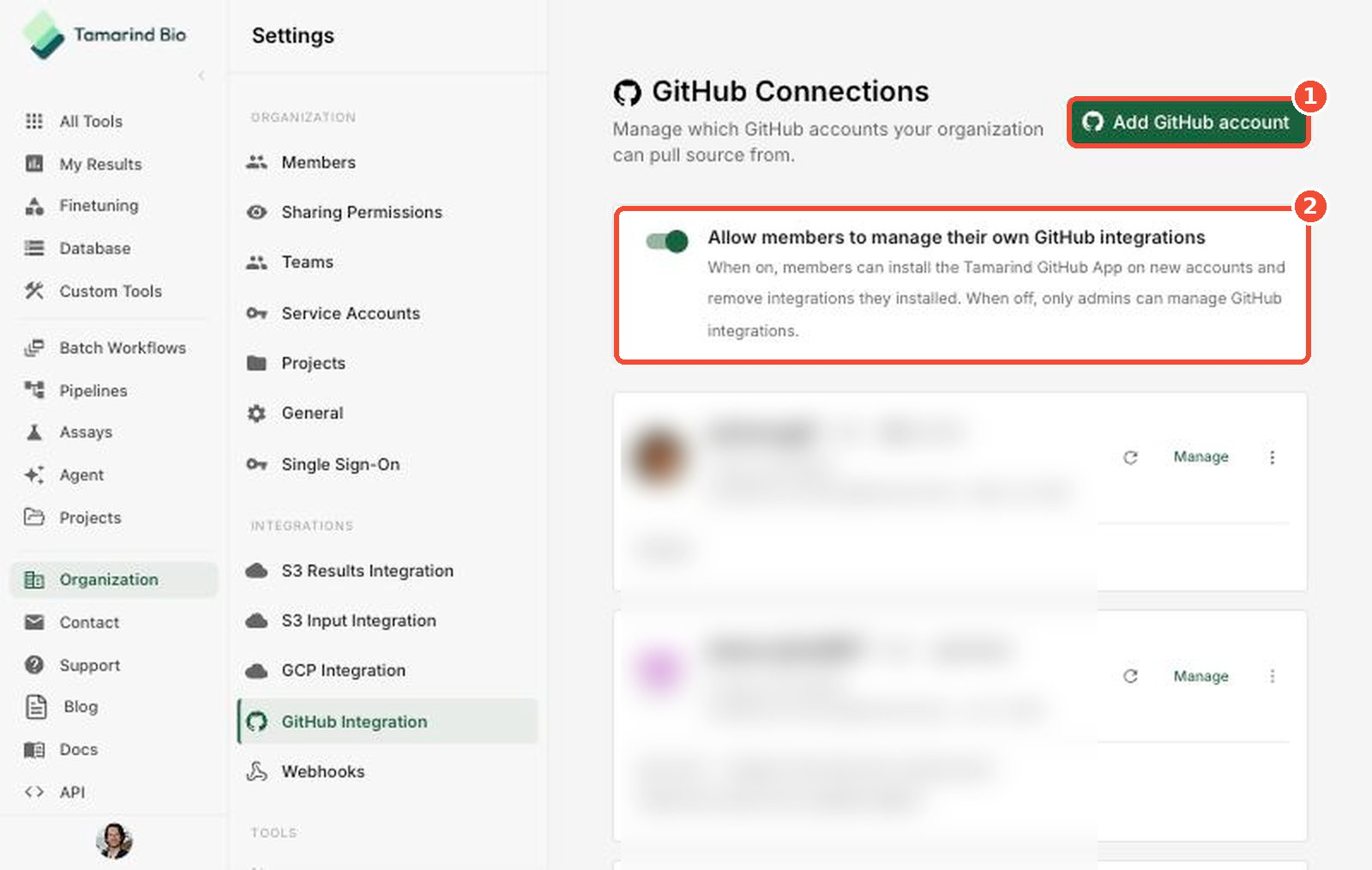
Choose which GitHub accounts your organization can pull source code from (for example, for custom tools).- Add GitHub account — install the Tamarind GitHub App on a GitHub user or organization account.
- Allow members to manage their own GitHub integrations — when on, members can install the GitHub App on new accounts and remove integrations they installed. When off, only admins can manage GitHub integrations.
Webhooks
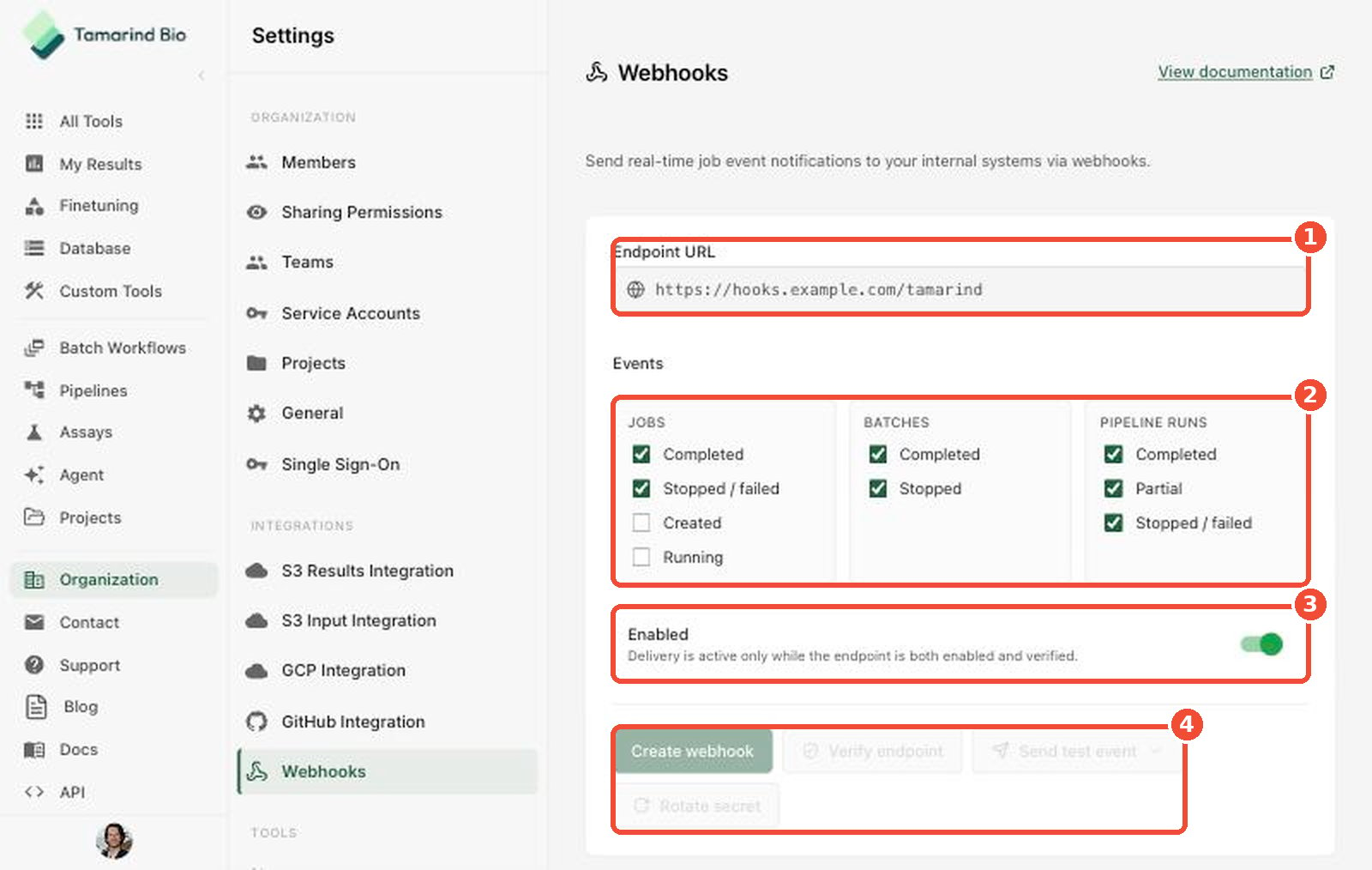
Send real-time job event notifications to your internal systems. Click View documentation for payload details.- Endpoint URL — the URL that receives events.
- Events — choose which events to send:
- Jobs: Completed, Stopped / failed, Created, Running
- Batches: Completed, Stopped
- Pipeline runs: Completed, Partial, Stopped / failed
- Enabled — turn delivery on or off. Events are delivered only while the endpoint is both enabled and verified.
- Actions — Create webhook, then Verify endpoint. Use Send test event to check your endpoint, and Rotate secret to replace the signing secret.
Tools
Access Management
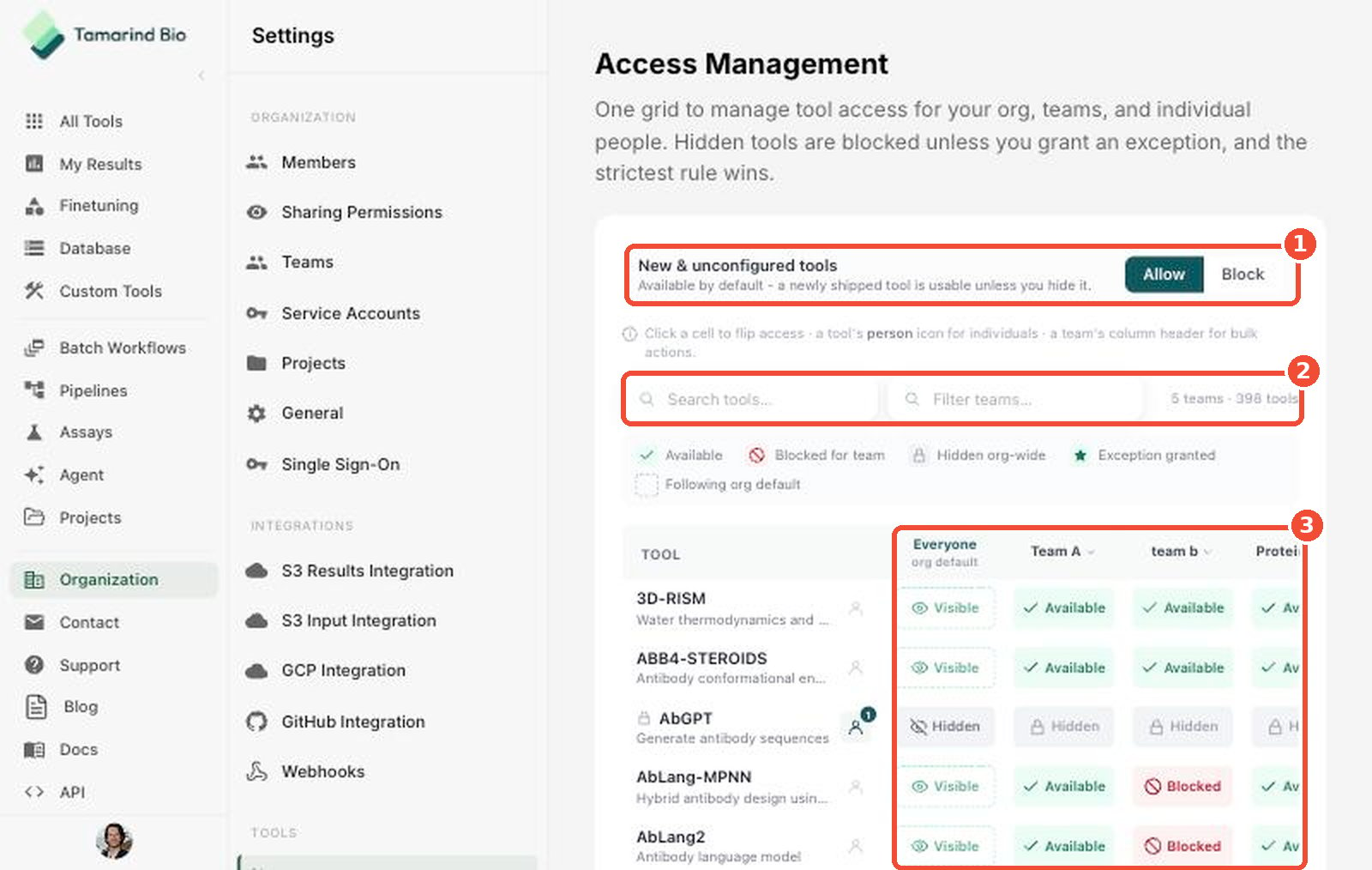
Manage which tools are available to your organization, teams, and individual people from a single grid. Hidden tools are blocked unless you grant an exception, and the strictest rule wins.- New & unconfigured tools — choose Allow to make newly released tools available by default, or Block to hide them by default.
- Search tools / Filter teams — find specific tools or teams.
- Access grid — click a cell to flip access. Click a tool’s person icon to set access for individuals, or a team’s column header for bulk actions.
Custom Tools
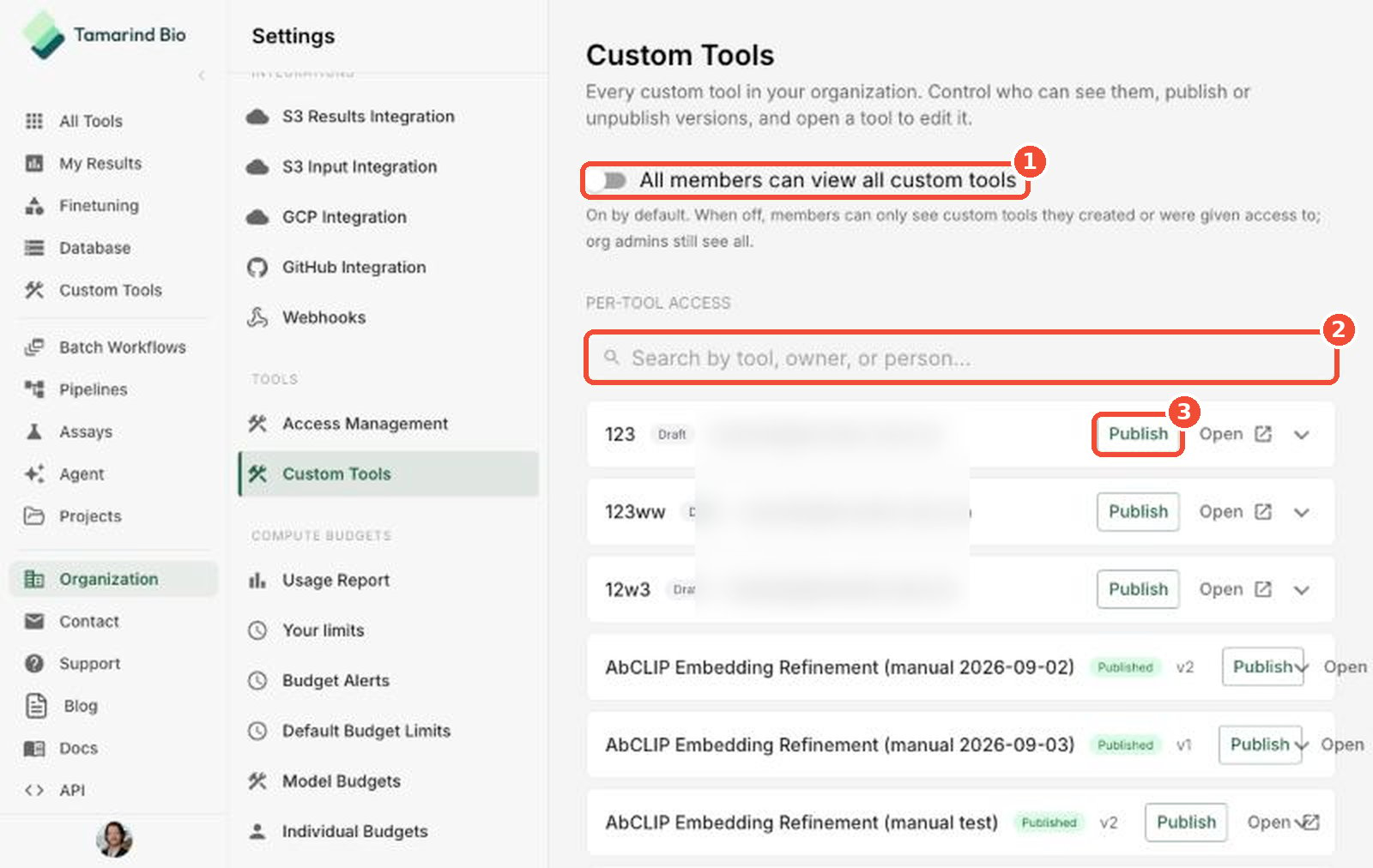
See every custom tool in your organization, control who can see them, and publish or unpublish versions.- All members can view all custom tools — on by default. When off, members only see custom tools they created or were given access to. Org admins can always see all tools.
- Search — find a tool by name, owner, or person.
- Publish — publish a draft or a new version. Click Open to edit a tool, or expand a row to manage per-tool access.
Compute Budgets
Compute usage and budgets are measured in weighted hours — compute hours weighted by the compute type used.Usage Report
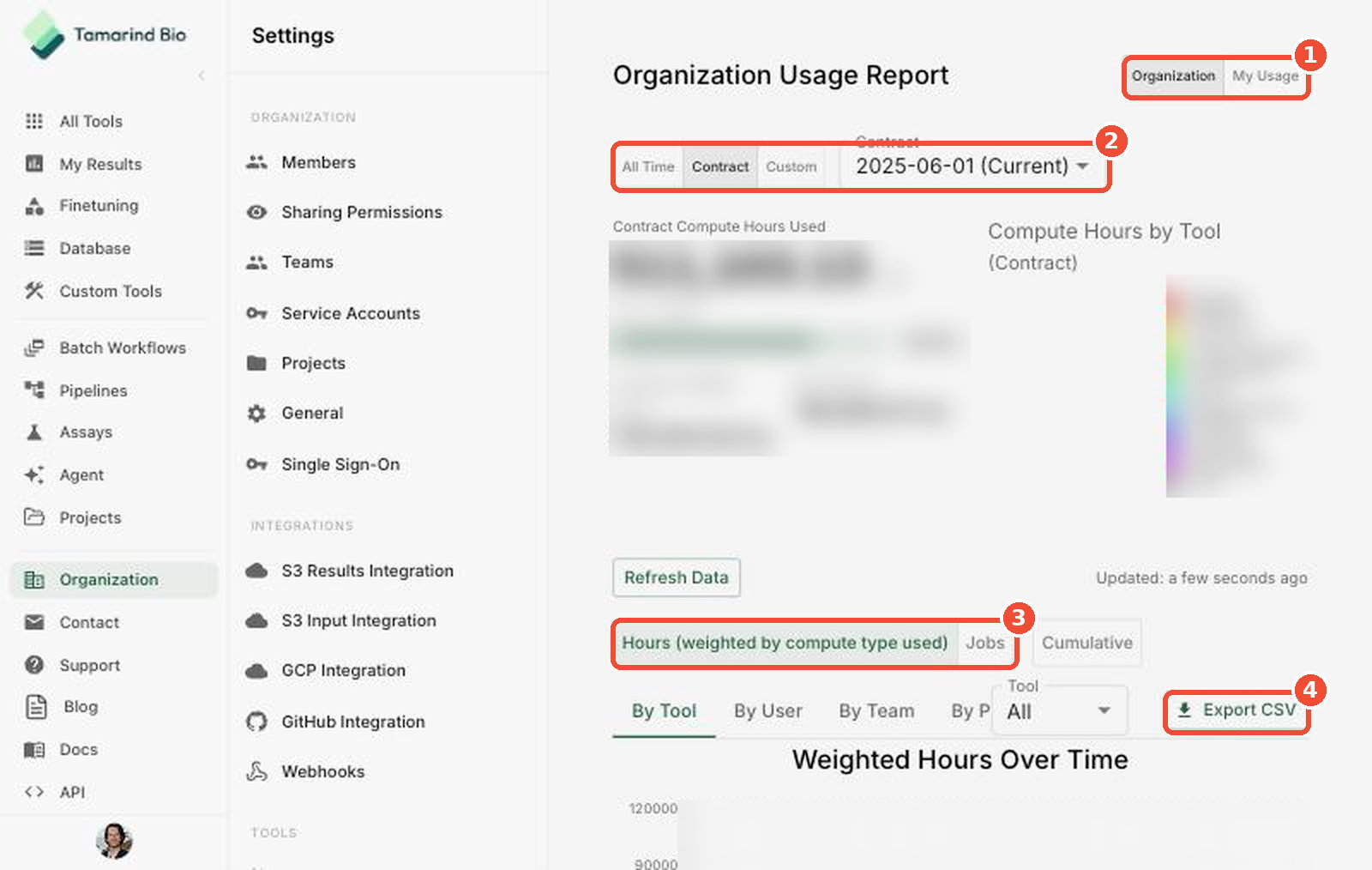
Track compute usage across your organization.- Organization / My Usage — switch between organization-wide usage and your own.
- Time range — choose All Time, Contract (pick a contract period), or Custom.
- Metric — view Hours (weighted by compute type used), Jobs, or Cumulative totals.
- Export CSV — download the data.
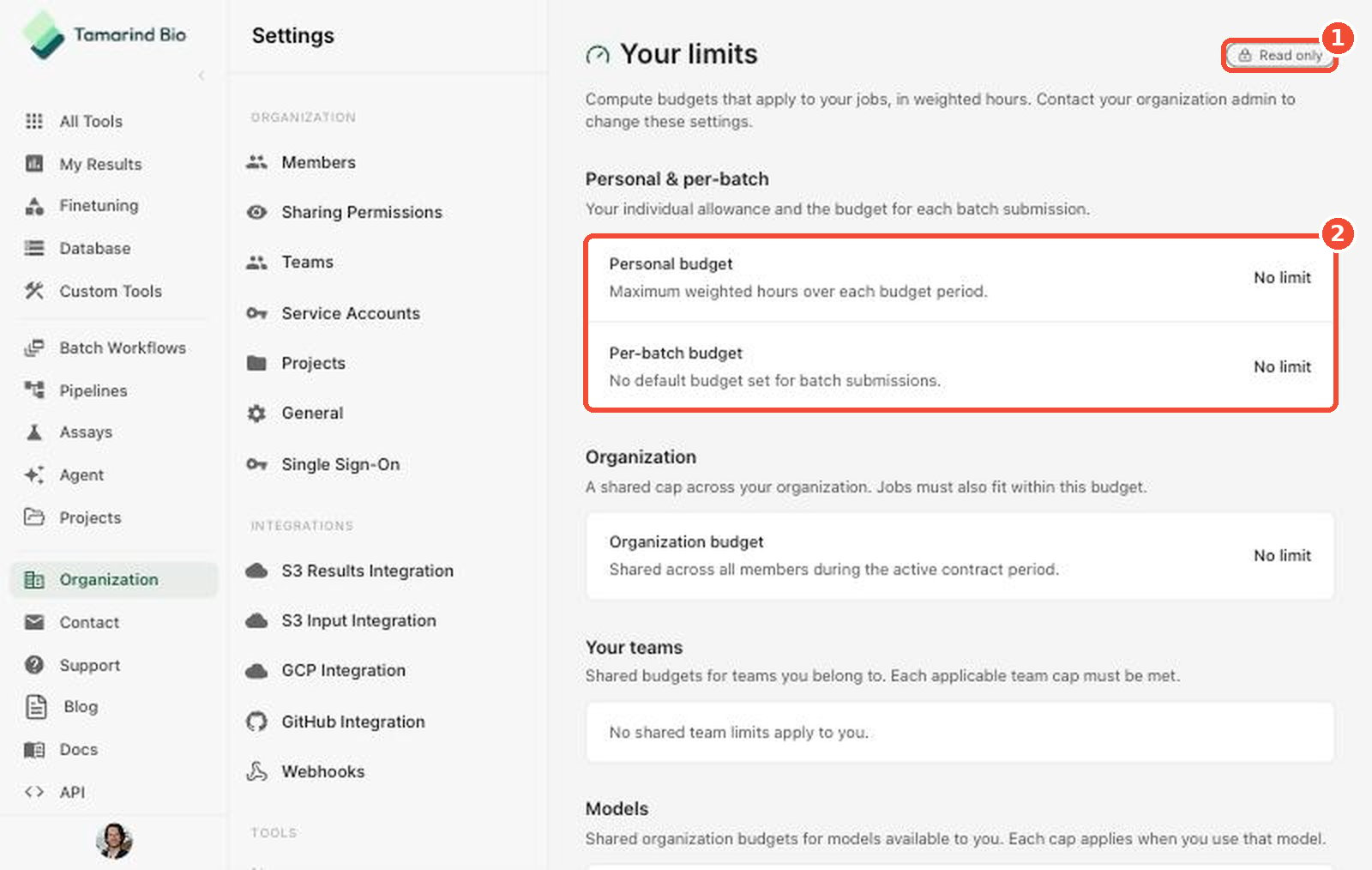
Your limits
A read-only summary of the compute budgets that apply to your own jobs.- Read only — contact your organization admin to change these limits.
- Personal & per-batch — your individual allowance per budget period and the budget for each batch submission.
Budget Alerts
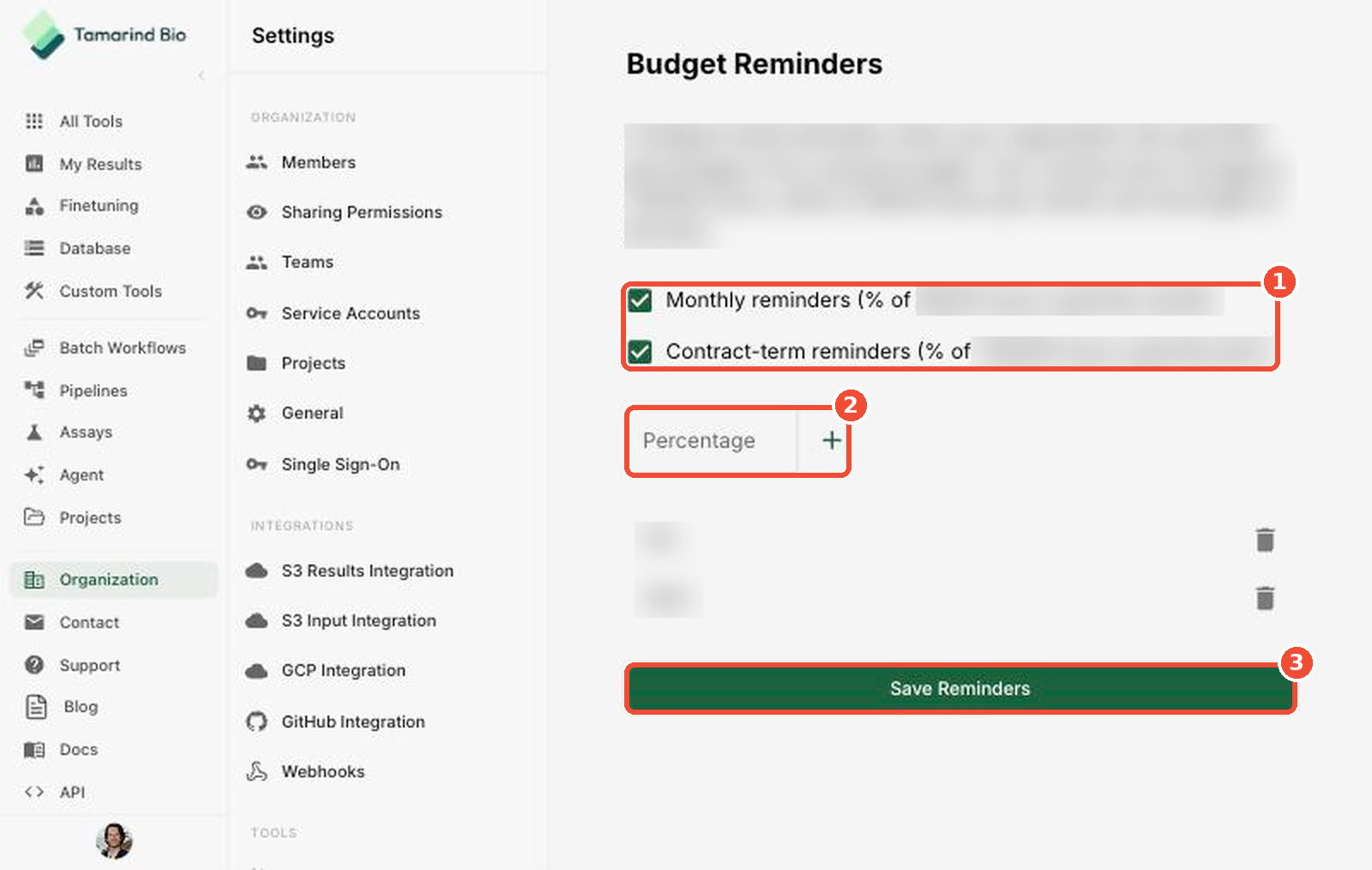
Get email reminders when your organization reaches a percentage of its compute budget.- Reminder type — choose Monthly reminders (percent of the monthly budget used) and/or Contract-term reminders (percent of the full contract budget used).
- Percentage — enter a percentage and click + to add a reminder threshold. Click the trash icon to remove one.
- Save Reminders — apply your changes.
Default Budget Limits
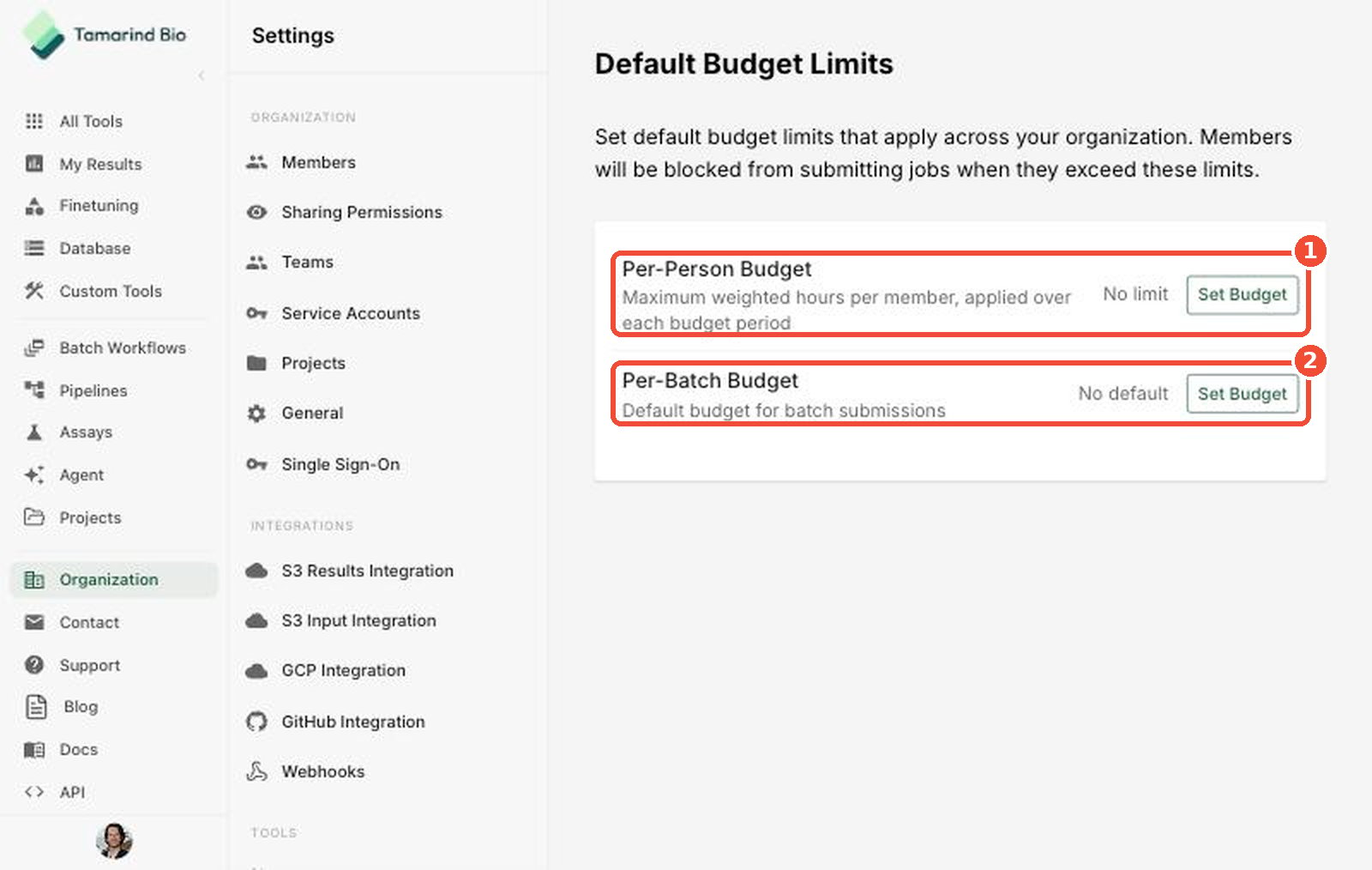
Set organization-wide default limits. Members are blocked from submitting jobs once they exceed these limits.- Per-Person Budget — the maximum weighted hours per member for each budget period. Click Set Budget to change it.
- Per-Batch Budget — the default budget for each batch submission.
Model Budgets
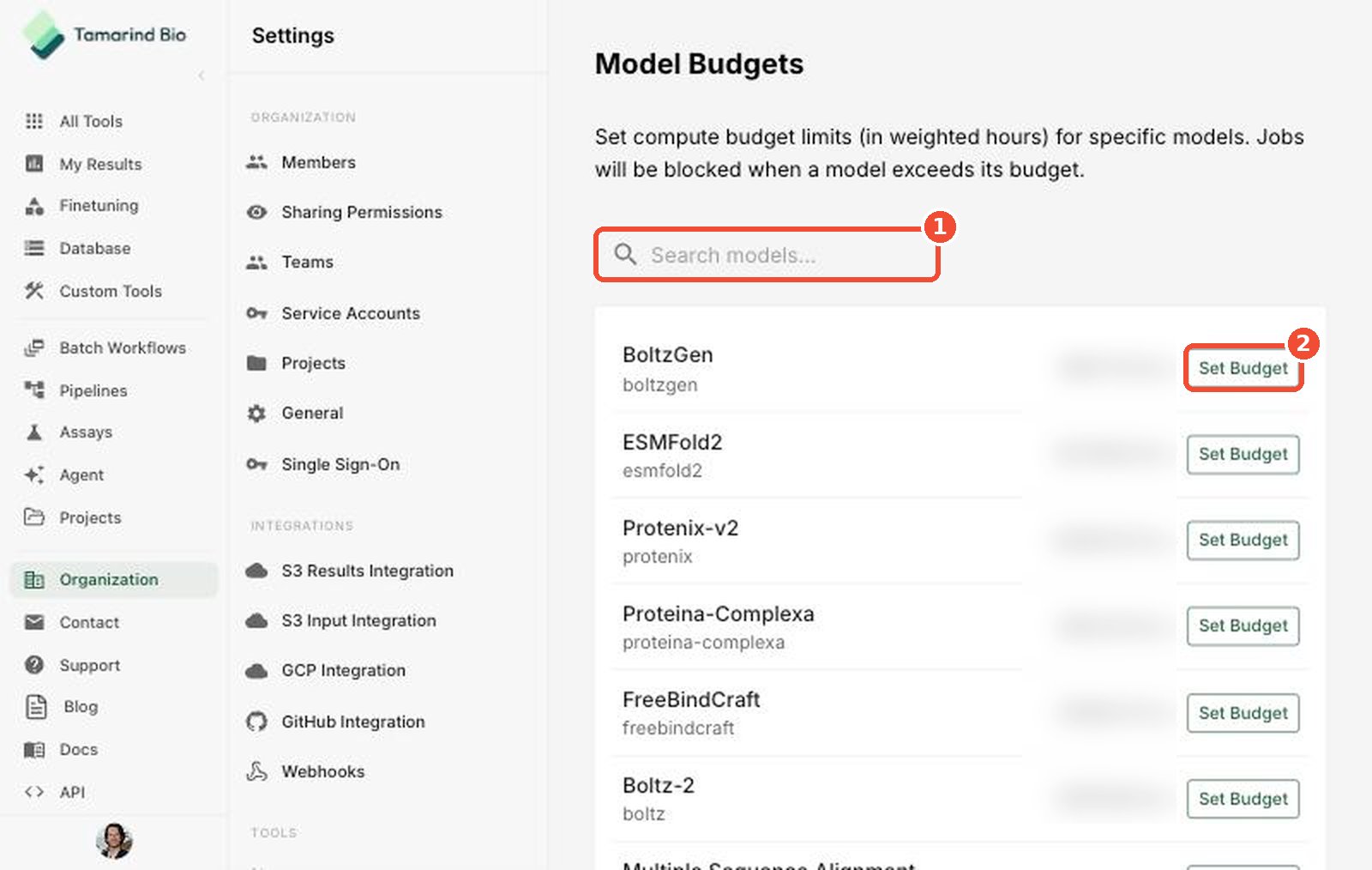
Cap compute usage for specific models. Jobs using a model are blocked once that model exceeds its budget.- Search models — find a model by name.
- Set Budget — set a weighted-hour limit for that model. Each row shows the model’s current usage.
Individual Budgets
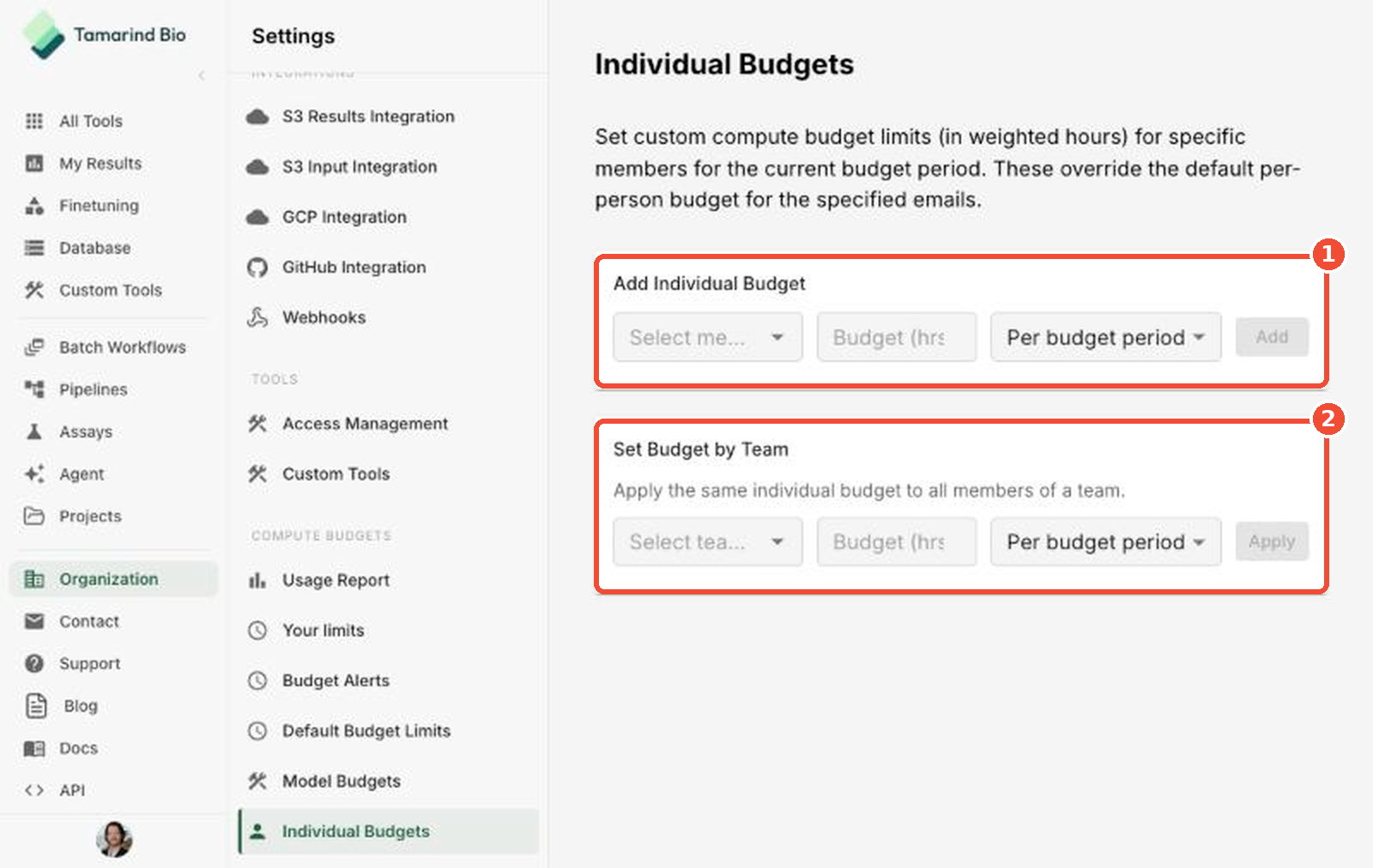
Override the default per-person budget for specific members for the current budget period.- Add Individual Budget — select a member, enter a budget in hours, choose the period, and click Add.
- Set Budget by Team — select a team and apply the same individual budget to all of its members.