

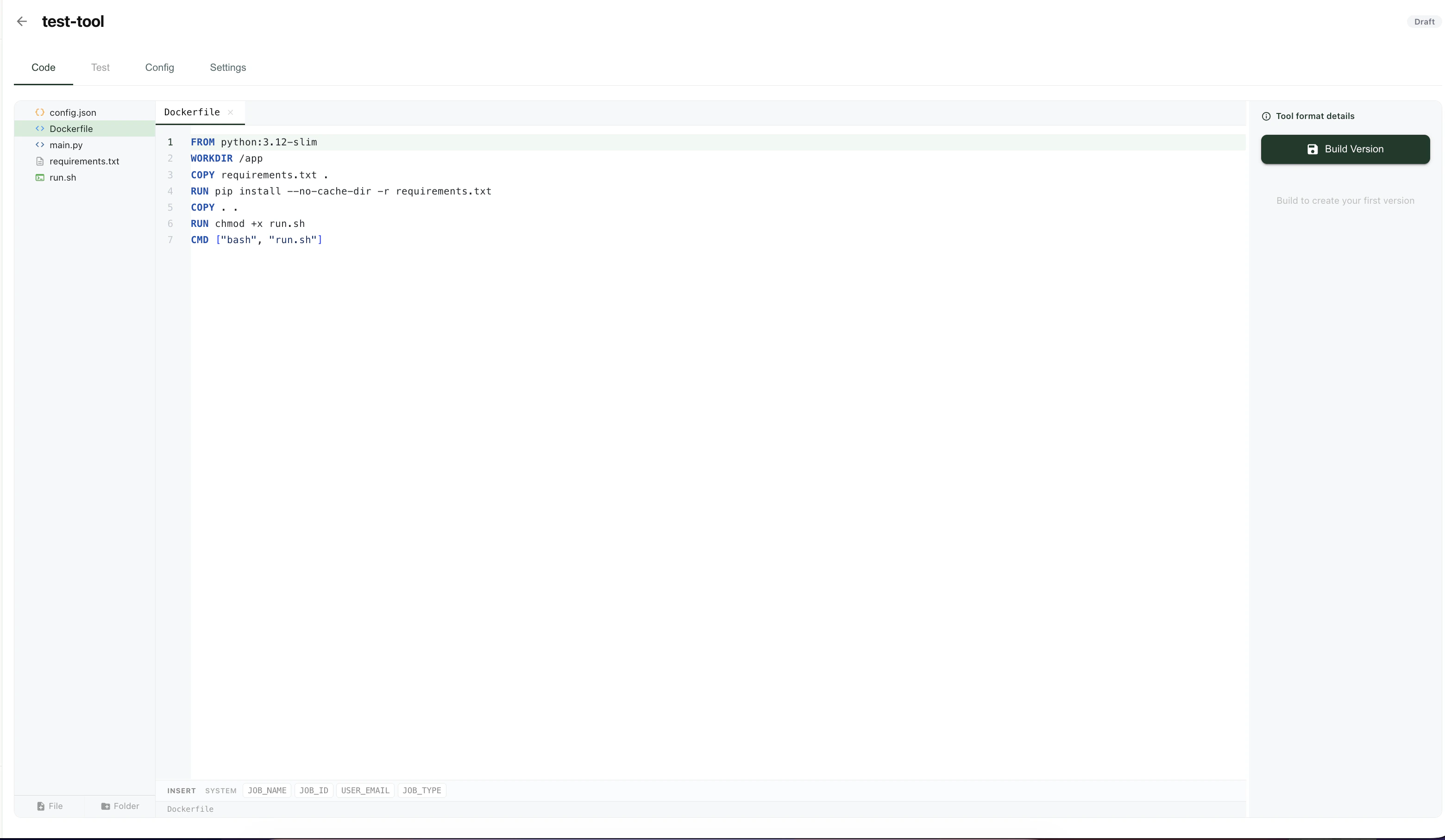
Overview
Each custom tool has four tabs:- Code — edit source files, view previously deployed versions, and inspect build logs.
- Test — run any version of the tool against test inputs from the browser.
- Config — manage the tool’s display metadata, compute settings, and input schema.
- Settings — configure the GitHub integration and admin options.
Versioning
Each tool is versioned with consecutive integers. Click any previously deployed version to load it in the code editor. Editing files and clicking Deploy builds a new version. Each version carries its own input schema, which you can edit from the Config tab. This means older versions remain runnable with the inputs they were deployed with, even if you change the schema later. If you save a new version without touching the Dockerfile or requirements files, the image is not rebuilt — only the source code is updated, so iteration is fast.Sharing and visibility
Use Manage Visibility in the top right of the tool page to share a tool with members of your organization.GitHub integration
You can connect a tool to a GitHub repository so that every push to a chosen branch creates a new tool version. Under the Settings tab you can:- Link or unlink a GitHub repository and branch.
- Toggle automatic publishing — on means new versions go live immediately; off means an admin manually publishes each version.
Build and runtime
Build. Images are built in AWS CodeBuild. You may base your image on any public Docker image. Your source code is not available during the build stage — it is mounted into the container at runtime — so your Dockerfile should install dependencies only and should notCOPY application code.
Runtime. Your tool runs inside a Linux Docker container. The runtime container has no internet access.
CUDA compatibility
Tamarind’s GPU hosts currently provide:
Your application should use CUDA 13.0 or earlier. GPU tools provide their CUDA runtime through their Docker image, so the runtime in your image can be older than 13.0 and does not need to match the host’s maximum exactly. It must also be compatible with your GPU framework and other dependencies.
Use
nvidia-smi to inspect the GPU and host driver available to your container. For a PyTorch image, you can also inspect the CUDA version used to build PyTorch and confirm that PyTorch can access the GPU:
Available GPUs
SetgpuType in your config.json to one of the following. Use "None" for CPU-only tools.
Tool ID
Every tool has a tool ID, a fixed unique identifier used throughout the platform — including when invoking the tool through the API, batch, pipelines, or MCP. The tool ID is chosen when you create the tool from the UI and is immutable after creation.Configuration (config.json)
A tool’s non-code settings live in a config.json file at the root of your repository. The same fields are editable in the Config tab of the UI. The schema is published at app.tamarind.bio/tamarind-tool.schema.json.
Top-level fields
Inputs
Each entry ininputs describes one user-facing field. Every input supports these common fields:
The
type field determines which additional fields are allowed:
file — arbitrary file upload
file — arbitrary file upload
Accepts a file upload. You must specify the allowed extensions.
pdb — protein structure
pdb — protein structure
A
.pdb file upload. Tamarind renders a structure preview in the UI automatically.sdf — small molecule
sdf — small molecule
An
.sdf file upload for small-molecule inputs.sequence — protein sequence
sequence — protein sequence
A protein sequence string. Rendered as a sequence input in the UI.
smiles — SMILES string
smiles — SMILES string
A SMILES string for a small molecule.
text — free text
text — free text
A single-line text input.
number — numeric input
number — numeric input
A numeric field with optional bounds.
boolean — checkbox
boolean — checkbox
A true/false toggle.
dropdown — select from options
dropdown — select from options
A dropdown with a fixed list of string options.
Multiple sequence alignments
Many structure and cofolding models need a multiple sequence alignment. Your container has no internet access at runtime, so it cannot query an MSA server itself. Instead, mark your sequence input withusesMsa and Tamarind runs its own MSA server before your tool starts, then delivers
the results into the container as files.
SEQ1:SEQ2 produces
1.a3m and 2.a3m, while a single-chain input produces just 1.a3m. Each file is an unpaired
alignment for that chain in a3m format. If your model pairs chains across species, it does that
itself from these files.
Read the files defensively. If an alignment is unavailable for a chain, that file is absent rather
than empty, and the job still runs; treat a missing msas/<n>.a3m as “this chain has no alignment”
and fall back to the bare sequence.
usesMsa is only supported on an input of type sequence, because that is the field the MSA
stage sends to the aligner, and at most one input per tool may set it. Running the alignment adds
MSA time to the job’s cost.Structure templates
If your model uses structural templates, Tamarind can run a PDB100 template search alongside the alignment and hand your container the results. This is the same template search our cofolding tools use, so your model sees the same reference set. AddusesTemplates to the input that already has usesMsa:
.m8 is an MMseqs2 BLAST-tab hits file whose target column is <pdbid>_<chain>. The
structures are deduplicated across chains, so a template matching three chains appears once in
structures/ while showing up in three .m8 files. That means the two directories have different
file counts, by design: read the .m8 for which templates apply to which chain, and structures/
for the coordinates.
Read both defensively, the same way as the alignments. If the search returns no hits, or the job
predates this feature, the files are absent rather than empty and the job still runs. Treat a
missing templates/ as “no templates for this job” and fall back to your template-free path.
usesTemplates requires usesMsa on the same input. The template search is an extra step on the
same search the alignment runs, not a separate stage, so it cannot run on its own. Because it
rides that search, it adds very little to the job’s cost beyond the alignment you are already
paying for.Example config.json
Security
- Images are built in isolated AWS CodeBuild jobs. Source code is only mounted at runtime, never baked into the image.
- The runtime container has no internet access, so tools cannot exfiltrate inputs or reach external services.
- Tools are private to your organization by default. Use Manage Visibility to control who can see and run them.
Running a custom tool via the API
Custom tools are submitted through the same/submit-job endpoint as built-in tools. Pass your tool ID as type, and put your configured input values under settings:
settings must match the name fields defined in your tool’s inputs schema. See the API reference for polling job status and retrieving results.