

- Submit jobs for any Tamarind tool, including structure prediction, protein design, and docking
- Check job status and get results
- Upload and manage input files
1. Open the MCP Server page
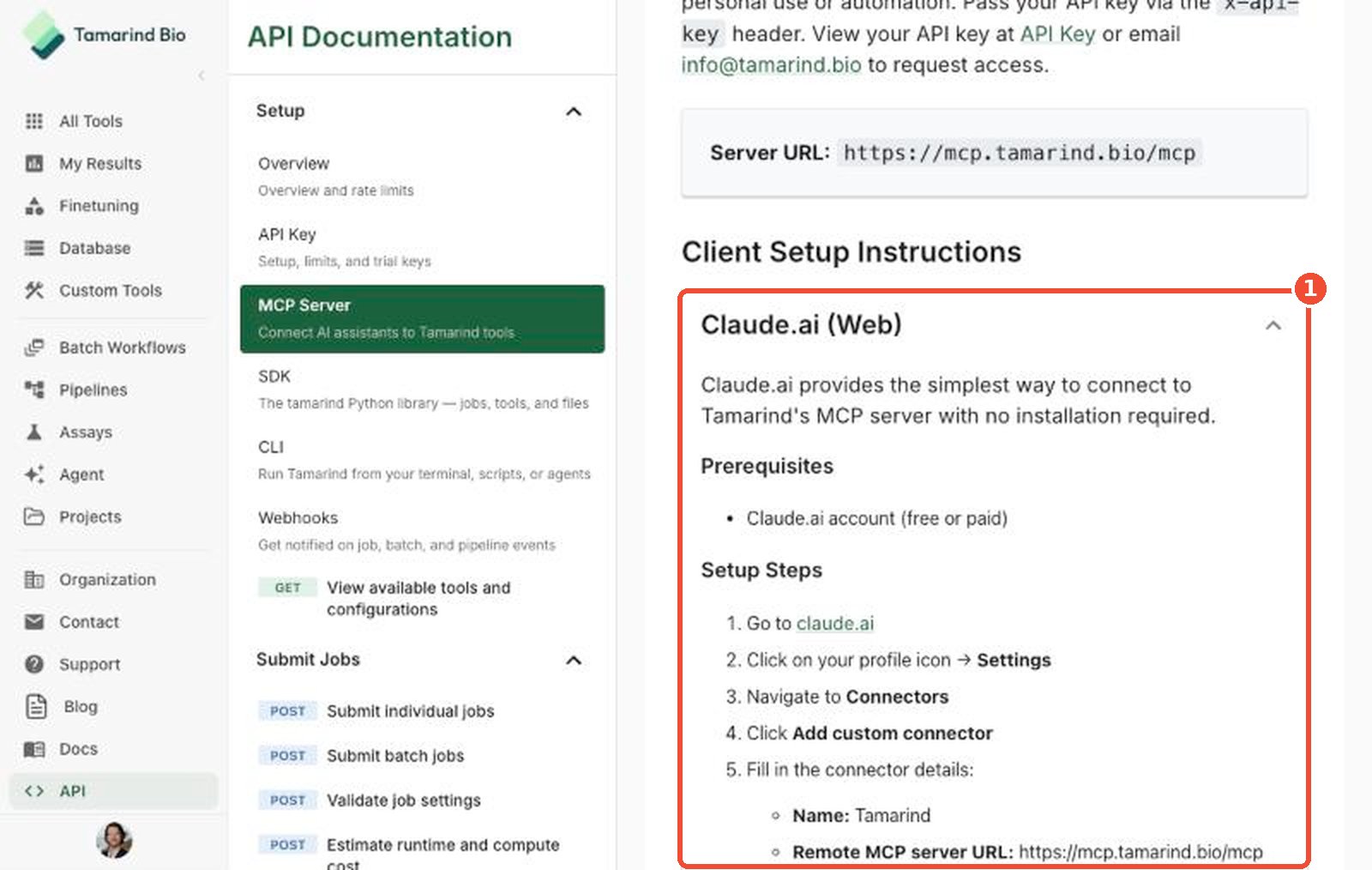
Sign in to app.tamarind.bio, click API in the left sidebar, then click MCP Server (1) under Setup. The page summarizes what the MCP server can do (2) and has everything you need to connect.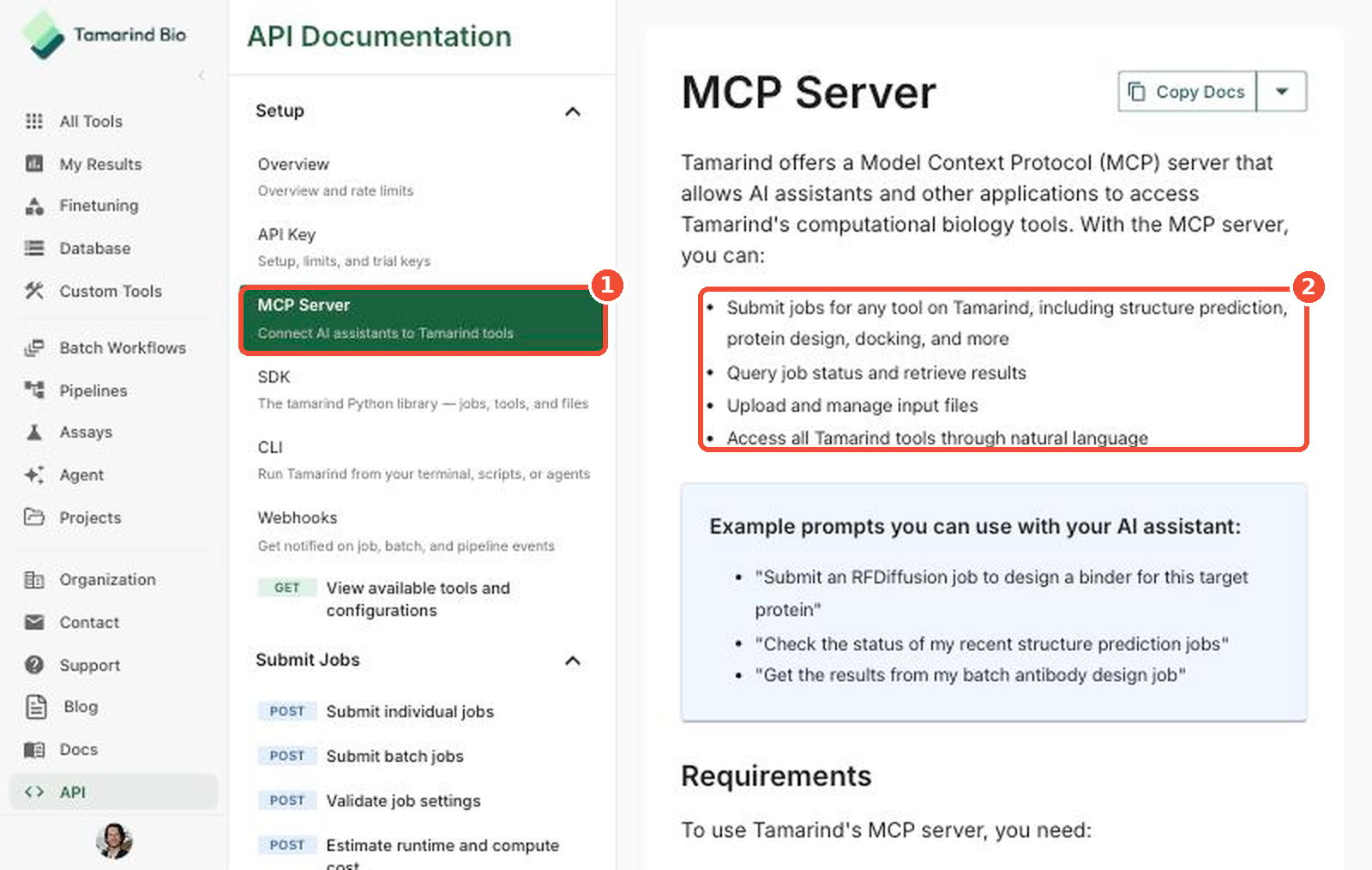
2. Check the requirements
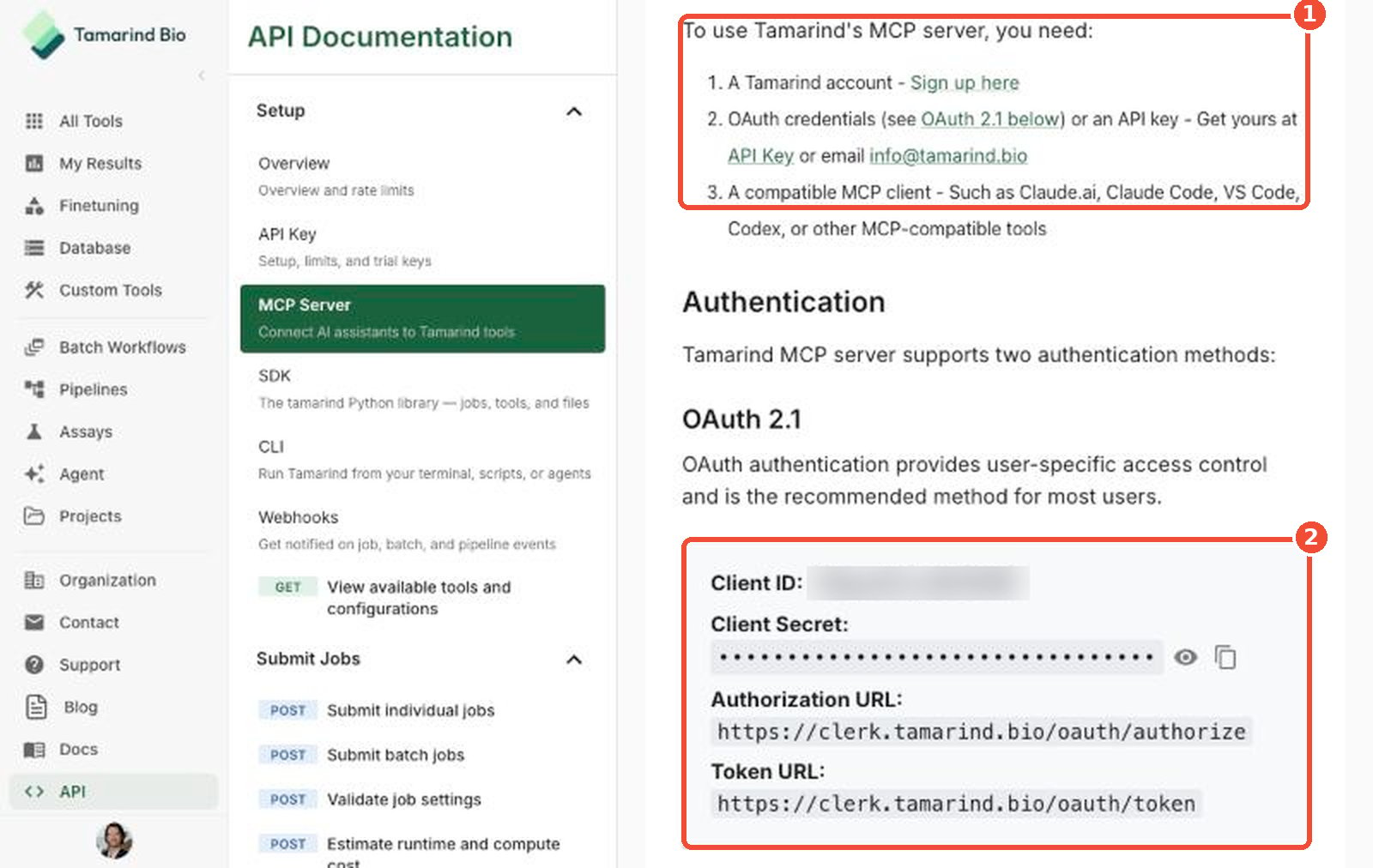
You need (1):- A Tamarind account — sign up if you don’t have one.
- OAuth credentials or an API key.
- An MCP-compatible client, such as Claude.ai, Claude Code, Claude Desktop, VS Code, ChatGPT, or Codex.
3. Choose how to authenticate
OAuth 2.1 (recommended)
OAuth gives each person their own access and is the best choice for most users. The OAuth 2.1 box (2) shows:- Client ID
- Client Secret — hidden by default. Click the eye icon to show it, or the copy icon to copy it.
- Authorization URL —
https://clerk.tamarind.bio/oauth/authorize - Token URL —
https://clerk.tamarind.bio/oauth/token
API key
An API key is simpler and works well for personal use or automation. Your client sends it in thex-api-key header. Get your key from the API Key page.
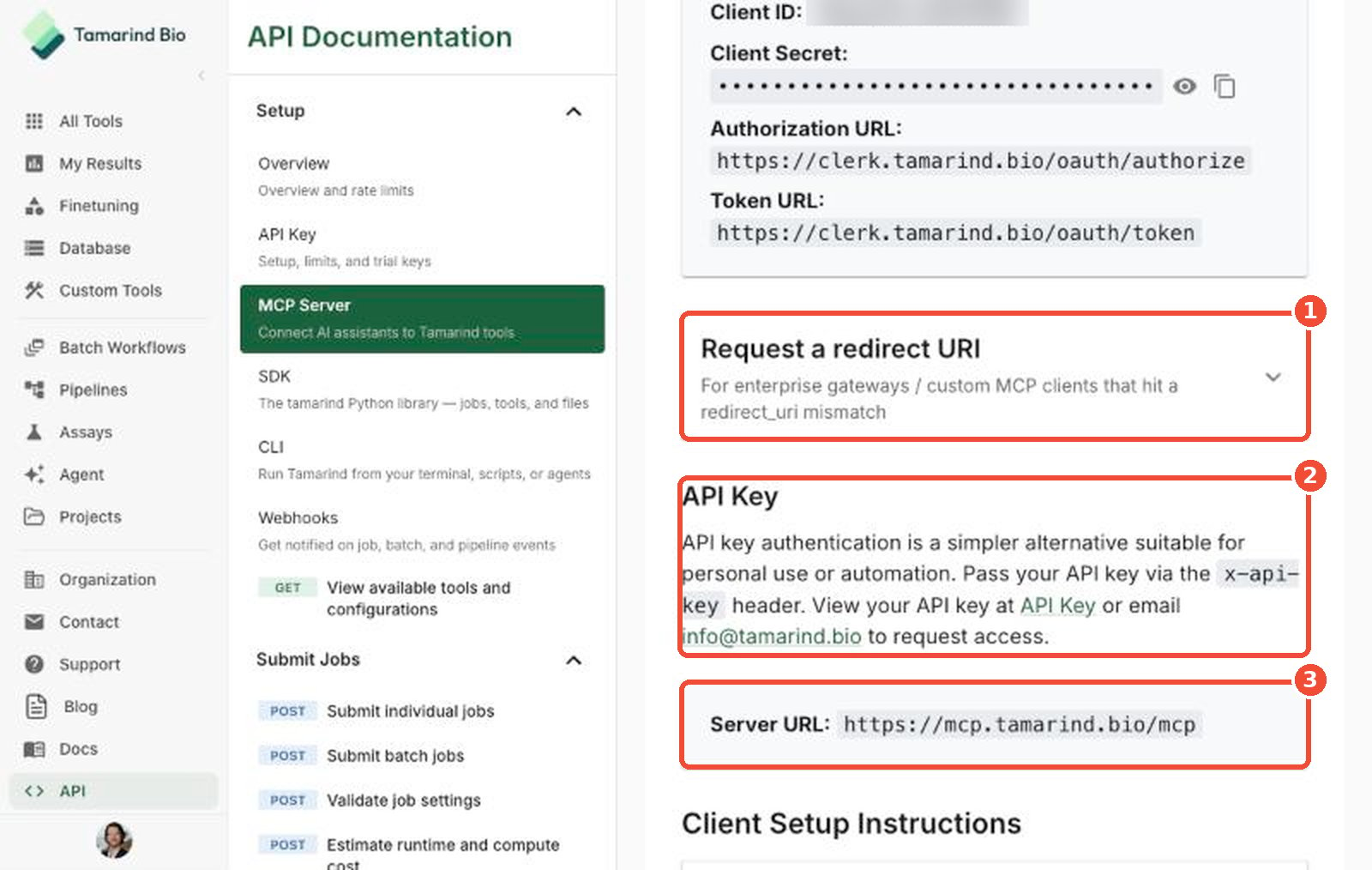
- Request a redirect URI — only needed for enterprise gateways or custom MCP clients that get a
redirect_urimismatch error. - API Key — how API key authentication works.
- Server URL —
https://mcp.tamarind.bio/mcp, used by every client.
4. Connect your client
The Client Setup Instructions section (2) on the MCP Server page has step-by-step instructions for each client. Click a client to expand it.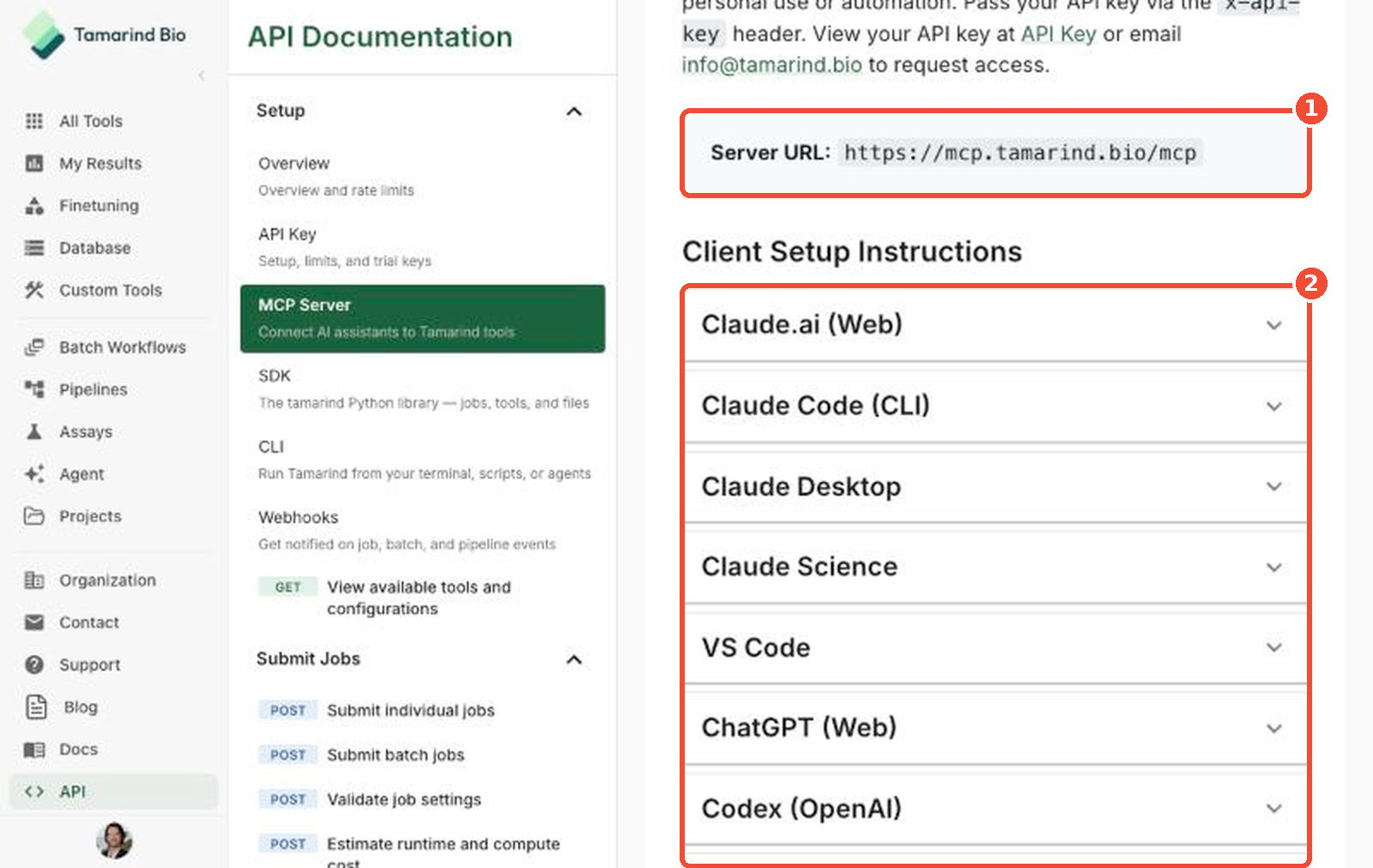
The client screenshots below are illustrations that show where Tamarind’s values go. Menus and labels change as these apps update, so follow your client’s current interface.
Claude.ai (web)
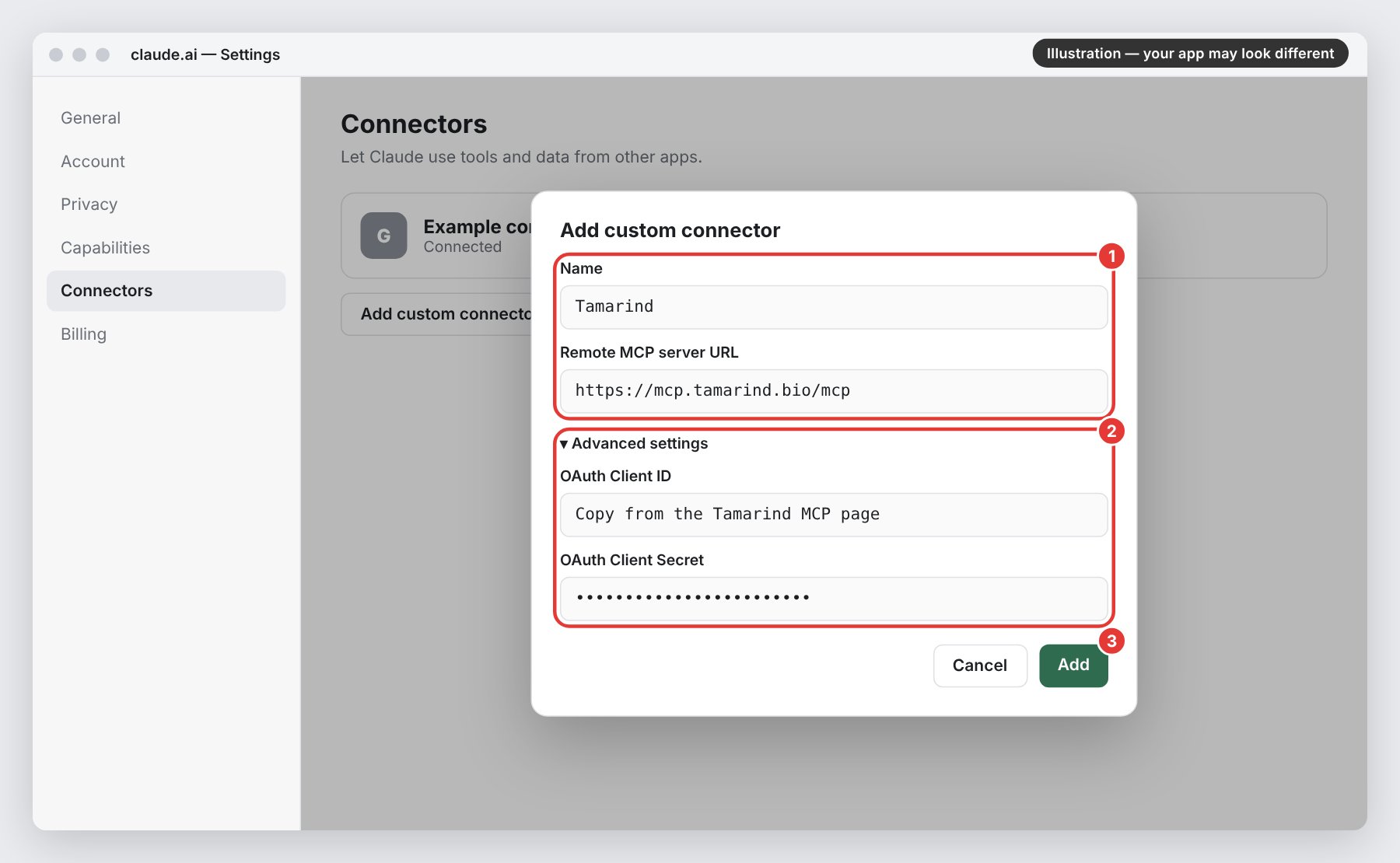
No installation required. Works with free and paid Claude accounts.- Go to claude.ai, click your profile icon, and open Settings.
- Go to Connectors and click Add custom connector.
- Enter the connector details (1):
- Name:
Tamarind - Remote MCP server URL:
https://mcp.tamarind.bio/mcp
- Name:
- Expand Advanced settings and enter your OAuth Client ID and OAuth Client Secret (2). Both are required.
- Click Add (3), then sign in with your Tamarind account to authorize the connection.
Uploading files from Claude? Files over 4 MB are uploaded to
mcp.tamarind.bio with a command that runs in Claude’s sandbox. To allow it, open Settings → Capabilities, turn on Allow network egress, and add mcp.tamarind.bio under Additional allowed domains. Connecting the server doesn’t need this. Only large uploads do.Claude Desktop
Option A: Connectors (recommended). Use the same steps as Claude.ai: open Settings → Connectors, click Add → Add custom connector, enter the name, server URL, and OAuth credentials, then click Add and sign in. Tamarind then appears in your connectors list.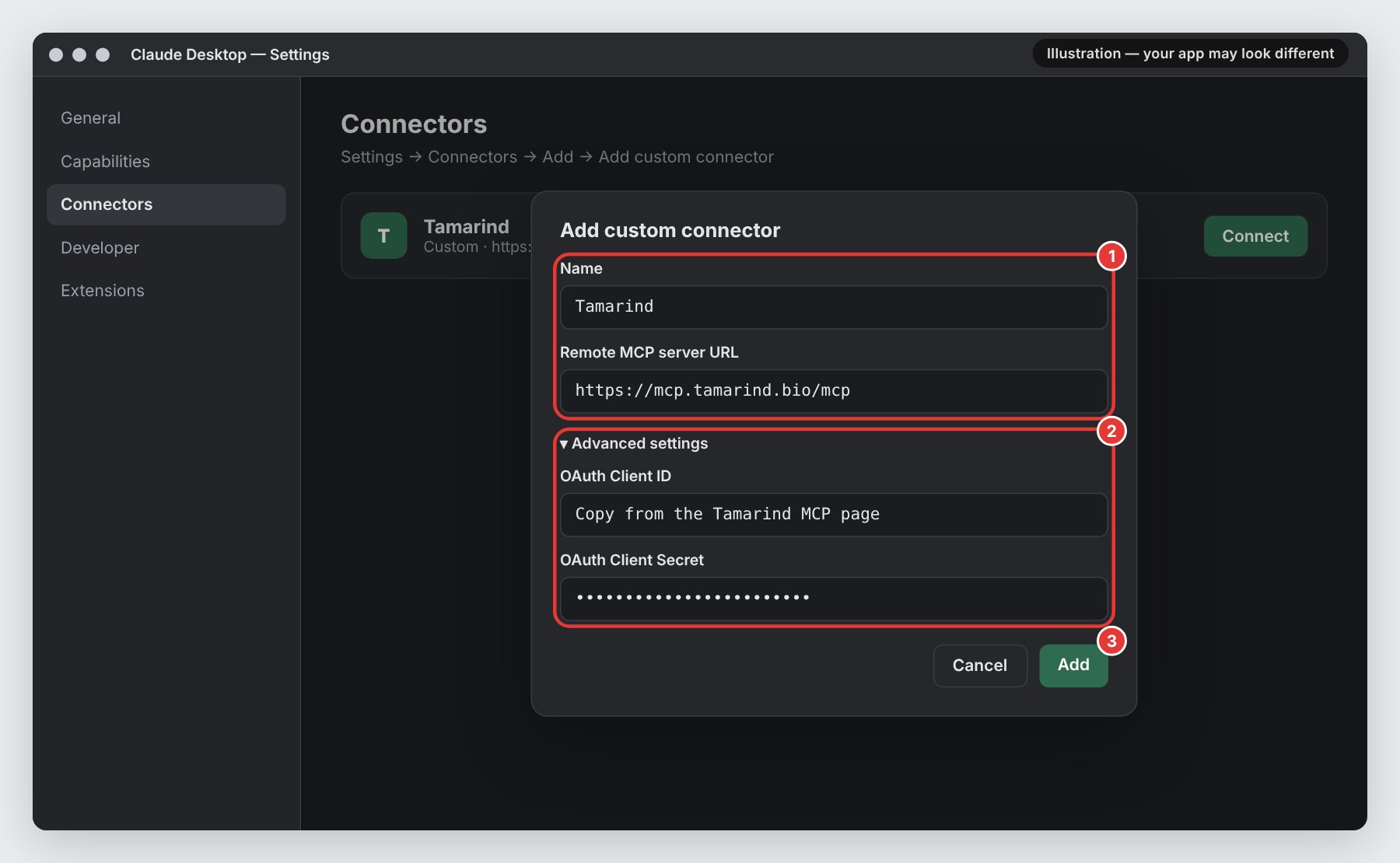
- macOS:
~/Library/Application Support/Claude/claude_desktop_config.json - Windows:
%APPDATA%\Claude\claude_desktop_config.json
YOUR_API_KEY with your key, then fully quit and restart Claude Desktop:
Claude Code
Add the server from your terminal, then restart Claude Code:VS Code
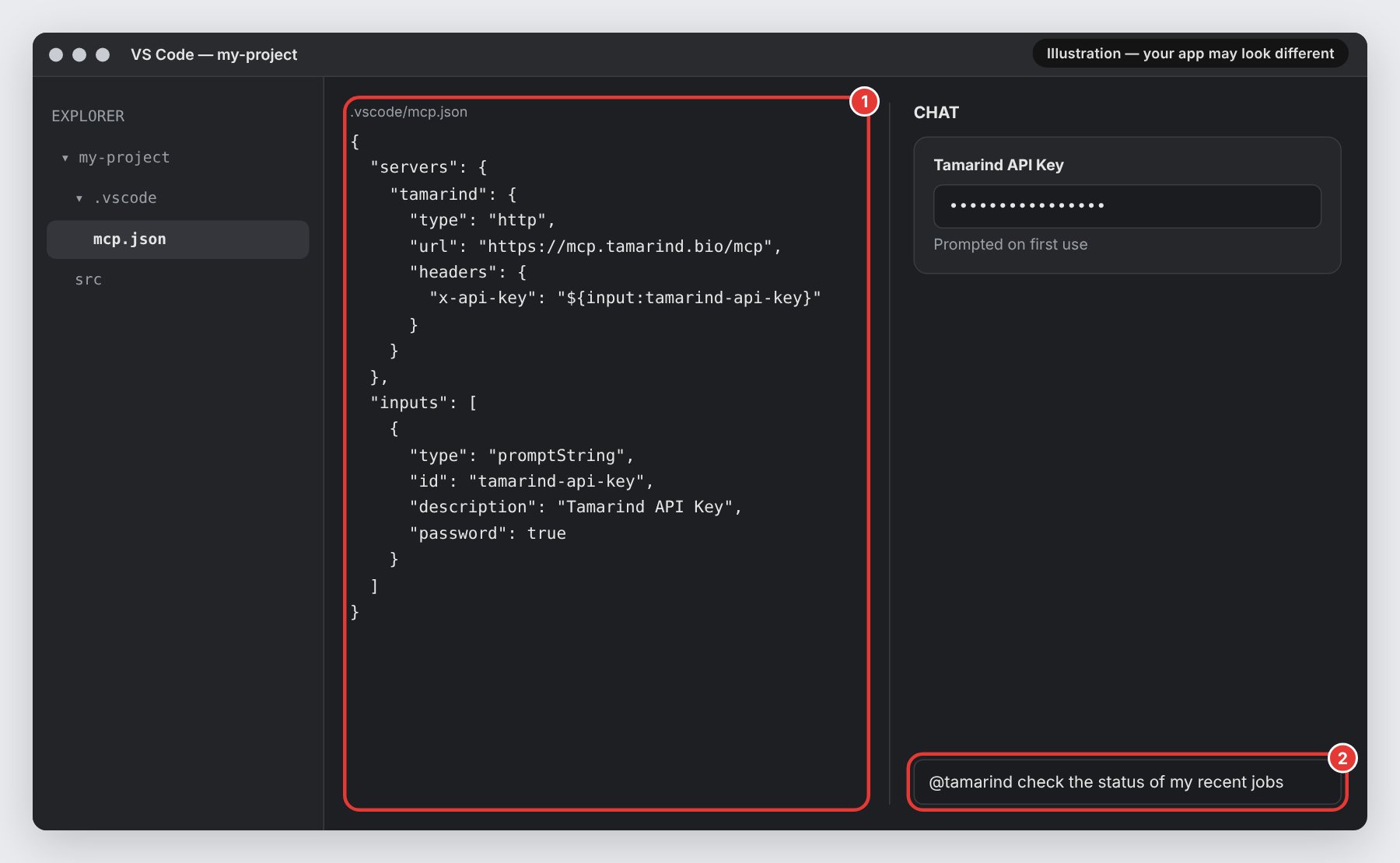
VS Code connects to MCP servers through GitHub Copilot Chat.-
Add the following to
.vscode/mcp.jsonin your workspace (1), or open the Command Palette (Cmd/Ctrl+Shift+P) and run MCP: Add Server. - VS Code asks for your API key the first time you use the server.
-
In Copilot Chat, type
@tamarindto use Tamarind tools (2).
ChatGPT (web)
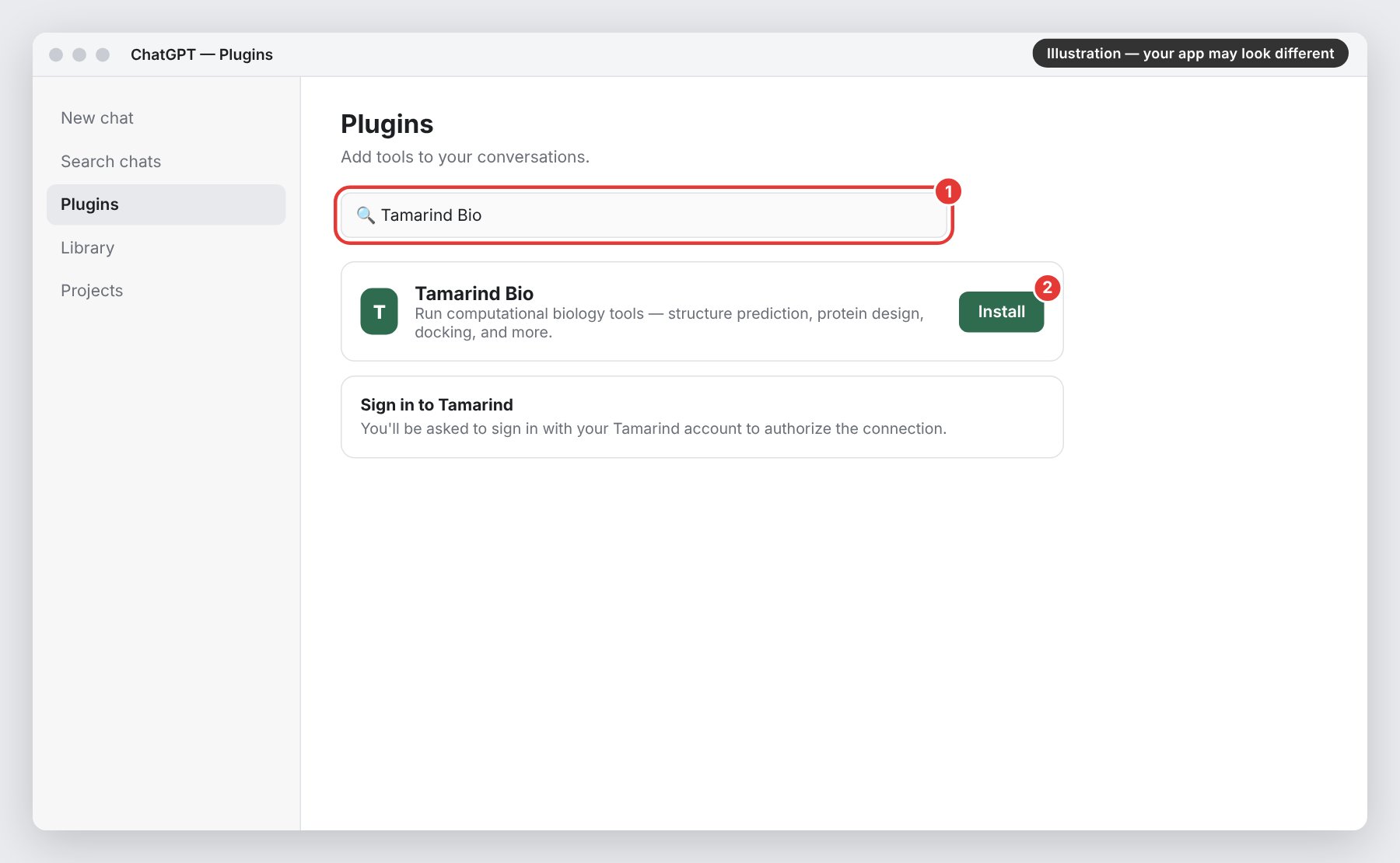
Tamarind Bio is published in ChatGPT’s plugin directory, so there’s nothing to configure.- Go to chatgpt.com and open Plugins.
- Search for Tamarind Bio (1) and click Install (2).
- Sign in with your Tamarind account when prompted.
Codex (OpenAI)
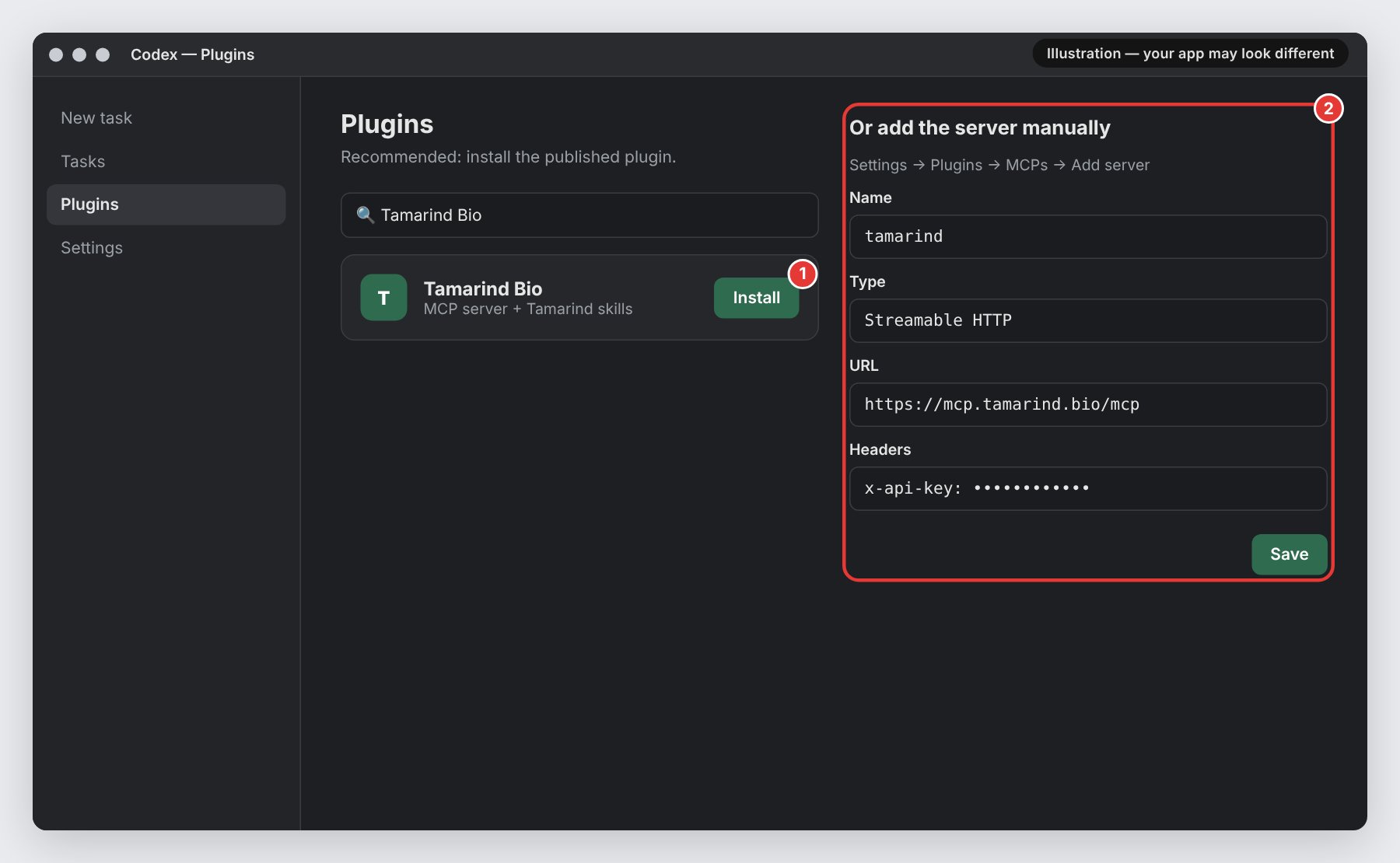
Desktop app (recommended). Open Plugins in the Codex sidebar, search for Tamarind Bio, click Install (1), and complete the sign-in. The plugin includes the MCP server and Tamarind skills. Add the server manually (2). Use this only if you added theTamarind-Bio/tamarind-agent-plugin repository as a plugin marketplace:
- Open Settings → Plugins → MCPs → Add server.
- Set Name to
tamarind, Type to Streamable HTTP, and URL tohttps://mcp.tamarind.bio/mcp. - Under Headers, add
x-api-keywith your API key. - Save, then start a new task so Codex finds the tools.
~/.zshrc or ~/.bashrc):
~/.codex/config.toml:
Other MCP clients
Any MCP-compatible client can connect tohttps://mcp.tamarind.bio/mcp. Most clients need three things:
- Transport: remote / HTTP (sometimes called Streamable HTTP). Not STDIO.
- URL:
https://mcp.tamarind.bio/mcp - Authentication: either an
x-api-keyheader with your API key, or OAuth with the credentials from the MCP Server page.
Cursor
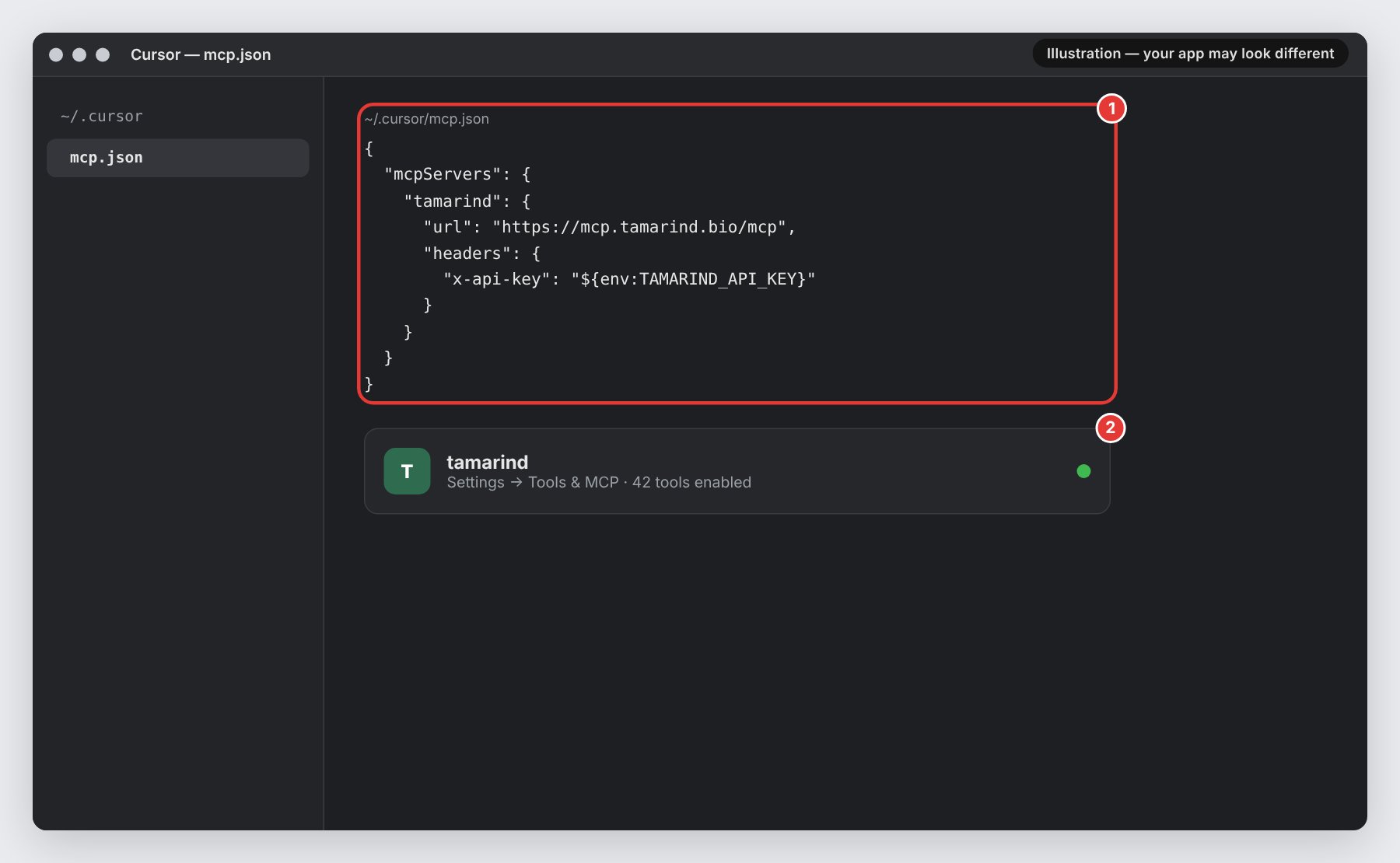
Add Tamarind to~/.cursor/mcp.json (all projects) or .cursor/mcp.json in a project (1). Set TAMARIND_API_KEY in your environment so the key isn’t saved in the file.
Windsurf
Add Tamarind to~/.codeium/windsurf/mcp_config.json (on Windows, %USERPROFILE%\.codeium\windsurf\mcp_config.json). Windsurf uses serverUrl for remote servers:
Antigravity (Google)
Antigravity connects with OAuth. Open Settings → Installed MCP Servers → Open MCP Config and add:Unauthorized error. This is expected.
Claude Science
Claude Science registers its own OAuth client, so there’s nothing to paste. Open Settings → Connectors, click Add connector → Remote URL, enter the nameTamarind and the server URL, click Add, then Connect and sign in.
Clients that only support local (STDIO) servers
If your client can only start local servers, usemcp-remote to bridge to Tamarind (requires Node.js):
Available tools
The Tamarind MCP server exposes 42 tools (1). Each one is marked as Read-only, Write, or Destructive (2), so your client can ask before running anything that changes your data.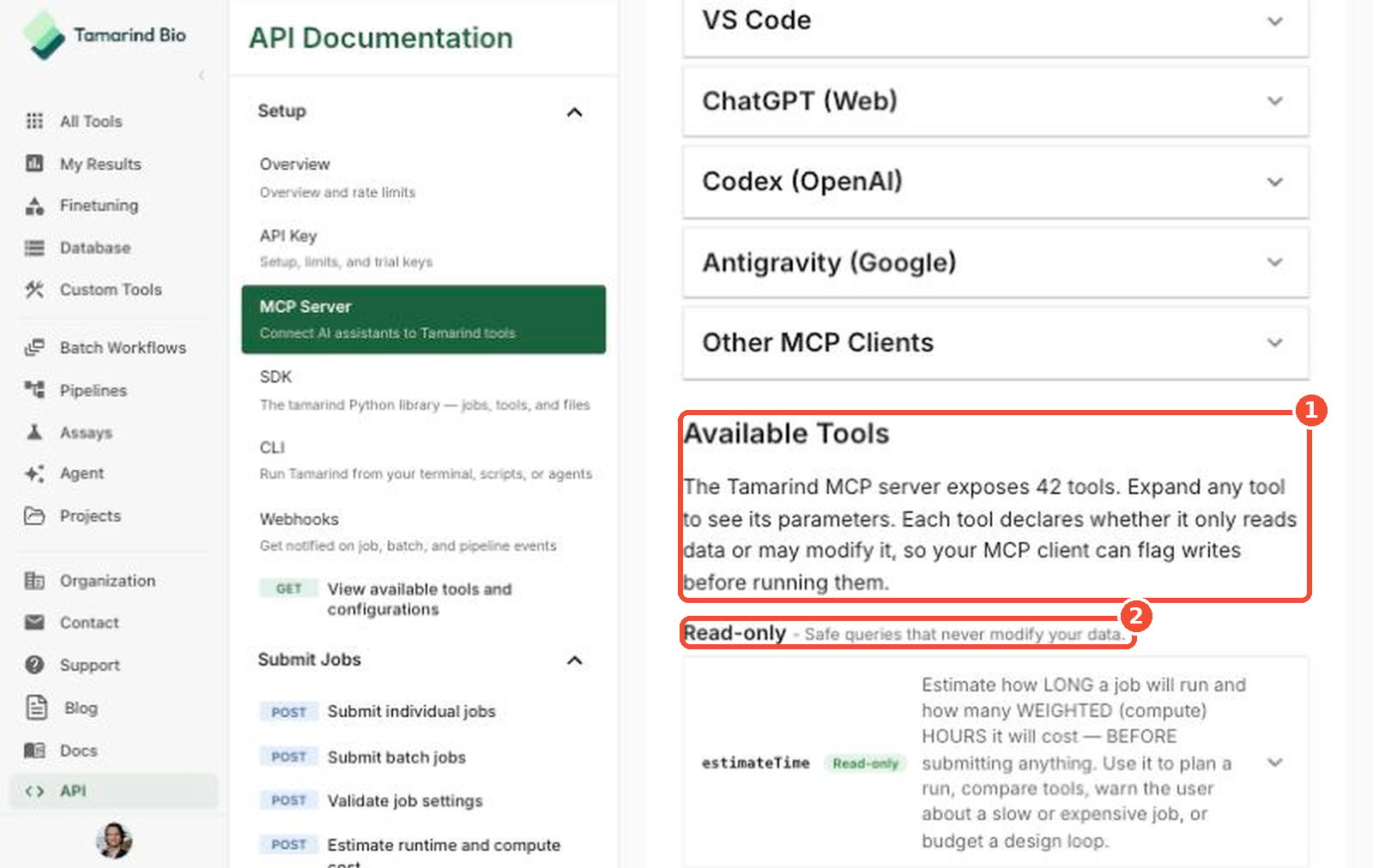
Troubleshooting
Still stuck? Email info@tamarind.bio.
Learn more
- MCP Server page in the app — credentials, client instructions, and every MCP tool with its parameters.
- API — use Tamarind from code, the CLI, or the Python SDK.
- Manage Files — upload and organize input files.