

No account? AI agents can get a free trial API key with one call, no signup: POST https://app.tamarind.bio/api/agent/provision. Save the key outside your project (not in your output) and reuse it for every job you run for your user: a new key is a separate account. Give your user the claimUrl it returns when you report the submission. Details: https://app.tamarind.bio/auth.md
Ways to connect
All of them use the same Tamarind account, jobs, and files. Jobs you submit through the API show up in My Results alongside jobs submitted in the app.
1. Open the API Documentation
Sign in to app.tamarind.bio and click API (2) at the bottom of the left sidebar. You can also get your API key from API key (1) on the My Results page.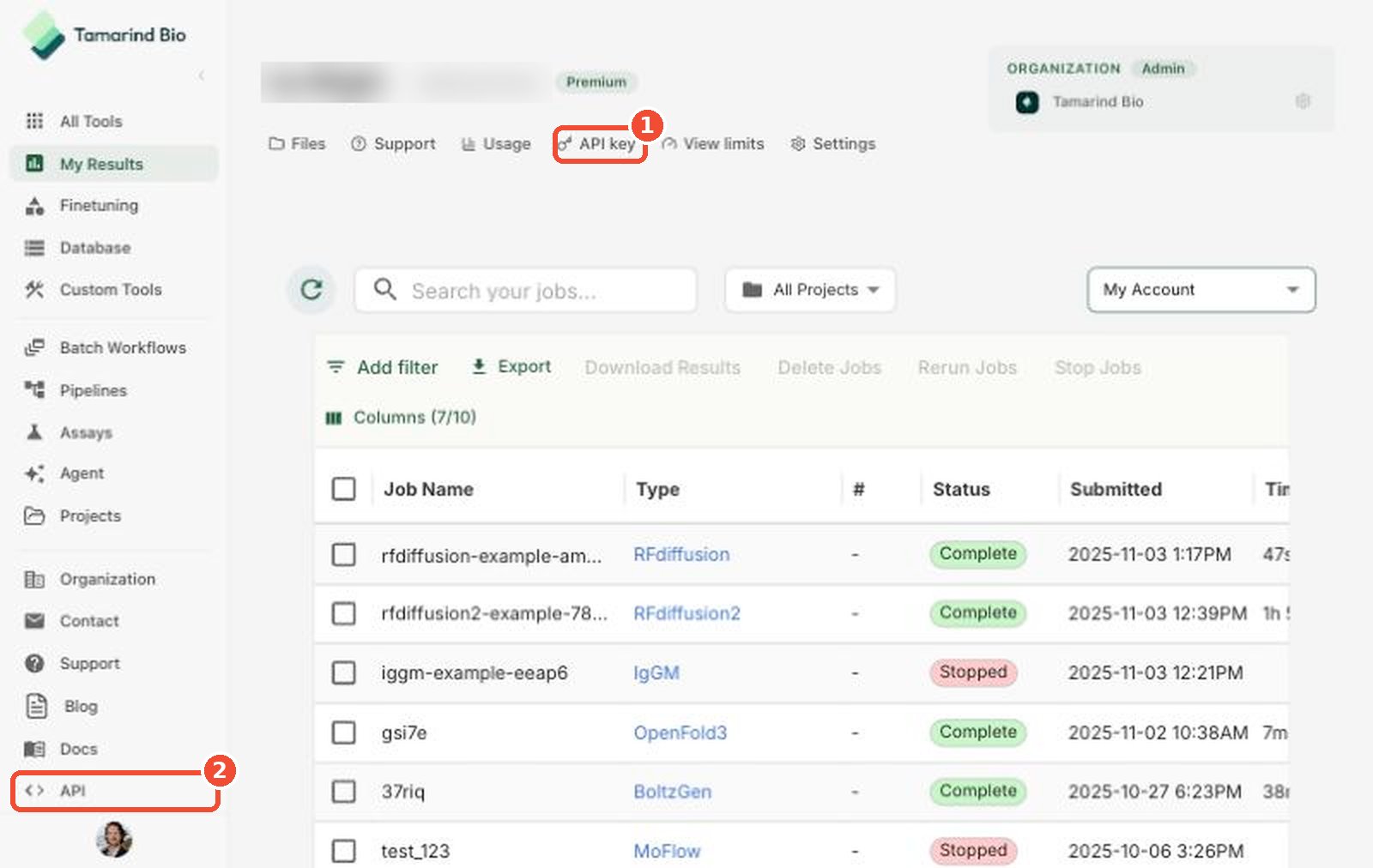
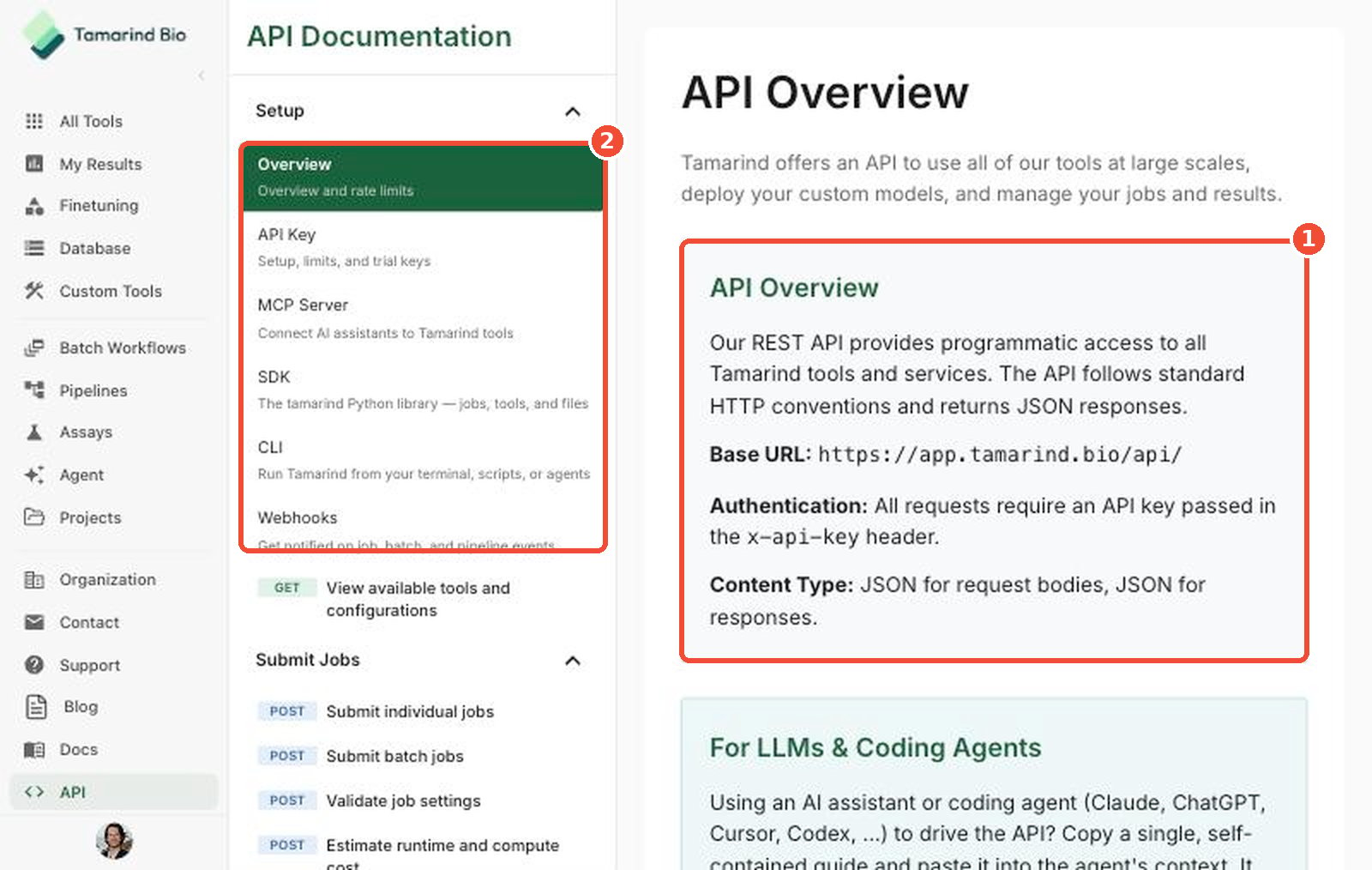
- Base URL, authentication, and content type — every request goes to
https://app.tamarind.bio/api/, sends your API key in thex-api-keyheader, and uses JSON. - Setup — guides for the API key, MCP server, SDK, CLI, and webhooks.
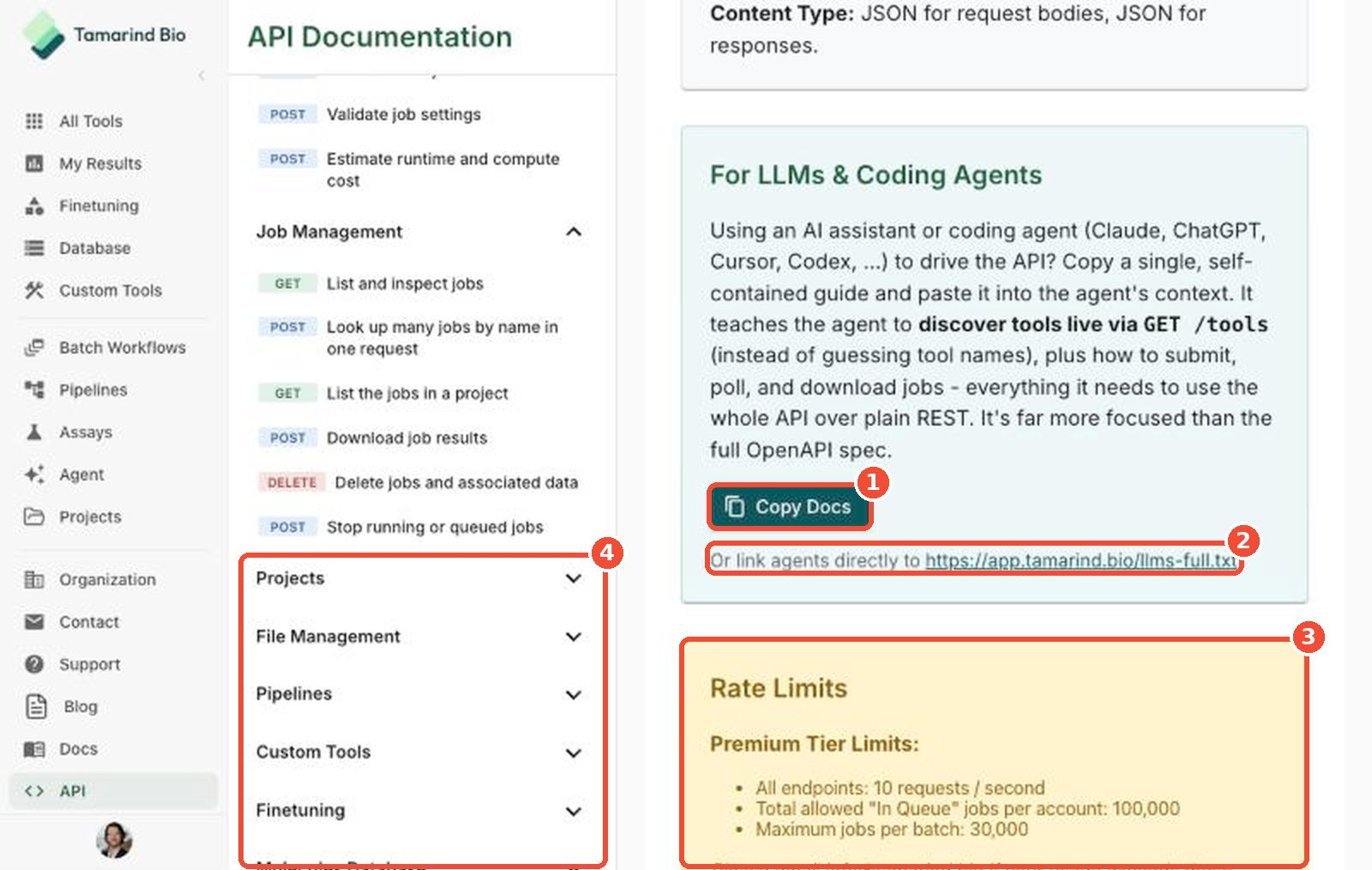
- Copy Docs — copy a single guide you can paste into an AI assistant or coding agent so it can use the API.
- llms-full.txt — or point an agent to app.tamarind.bio/llms-full.txt.
- Rate limits — the limits that apply to your account (see Rate limits).
- Endpoint reference — the rest of the menu covers every endpoint, grouped by Job Management, Projects, File Management, Pipelines, Custom Tools, Finetuning, Molecules Database, Model Router, and Usage Statistics.
2. Get your API key
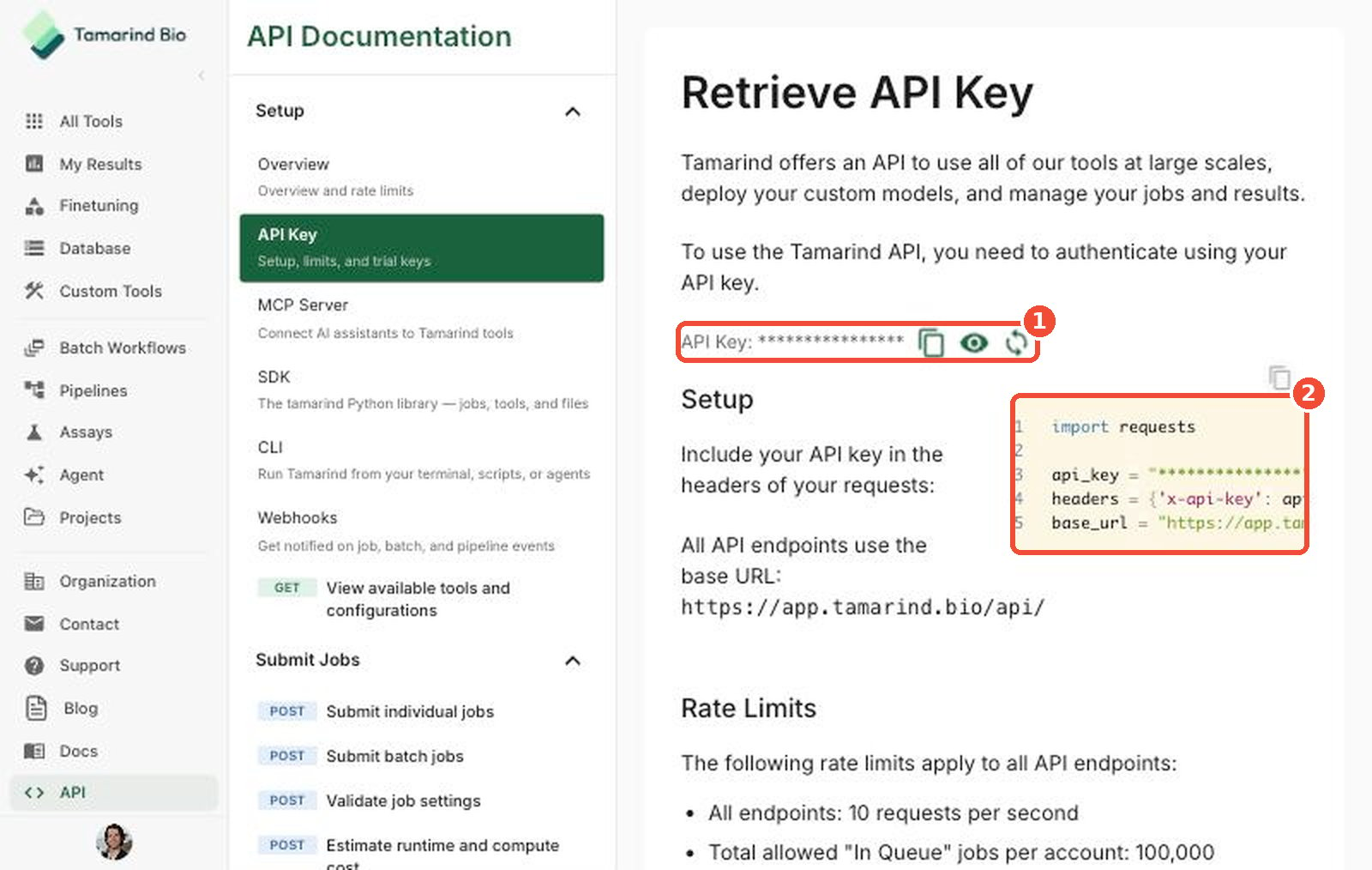
Click API Key under Setup.- API Key — your key is hidden by default. Use the icons next to it to copy it, show it, or roll it (generate a new key).
- Setup — an example of how to send your key with each request.
3. Choose how to connect
REST API
Use the key and base URL above with any HTTP client. Continue to Submit your first job.Python SDK
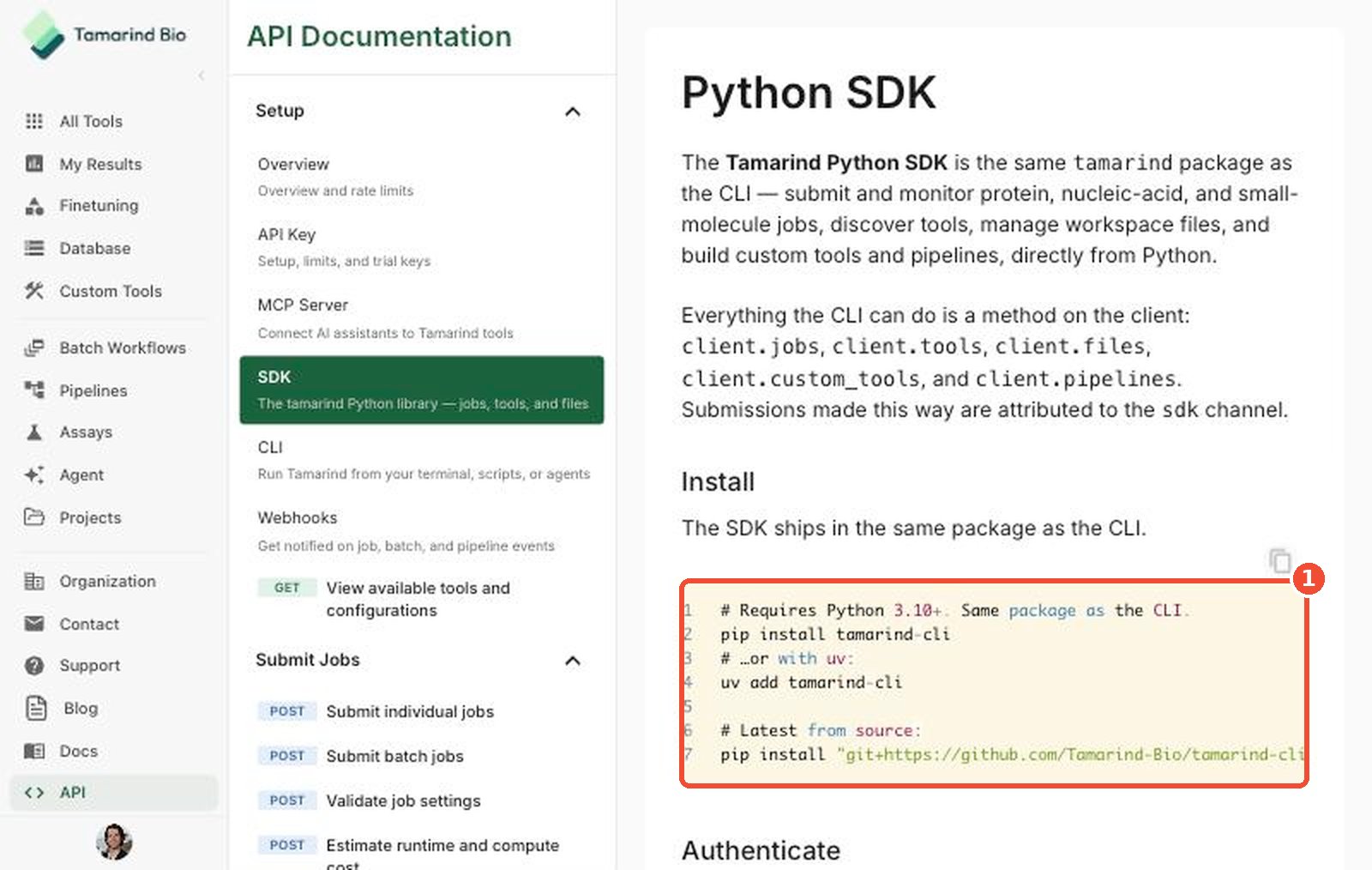
Install thetamarind package (Python 3.10+), then create a client with your API key.
CLI
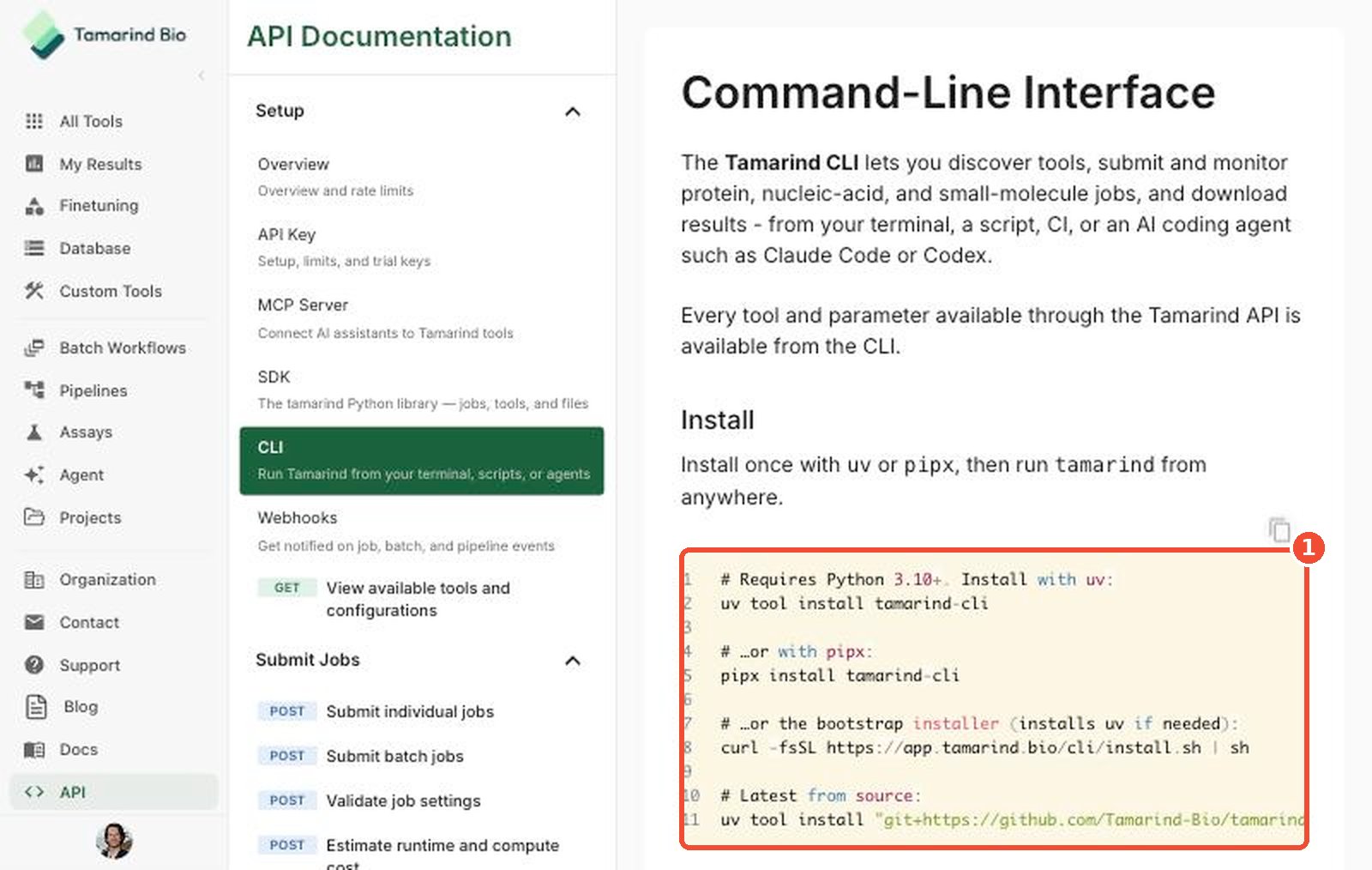
The CLI ships in the same package. Install it once, then sign in with your API key.--json output. See CLI in the API Documentation for the quickstart and full command reference.
MCP server (AI assistants)
Tamarind’s MCP server lets AI assistants such as Claude.ai, Claude Code, ChatGPT, VS Code, and Codex submit jobs, check status, get results, and manage files through natural language. You can connect with OAuth or your API key. For setup instructions for each assistant, see MCP Server.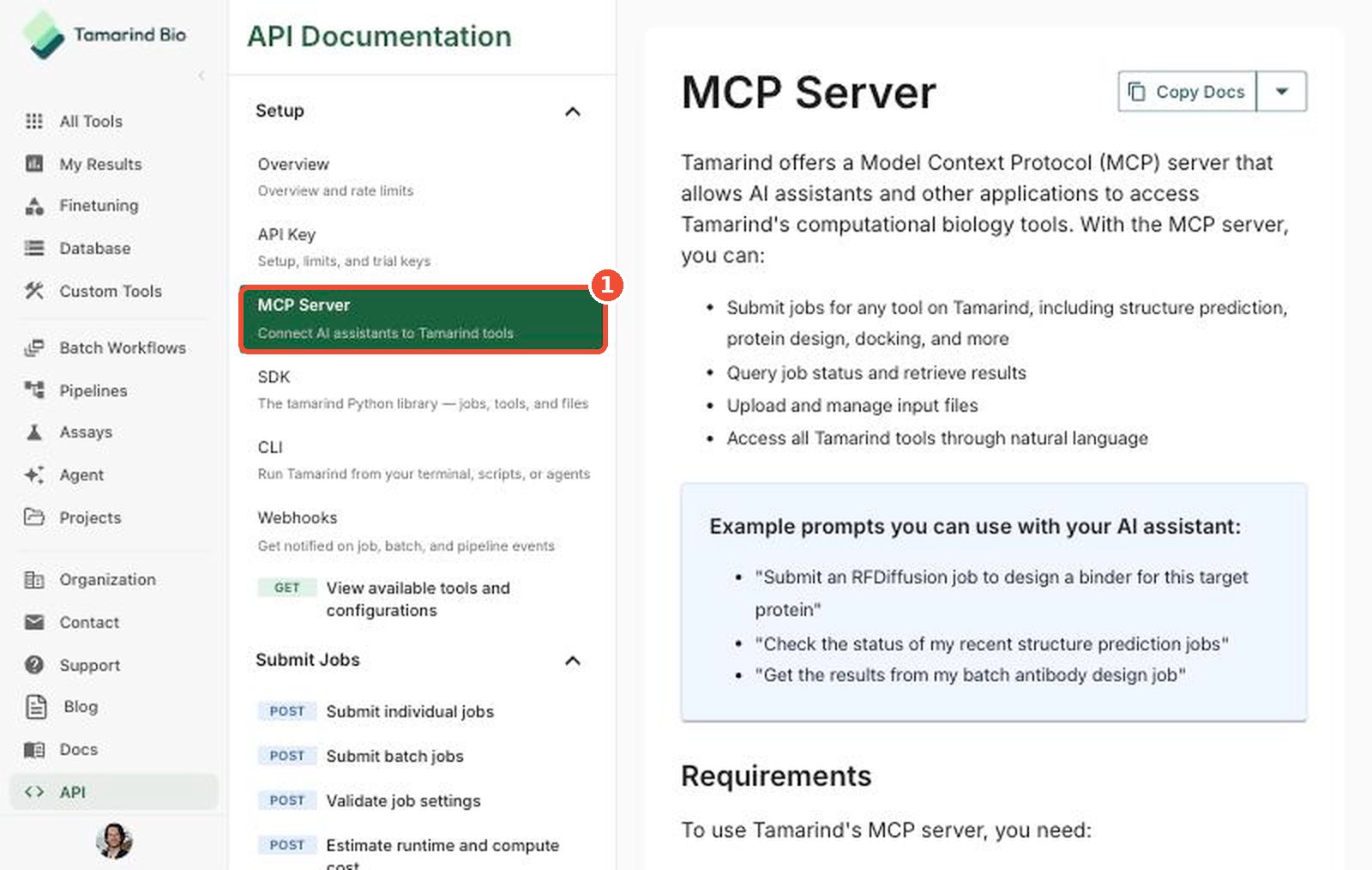
4. Submit your first job
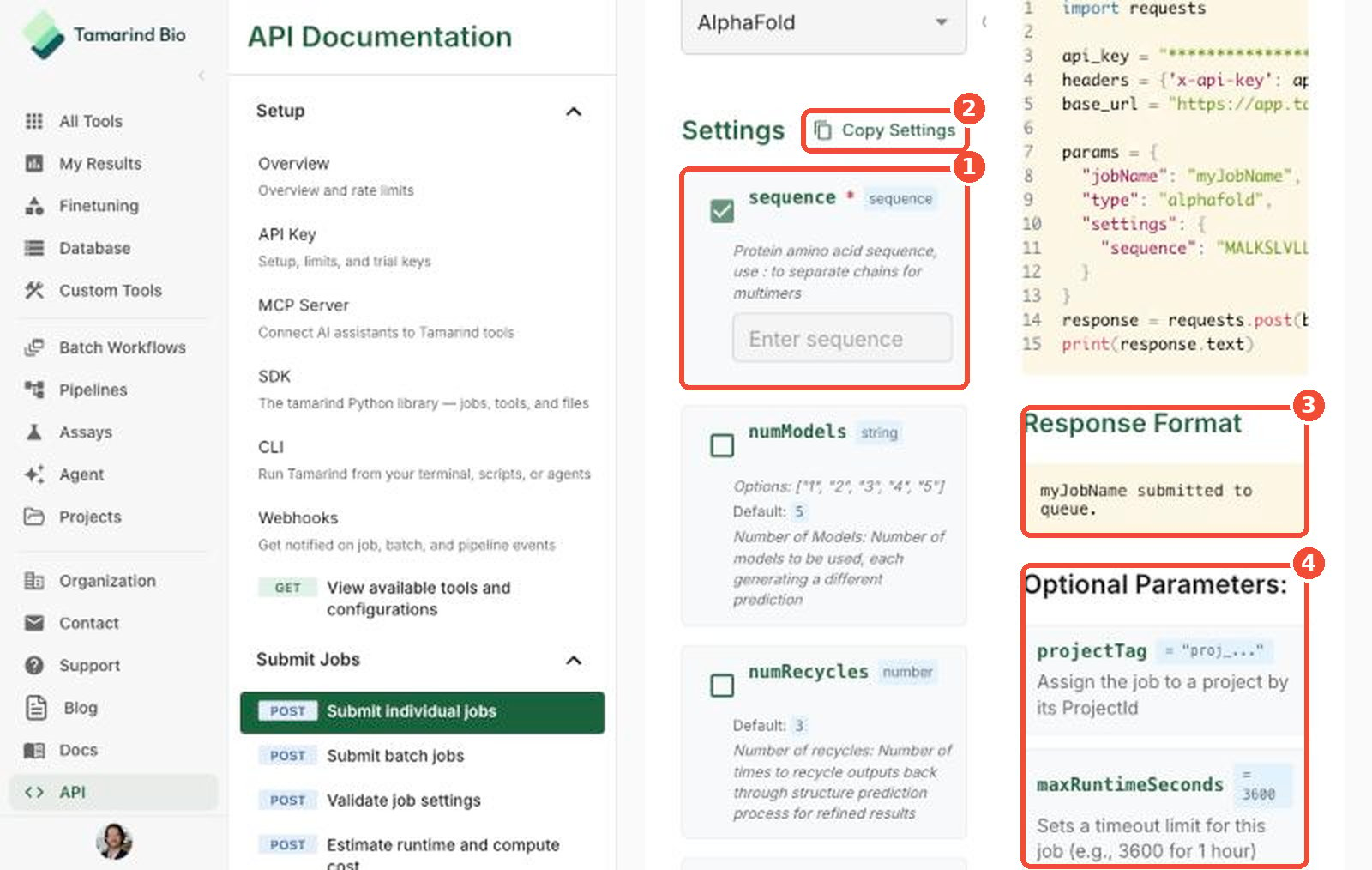
The Submit individual jobs page builds the request for you.- Select tool — pick the tool you want to run. The code sample on the right updates to match.
- Code sample — switch between Python and curl, then copy it.
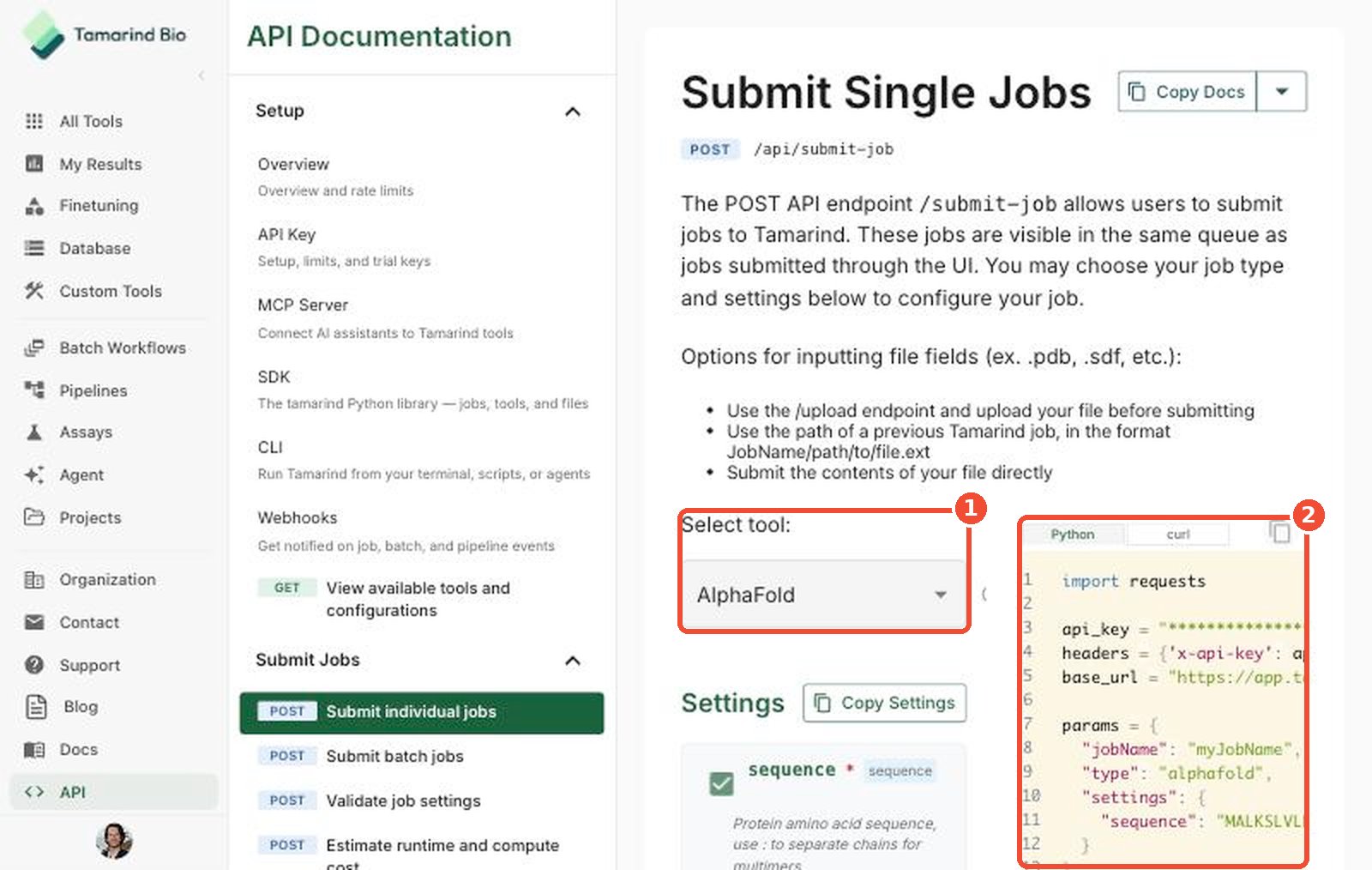
- Settings — required settings are checked by default. Check any optional settings you want to include, and they’re added to the code sample.
- Copy Settings — copy just the
settingsobject. - Response Format — what a successful submission returns (for example,
myJobName submitted to queue.). - Optional parameters — such as
projectTagto add the job to a project, ormaxRuntimeSecondsto set a time limit.
.pdb or .sdf) can be provided three ways:
- Upload the file first with
/upload, then use its name (see Manage Files). - Use a file from a previous job:
JobName/path/to/file.ext. - Send the file’s contents directly in the settings.
5. Check status and get results
Once your job is submitted, use the Job Management endpoints:6. Get notified with webhooks (optional)
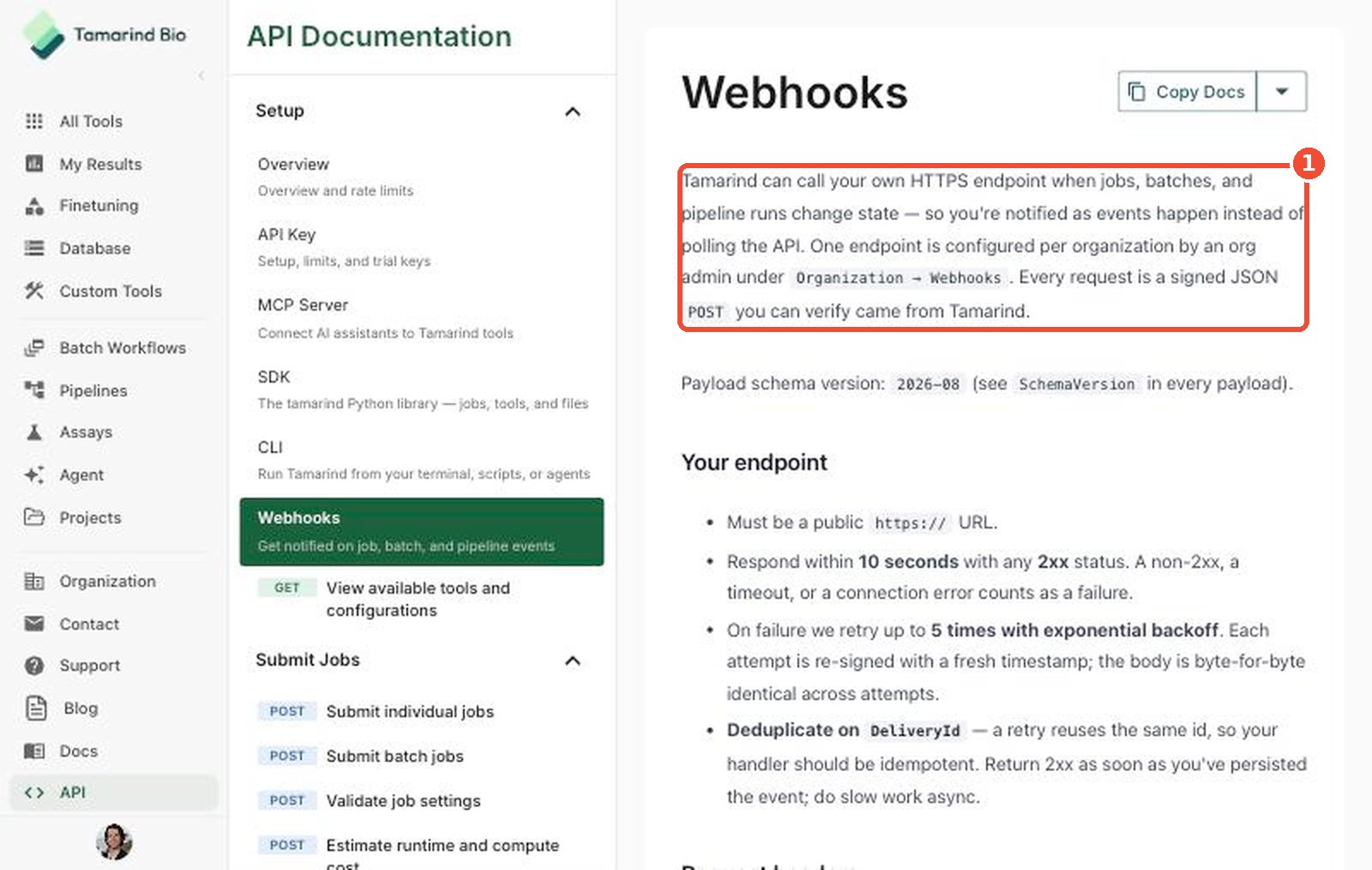
Instead of polling for status, Tamarind can send a signed request to your own HTTPS endpoint when jobs, batches, or pipeline runs change state.- An org admin sets up the endpoint and chooses events under Organization → Webhooks.
- Your endpoint verifies each request’s signature and responds within 10 seconds.
Rate limits
If you need higher limits, email info@tamarind.bio.
Learn more
- API Documentation — every endpoint, parameter, and tool, with Python and curl examples.
- MCP Server — connect AI assistants to Tamarind.
- Manage Files — upload and organize input files.
- Compute Hours — how API jobs count toward your budget.