> ## Documentation Index
> Fetch the complete documentation index at: https://docs.tamarind.bio/llms.txt
> Use this file to discover all available pages before exploring further.
# Pipelines
> Automatically connect outputs to inputs
Our pipelines tool allows you automatically connect outputs from one tool to inputs of another tool.
Pipelines are made up of stages, based on each stage's input and output type:
* Structure design - pdb -> pdb
* Inverse folding - pdb -> sequence
* Mutate sequences - sequence -> sequence
* Structure prediction - sequence -> pdb
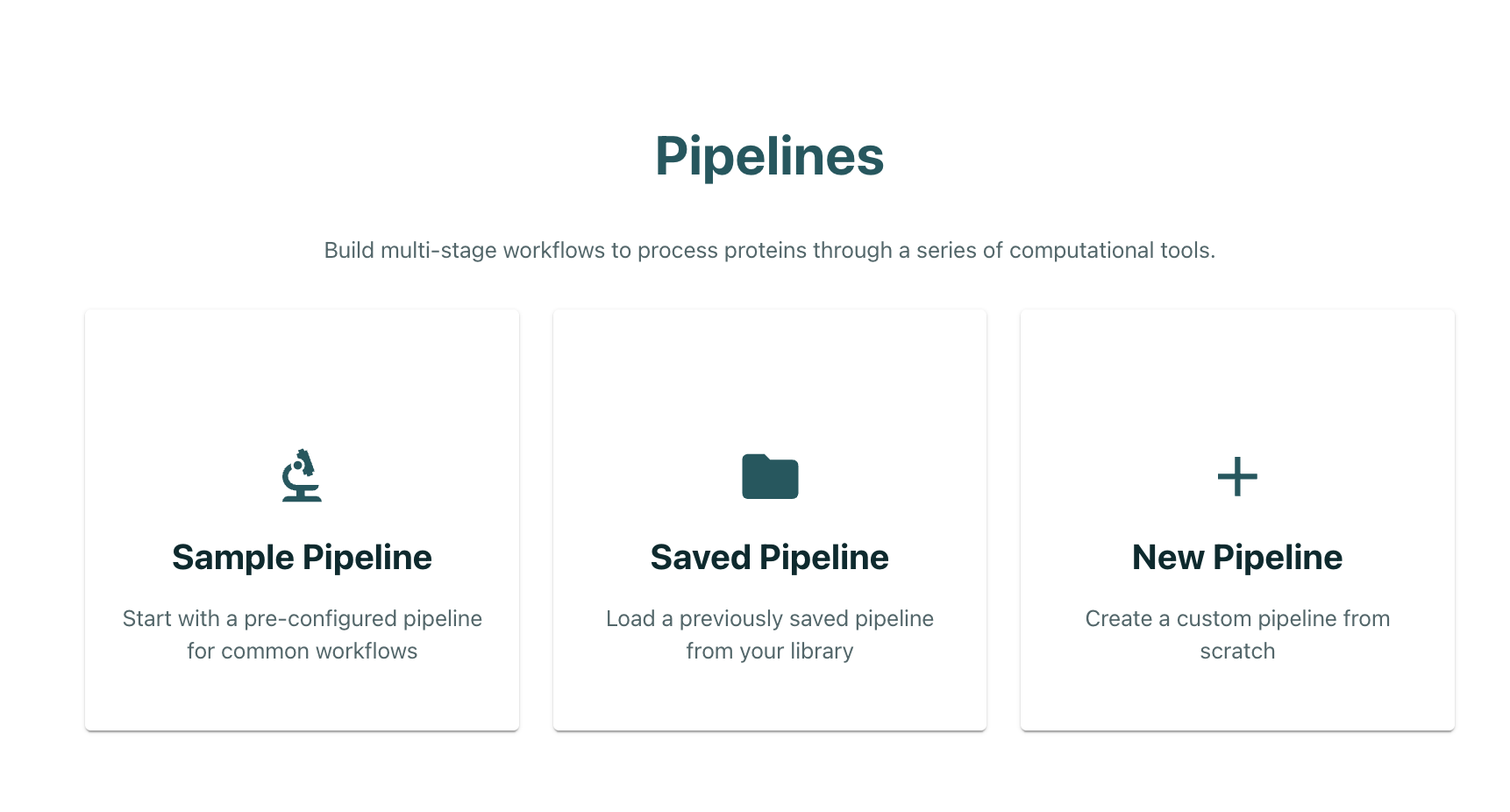
1. To create a pipeline, navigate to [https://app.tamarind.bio/pipelines](https://app.tamarind.bio/pipelines) and click "New Pipeline".
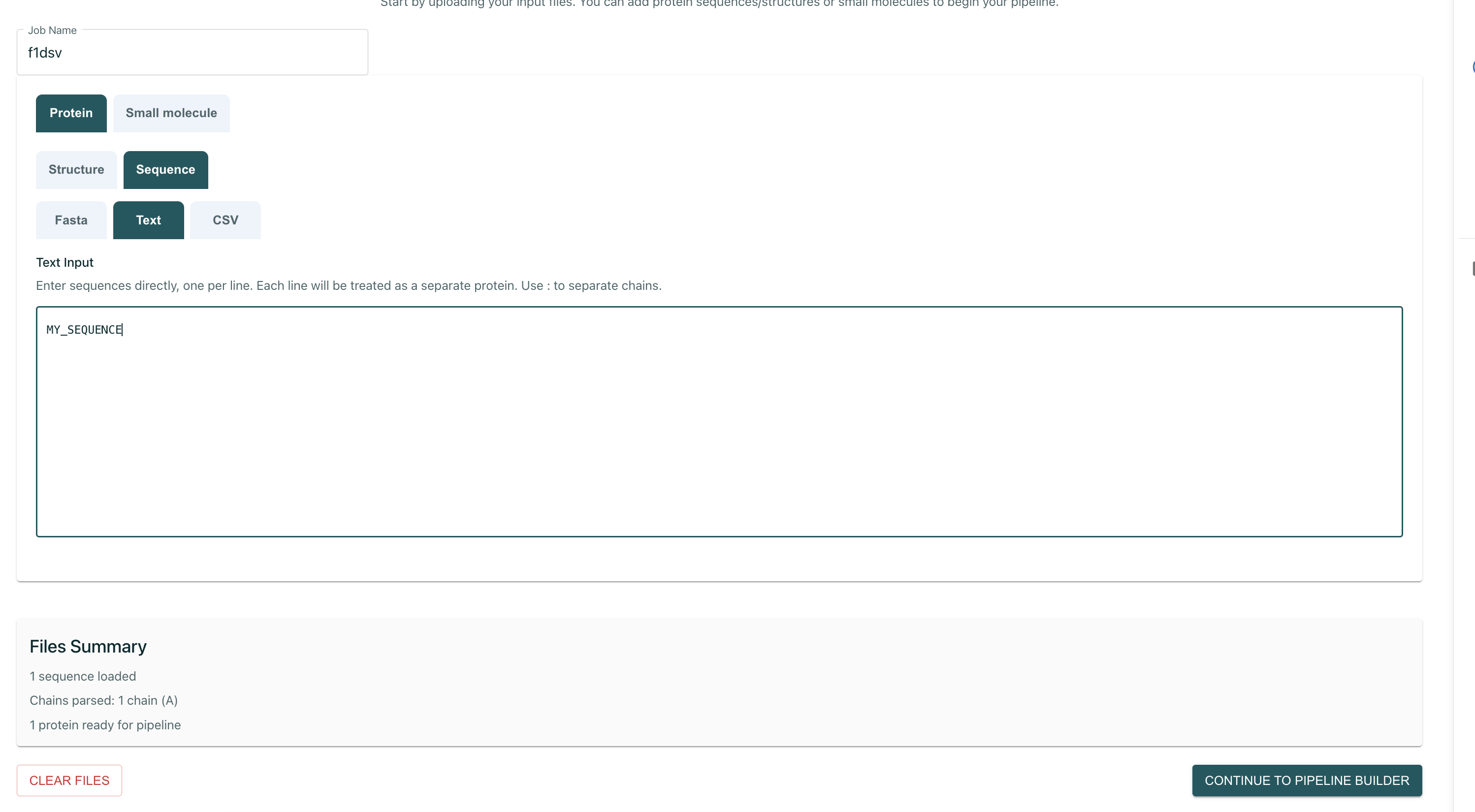
 2. Select your input type, which can be either Protein (structure or sequence) or Small Molecule (sdf or smiles). These will be the starting molecules, which are transformed and handled through the pipeline. Click "Continue to pipeline builder" when done.
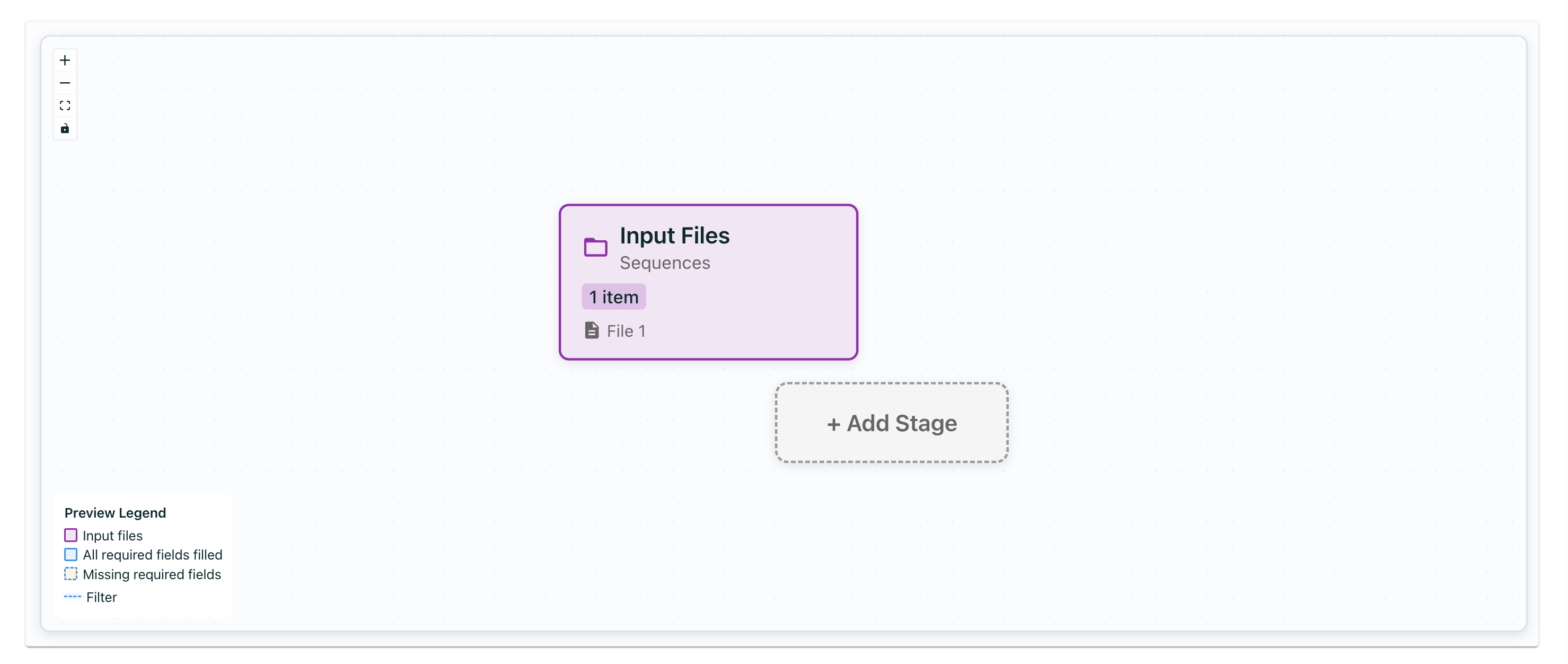
 3. On the pipeline builder page, you can create a new stage by clicking "Add Stage".
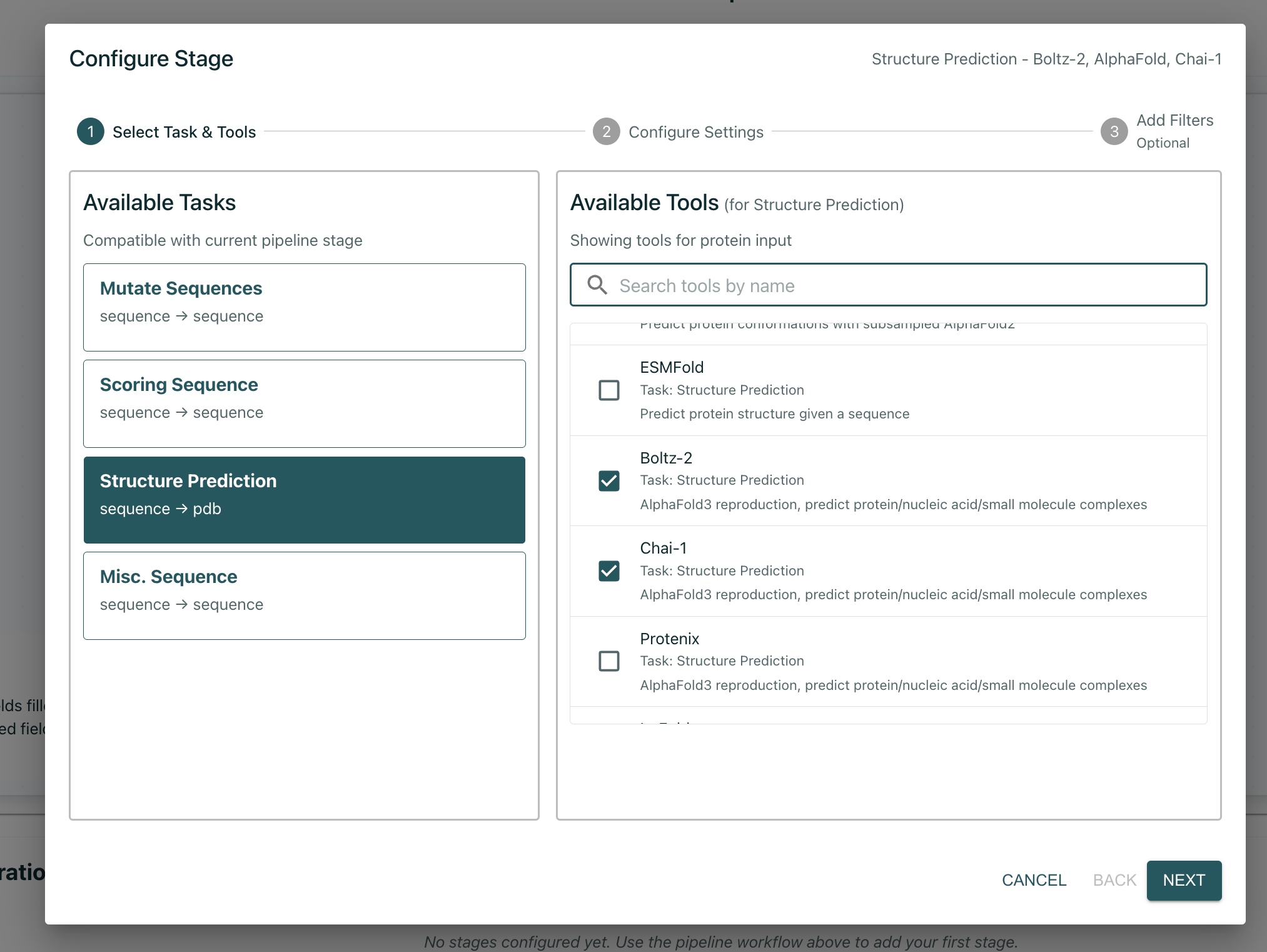
 4. Within a stage, you can first select multiple tools which share the same input and output type. For example, you can use multiple scoring tools to validate generated designs from a previous stage for various properties.
 5. Fill in the settings for the tools you selected. For each tool, you will a blue highlight shown for the setting that is being automatically passed from the previous stage or from input files. Fill in other settings as you desire.
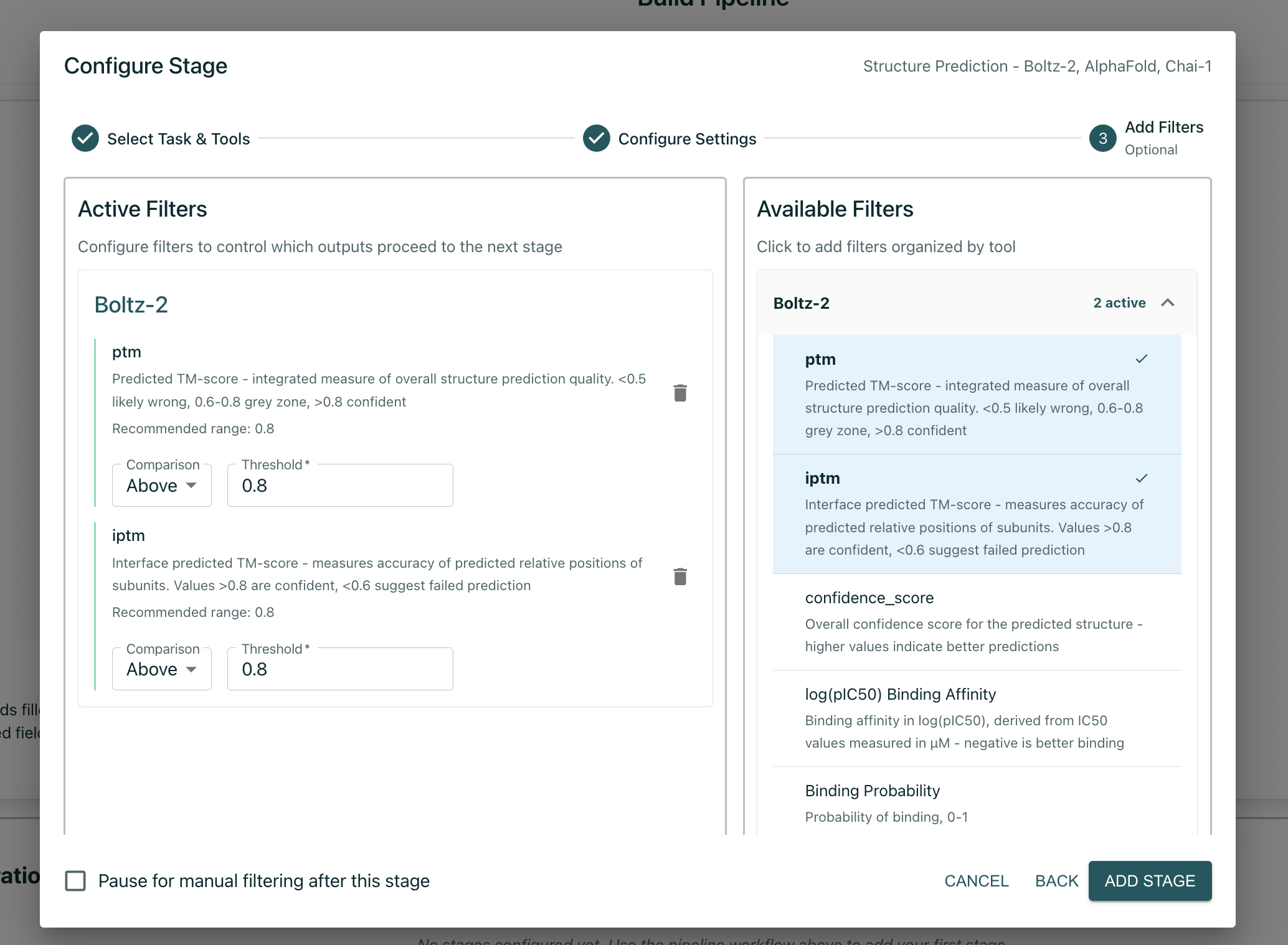
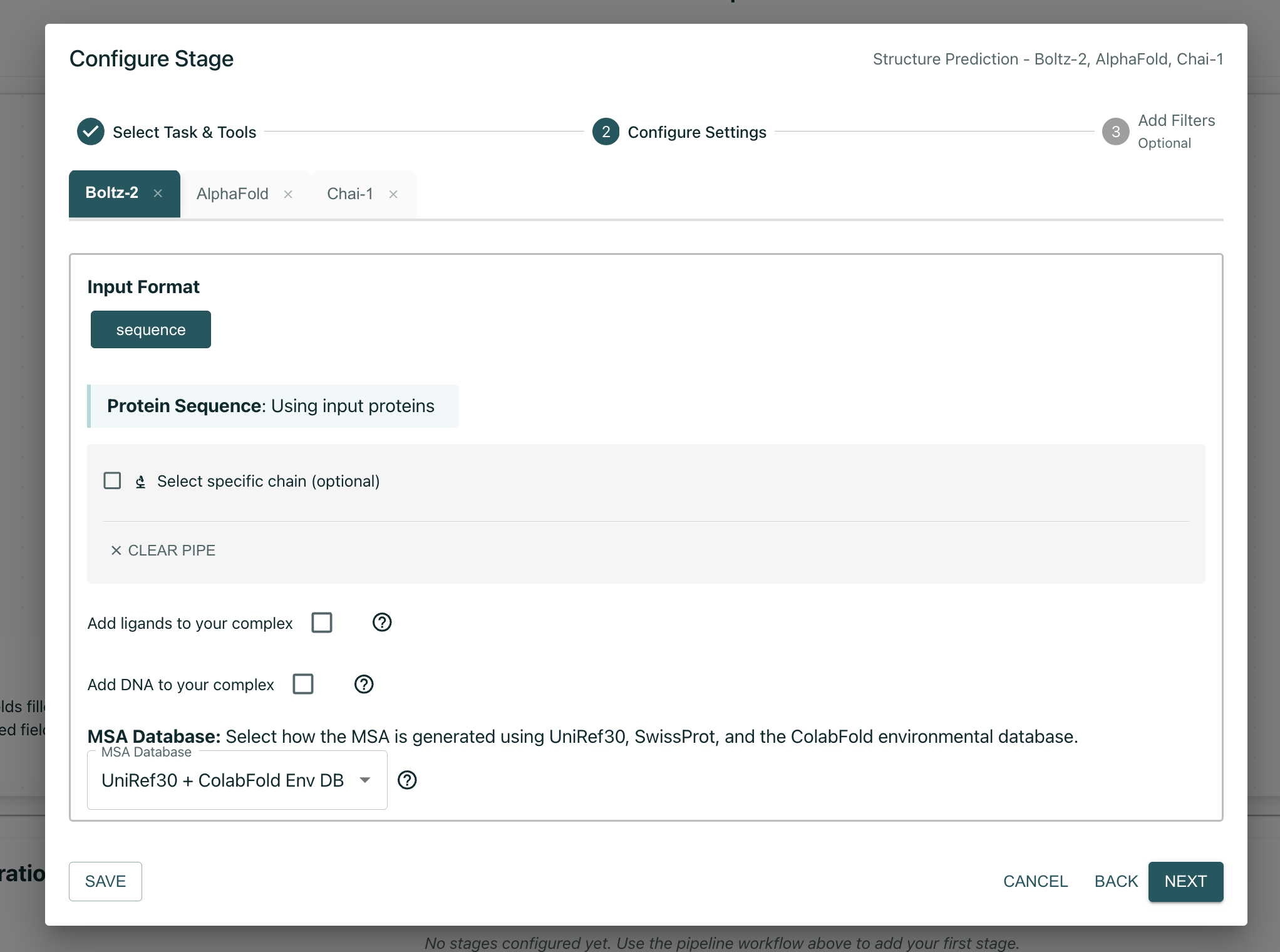 We also support filtering by output scores of each tool. If you want to filter by a score. Here, we recommend selecting "Pause for manual filtering after this stage" during testing to validate that the results of each stage of your pipeline are what you expect. We also recommend starting with a small number of inputs/designs to test your pipeline out.
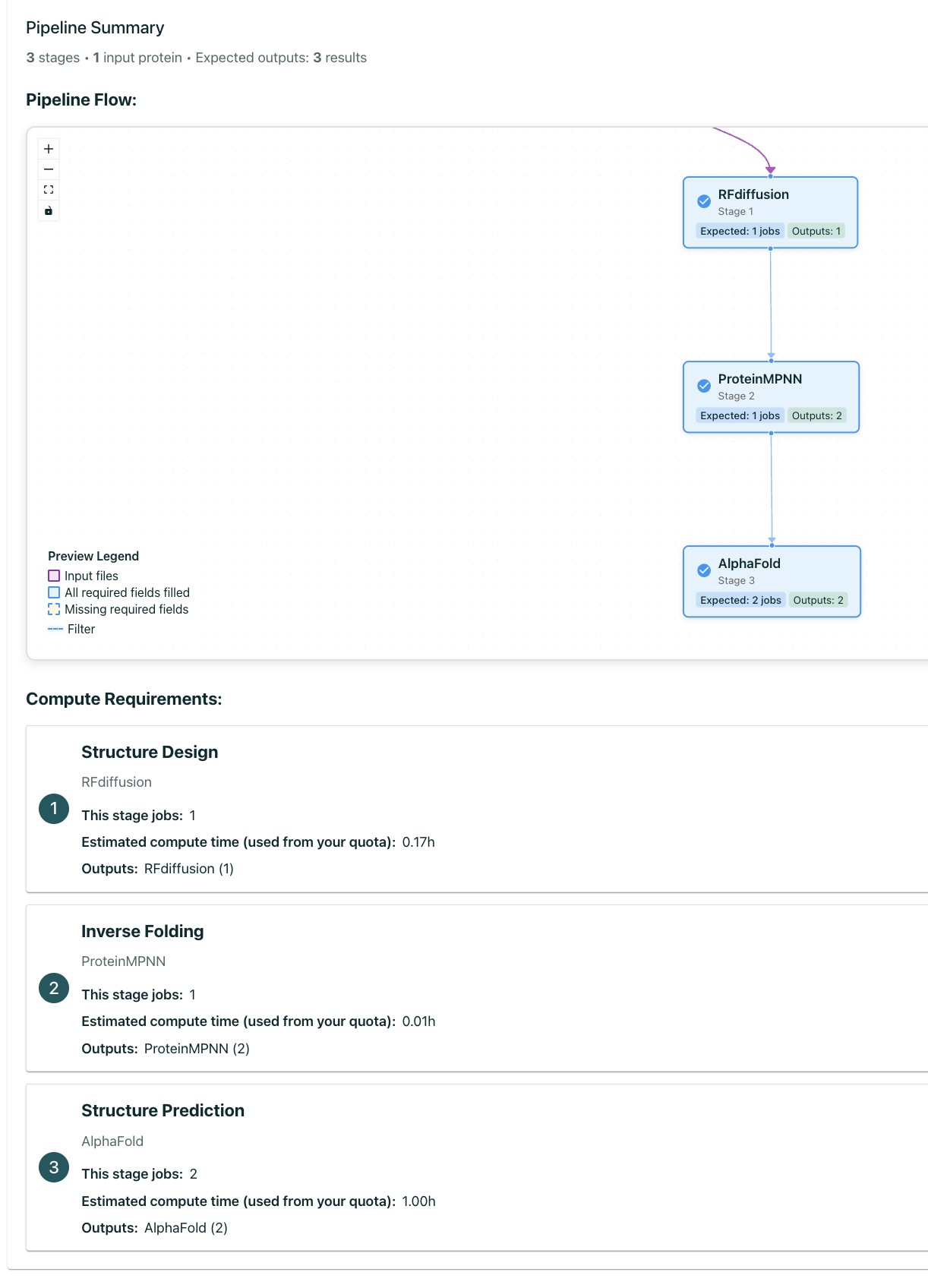
 From there, you can add additional stages to create your whole pipeline, review, and submit. You'll also see an overview of jobs and estimate times in your pipeline before submitting.
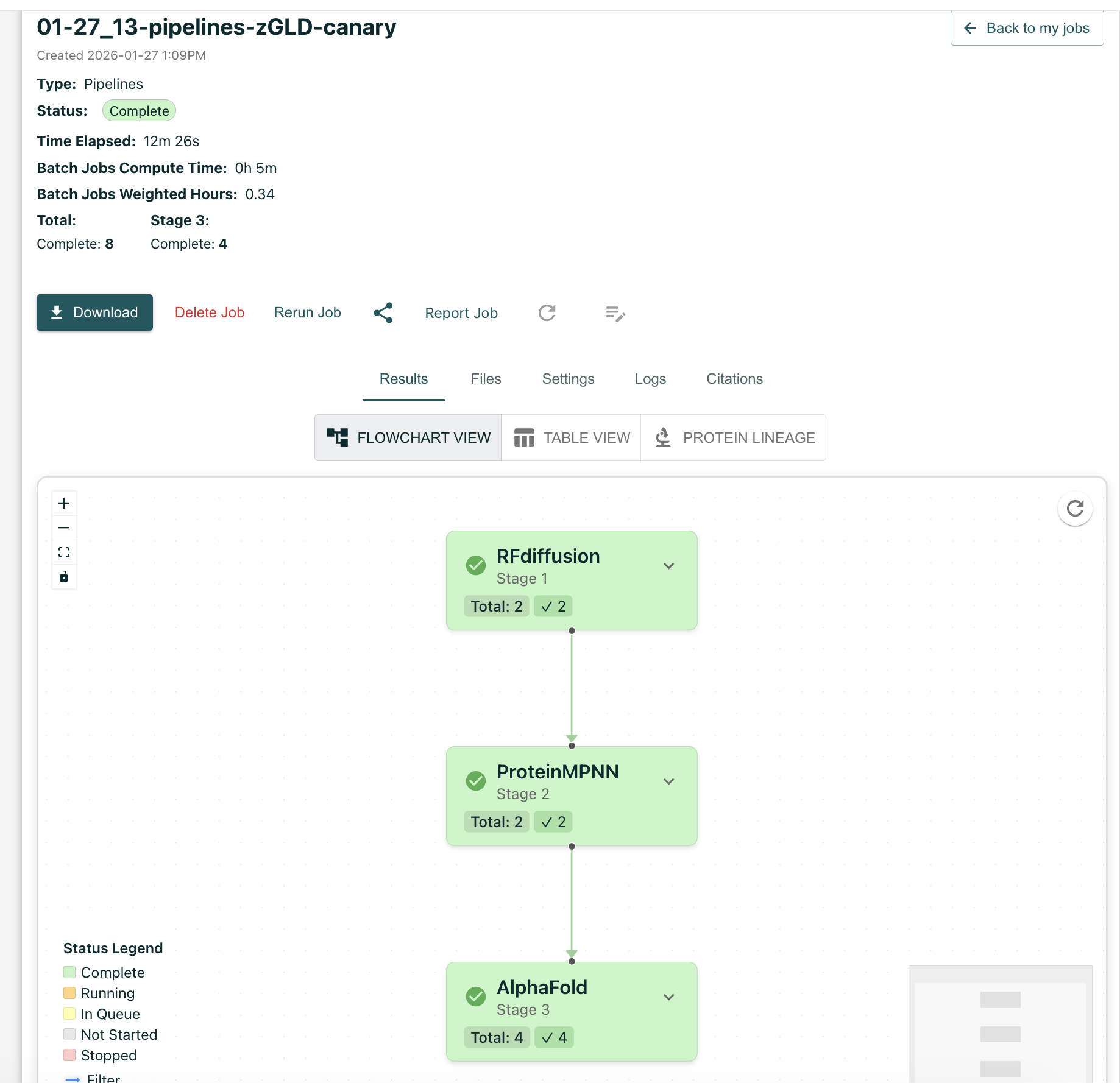
 From the results page, you can view the progress of your pipeline, including the jobs In Queue, Running, and Complete at each stage.
 You can also save your pipeline as a draft for the future, and view pipelines created by other members of your organization.
[Try Pipelines](https://app.tamarind.bio/protein-design-pipelines)
You can also save your pipeline as a draft for the future, and view pipelines created by other members of your organization.
[Try Pipelines](https://app.tamarind.bio/protein-design-pipelines)