> ## Documentation Index
> Fetch the complete documentation index at: https://docs.tamarind.bio/llms.txt
> Use this file to discover all available pages before exploring further.
# Custom Tools
> Onboard and run your internal tools on Tamarind
Custom Tools let you bring your organization's internal tools onto Tamarind and use them everywhere the platform already goes: the web UI, the REST API, batch workflows, pipelines, and the Agent / MCP server. You develop the tool; Tamarind handles scaling, infrastructure, and sharing with your teammates.
Manage your tools at [app.tamarind.bio/app/custom-tools](https://app.tamarind.bio/app/custom-tools).
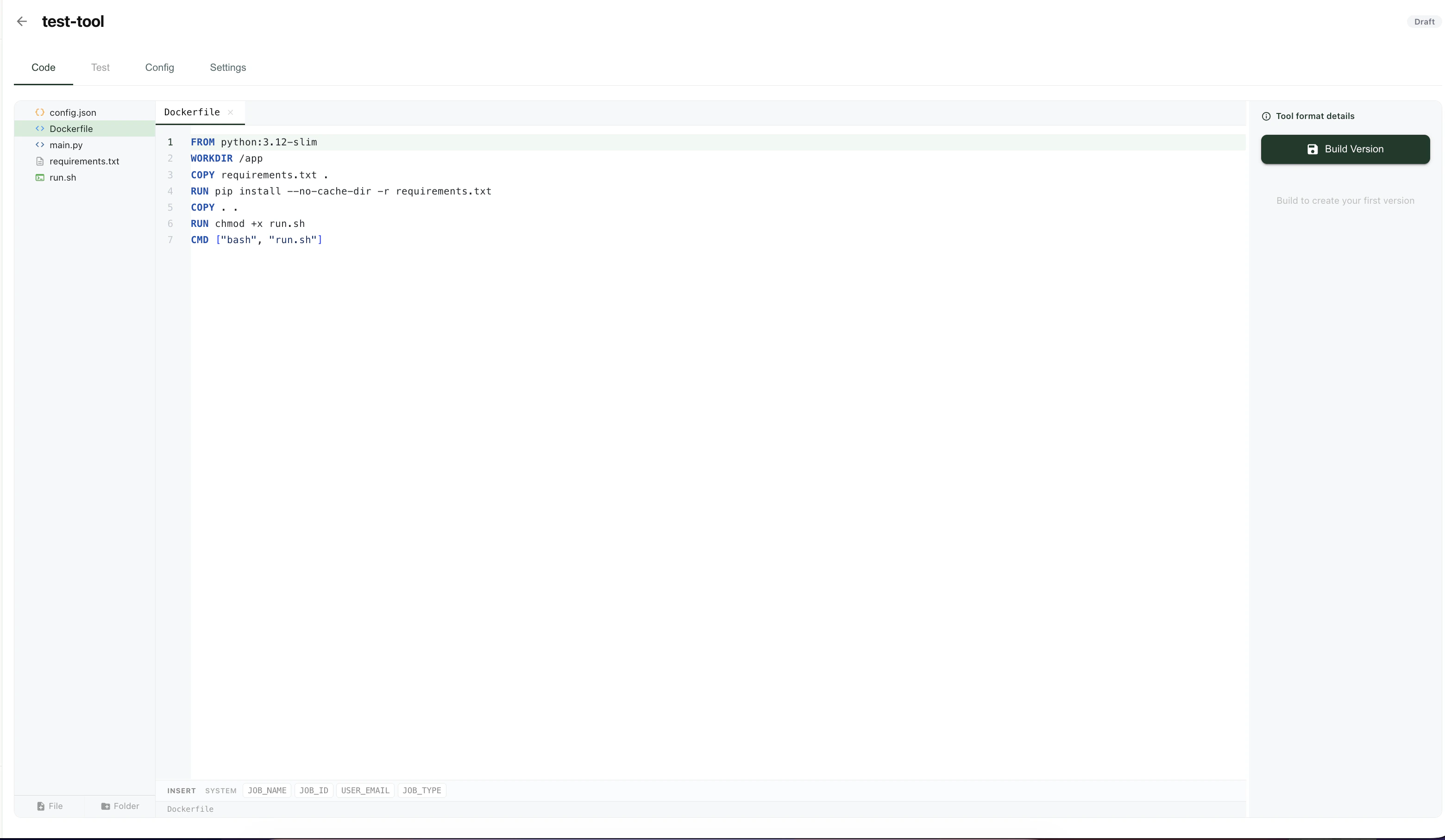 ## Overview
Each custom tool has four tabs:
* **Code** — edit source files, view previously deployed versions, and inspect build logs.
* **Test** — run any version of the tool against test inputs from the browser.
* **Config** — manage the tool's display metadata, compute settings, and input schema.
* **Settings** — configure the GitHub integration and admin options.
Once deployed, a custom tool shows up alongside Tamarind's built-in tools and can be invoked from the UI, the [API](/tamarind/api), [Batch](/tamarind/batch), [Pipelines](/tamarind/pipelines), and the [MCP server](/tamarind/mcp-server).
## Versioning
Each tool is versioned with consecutive integers. Click any previously deployed version to load it in the code editor. Editing files and clicking **Deploy** builds a new version.
Each version carries its own input schema, which you can edit from the **Config** tab. This means older versions remain runnable with the inputs they were deployed with, even if you change the schema later.
If you save a new version without touching the Dockerfile or requirements files, the image is not rebuilt — only the source code is updated, so iteration is fast.
## Sharing and visibility
Use **Manage Visibility** in the top right of the tool page to share a tool with members of your organization.
## GitHub integration
You can connect a tool to a GitHub repository so that every push to a chosen branch creates a new tool version. Under the **Settings** tab you can:
* Link or unlink a GitHub repository and branch.
* Toggle **automatic publishing** — on means new versions go live immediately; off means an admin manually publishes each version.
The GitHub integration is installed as a GitHub App. You need **admin access** to the GitHub account or organization in order to install it. Organization admins manage the integration at [app.tamarind.bio/org-settings?tab=github-integration](https://app.tamarind.bio/org-settings?tab=github-integration).
A working starter repo is available at [github.com/Tamarind-Bio/tamarind-custom-tools-template](https://github.com/Tamarind-Bio/tamarind-custom-tools-template) — fork it as a starting point.
## Build and runtime
**Build.** Images are built in AWS CodeBuild. You may base your image on any public Docker image. Your source code is **not** available during the build stage — it is mounted into the container at runtime — so your Dockerfile should install dependencies only and should not `COPY` application code.
**Runtime.** Your tool runs inside a Linux Docker container. CUDA 12.4 is recommended for GPU tools; reach out if you need help resolving dependency issues. The runtime container has **no internet access**.
### Available GPUs
Set `gpuType` in your `config.json` to one of the following. Use `"None"` for CPU-only tools.
| `gpuType` | GPU |
| --------- | ----------- |
| `None` | CPU only |
| `T4` | NVIDIA T4 |
| `L4` | NVIDIA L4 |
| `L40S` | NVIDIA L40S |
| `A10` | NVIDIA A10 |
| `A100` | NVIDIA A100 |
## Tool ID
Every tool has a **tool ID**, a fixed unique identifier used throughout the platform — including when invoking the tool through the API, batch, pipelines, or MCP. The tool ID is chosen when you create the tool from the UI and is **immutable** after creation.
## Configuration (`config.json`)
A tool's non-code settings live in a `config.json` file at the **root of your repository**. The same fields are editable in the **Config** tab of the UI. The schema is published at [app.tamarind.bio/tamarind-tool.schema.json](https://app.tamarind.bio/tamarind-tool.schema.json).
### Top-level fields
| Field | Type | Required | Description |
| ------------- | ----------------------- | -------- | ------------------------------------------------------------------------------------------ |
| `displayName` | string | yes | Human-readable tool name shown in the UI. Max 50 characters. |
| `description` | string | no | One-liner shown on the tool card. |
| `functions` | string\[] | no | Long-description bullets — one string per bullet. |
| `gpuType` | enum | no | GPU type for the container. `"None"` for CPU-only. See [Available GPUs](#available-gpus). |
| `cpu` | integer | no | Number of CPU cores. Between 1 and 8. |
| `memory` | string | no | Memory allocation, e.g. `"12Gi"` or `"32Gi"`. |
| `envVars` | `object` | no | Environment variables passed to the container at runtime. Keys must be `UPPER_SNAKE_CASE`. |
| `inputs` | Input\[] | yes | User-facing input fields. Mirrors the Inputs section of the Config tab. |
Do **not** put credentials (API keys, passwords, tokens) in `envVars`. Values are stored as plain environment variables, not encrypted secrets, and are visible to anyone with access to the tool's config. The runtime container also has no internet access, so outbound credentials would not be usable anyway.
### Inputs
Each entry in `inputs` describes one user-facing field. Every input supports these common fields:
| Field | Type | Required | Description |
| ------------- | ------- | -------- | --------------------------------------------------------------------------------------- |
| `name` | string | yes | Programmatic name. Must match `^[A-Za-z_][A-Za-z0-9_]*$`. Used as the key in API calls. |
| `type` | string | yes | One of the input types below. |
| `displayName` | string | no | Label shown in the UI. Defaults to `name` if omitted. |
| `descr` | string | no | Help text shown under the field. |
| `required` | boolean | no | Whether the user must provide a value. Defaults to `false`. |
The `type` field determines which additional fields are allowed:
Accepts a file upload. You must specify the allowed extensions.
| Field | Type | Required | Description |
| ----------- | --------- | -------- | ---------------------------------------------------------------------- |
| `extension` | string\[] | yes | Allowed file extensions, lowercase, no dot. Example: `["csv", "tsv"]`. |
```json theme={null}
{
"name": "input_data",
"type": "file",
"displayName": "Input CSV",
"extension": ["csv"],
"required": true
}
```
A `.pdb` file upload. Tamarind renders a structure preview in the UI automatically.
```json theme={null}
{
"name": "target",
"type": "pdb",
"displayName": "Target structure",
"required": true
}
```
An `.sdf` file upload for small-molecule inputs.
```json theme={null}
{
"name": "ligand",
"type": "sdf",
"required": true
}
```
A protein sequence string. Rendered as a sequence input in the UI.
| Field | Type | Required | Description |
| --------- | ------ | -------- | ----------------------- |
| `default` | string | no | Default sequence value. |
```json theme={null}
{
"name": "sequence",
"type": "sequence",
"displayName": "Target sequence",
"required": true
}
```
A SMILES string for a small molecule.
| Field | Type | Required | Description |
| --------- | ------ | -------- | --------------------- |
| `default` | string | no | Default SMILES value. |
```json theme={null}
{
"name": "ligand_smiles",
"type": "smiles",
"default": "CCO"
}
```
A single-line text input.
| Field | Type | Required | Description |
| --------- | ------ | -------- | ------------------- |
| `default` | string | no | Default text value. |
```json theme={null}
{
"name": "job_label",
"type": "text",
"default": ""
}
```
A numeric field with optional bounds.
| Field | Type | Required | Description |
| ------------ | ------ | -------- | ---------------------- |
| `default` | number | no | Default numeric value. |
| `lowerBound` | number | no | Minimum allowed value. |
| `upperBound` | number | no | Maximum allowed value. |
```json theme={null}
{
"name": "num_samples",
"type": "number",
"default": 10,
"lowerBound": 1,
"upperBound": 100
}
```
A true/false toggle.
| Field | Type | Required | Description |
| --------- | --------------- | -------- | ------------------------------------------ |
| `default` | boolean \| null | no | Default checked state. `null` means unset. |
```json theme={null}
{
"name": "use_relaxation",
"type": "boolean",
"default": false
}
```
A dropdown with a fixed list of string options.
| Field | Type | Required | Description |
| --------- | --------- | -------- | ----------------------------------------- |
| `options` | string\[] | yes | Available options. At least one required. |
| `default` | string | no | Default selected option. |
```json theme={null}
{
"name": "model_size",
"type": "dropdown",
"options": ["small", "medium", "large"],
"default": "medium"
}
```
### Example `config.json`
```json theme={null}
{
"displayName": "My Binder Scorer",
"description": "Scores candidate binders against a target structure.",
"functions": [
"Scores binder–target complexes with an internal model",
"Returns per-residue confidence"
],
"gpuType": "L40S",
"cpu": 4,
"memory": "32Gi",
"envVars": {
"MODEL_VERSION": "v3",
"LOG_LEVEL": "INFO"
},
"inputs": [
{
"name": "target",
"type": "pdb",
"displayName": "Target structure",
"required": true
},
{
"name": "binder_sequence",
"type": "sequence",
"displayName": "Binder sequence",
"required": true
},
{
"name": "num_samples",
"type": "number",
"default": 10,
"lowerBound": 1,
"upperBound": 100
}
]
}
```
## Security
* Images are built in isolated AWS CodeBuild jobs. Source code is only mounted at runtime, never baked into the image.
* The runtime container has **no internet access**, so tools cannot exfiltrate inputs or reach external services.
* Tools are private to your organization by default. Use **Manage Visibility** to control who can see and run them.
## Running a custom tool via the API
Custom tools are submitted through the same `/submit-job` endpoint as built-in tools. Pass your **tool ID** as `type`, and put your configured input values under `settings`:
```python theme={null}
import requests
api_key = "***************"
headers = {'x-api-key': api_key}
base_url = "https://app.tamarind.bio/api/"
params = {
"jobName": "myJobName",
"type": "my-tool-id",
"settings": {
"input_field_1": "value",
"input_field_2": "value"
}
}
response = requests.post(base_url + "submit-job", headers=headers, json=params)
print(response.text)
```
The keys inside `settings` must match the `name` fields defined in your tool's `inputs` schema. See the [API reference](/tamarind/api) for polling job status and retrieving results.
## Overview
Each custom tool has four tabs:
* **Code** — edit source files, view previously deployed versions, and inspect build logs.
* **Test** — run any version of the tool against test inputs from the browser.
* **Config** — manage the tool's display metadata, compute settings, and input schema.
* **Settings** — configure the GitHub integration and admin options.
Once deployed, a custom tool shows up alongside Tamarind's built-in tools and can be invoked from the UI, the [API](/tamarind/api), [Batch](/tamarind/batch), [Pipelines](/tamarind/pipelines), and the [MCP server](/tamarind/mcp-server).
## Versioning
Each tool is versioned with consecutive integers. Click any previously deployed version to load it in the code editor. Editing files and clicking **Deploy** builds a new version.
Each version carries its own input schema, which you can edit from the **Config** tab. This means older versions remain runnable with the inputs they were deployed with, even if you change the schema later.
If you save a new version without touching the Dockerfile or requirements files, the image is not rebuilt — only the source code is updated, so iteration is fast.
## Sharing and visibility
Use **Manage Visibility** in the top right of the tool page to share a tool with members of your organization.
## GitHub integration
You can connect a tool to a GitHub repository so that every push to a chosen branch creates a new tool version. Under the **Settings** tab you can:
* Link or unlink a GitHub repository and branch.
* Toggle **automatic publishing** — on means new versions go live immediately; off means an admin manually publishes each version.
The GitHub integration is installed as a GitHub App. You need **admin access** to the GitHub account or organization in order to install it. Organization admins manage the integration at [app.tamarind.bio/org-settings?tab=github-integration](https://app.tamarind.bio/org-settings?tab=github-integration).
A working starter repo is available at [github.com/Tamarind-Bio/tamarind-custom-tools-template](https://github.com/Tamarind-Bio/tamarind-custom-tools-template) — fork it as a starting point.
## Build and runtime
**Build.** Images are built in AWS CodeBuild. You may base your image on any public Docker image. Your source code is **not** available during the build stage — it is mounted into the container at runtime — so your Dockerfile should install dependencies only and should not `COPY` application code.
**Runtime.** Your tool runs inside a Linux Docker container. CUDA 12.4 is recommended for GPU tools; reach out if you need help resolving dependency issues. The runtime container has **no internet access**.
### Available GPUs
Set `gpuType` in your `config.json` to one of the following. Use `"None"` for CPU-only tools.
| `gpuType` | GPU |
| --------- | ----------- |
| `None` | CPU only |
| `T4` | NVIDIA T4 |
| `L4` | NVIDIA L4 |
| `L40S` | NVIDIA L40S |
| `A10` | NVIDIA A10 |
| `A100` | NVIDIA A100 |
## Tool ID
Every tool has a **tool ID**, a fixed unique identifier used throughout the platform — including when invoking the tool through the API, batch, pipelines, or MCP. The tool ID is chosen when you create the tool from the UI and is **immutable** after creation.
## Configuration (`config.json`)
A tool's non-code settings live in a `config.json` file at the **root of your repository**. The same fields are editable in the **Config** tab of the UI. The schema is published at [app.tamarind.bio/tamarind-tool.schema.json](https://app.tamarind.bio/tamarind-tool.schema.json).
### Top-level fields
| Field | Type | Required | Description |
| ------------- | ----------------------- | -------- | ------------------------------------------------------------------------------------------ |
| `displayName` | string | yes | Human-readable tool name shown in the UI. Max 50 characters. |
| `description` | string | no | One-liner shown on the tool card. |
| `functions` | string\[] | no | Long-description bullets — one string per bullet. |
| `gpuType` | enum | no | GPU type for the container. `"None"` for CPU-only. See [Available GPUs](#available-gpus). |
| `cpu` | integer | no | Number of CPU cores. Between 1 and 8. |
| `memory` | string | no | Memory allocation, e.g. `"12Gi"` or `"32Gi"`. |
| `envVars` | `object` | no | Environment variables passed to the container at runtime. Keys must be `UPPER_SNAKE_CASE`. |
| `inputs` | Input\[] | yes | User-facing input fields. Mirrors the Inputs section of the Config tab. |
Do **not** put credentials (API keys, passwords, tokens) in `envVars`. Values are stored as plain environment variables, not encrypted secrets, and are visible to anyone with access to the tool's config. The runtime container also has no internet access, so outbound credentials would not be usable anyway.
### Inputs
Each entry in `inputs` describes one user-facing field. Every input supports these common fields:
| Field | Type | Required | Description |
| ------------- | ------- | -------- | --------------------------------------------------------------------------------------- |
| `name` | string | yes | Programmatic name. Must match `^[A-Za-z_][A-Za-z0-9_]*$`. Used as the key in API calls. |
| `type` | string | yes | One of the input types below. |
| `displayName` | string | no | Label shown in the UI. Defaults to `name` if omitted. |
| `descr` | string | no | Help text shown under the field. |
| `required` | boolean | no | Whether the user must provide a value. Defaults to `false`. |
The `type` field determines which additional fields are allowed:
Accepts a file upload. You must specify the allowed extensions.
| Field | Type | Required | Description |
| ----------- | --------- | -------- | ---------------------------------------------------------------------- |
| `extension` | string\[] | yes | Allowed file extensions, lowercase, no dot. Example: `["csv", "tsv"]`. |
```json theme={null}
{
"name": "input_data",
"type": "file",
"displayName": "Input CSV",
"extension": ["csv"],
"required": true
}
```
A `.pdb` file upload. Tamarind renders a structure preview in the UI automatically.
```json theme={null}
{
"name": "target",
"type": "pdb",
"displayName": "Target structure",
"required": true
}
```
An `.sdf` file upload for small-molecule inputs.
```json theme={null}
{
"name": "ligand",
"type": "sdf",
"required": true
}
```
A protein sequence string. Rendered as a sequence input in the UI.
| Field | Type | Required | Description |
| --------- | ------ | -------- | ----------------------- |
| `default` | string | no | Default sequence value. |
```json theme={null}
{
"name": "sequence",
"type": "sequence",
"displayName": "Target sequence",
"required": true
}
```
A SMILES string for a small molecule.
| Field | Type | Required | Description |
| --------- | ------ | -------- | --------------------- |
| `default` | string | no | Default SMILES value. |
```json theme={null}
{
"name": "ligand_smiles",
"type": "smiles",
"default": "CCO"
}
```
A single-line text input.
| Field | Type | Required | Description |
| --------- | ------ | -------- | ------------------- |
| `default` | string | no | Default text value. |
```json theme={null}
{
"name": "job_label",
"type": "text",
"default": ""
}
```
A numeric field with optional bounds.
| Field | Type | Required | Description |
| ------------ | ------ | -------- | ---------------------- |
| `default` | number | no | Default numeric value. |
| `lowerBound` | number | no | Minimum allowed value. |
| `upperBound` | number | no | Maximum allowed value. |
```json theme={null}
{
"name": "num_samples",
"type": "number",
"default": 10,
"lowerBound": 1,
"upperBound": 100
}
```
A true/false toggle.
| Field | Type | Required | Description |
| --------- | --------------- | -------- | ------------------------------------------ |
| `default` | boolean \| null | no | Default checked state. `null` means unset. |
```json theme={null}
{
"name": "use_relaxation",
"type": "boolean",
"default": false
}
```
A dropdown with a fixed list of string options.
| Field | Type | Required | Description |
| --------- | --------- | -------- | ----------------------------------------- |
| `options` | string\[] | yes | Available options. At least one required. |
| `default` | string | no | Default selected option. |
```json theme={null}
{
"name": "model_size",
"type": "dropdown",
"options": ["small", "medium", "large"],
"default": "medium"
}
```
### Example `config.json`
```json theme={null}
{
"displayName": "My Binder Scorer",
"description": "Scores candidate binders against a target structure.",
"functions": [
"Scores binder–target complexes with an internal model",
"Returns per-residue confidence"
],
"gpuType": "L40S",
"cpu": 4,
"memory": "32Gi",
"envVars": {
"MODEL_VERSION": "v3",
"LOG_LEVEL": "INFO"
},
"inputs": [
{
"name": "target",
"type": "pdb",
"displayName": "Target structure",
"required": true
},
{
"name": "binder_sequence",
"type": "sequence",
"displayName": "Binder sequence",
"required": true
},
{
"name": "num_samples",
"type": "number",
"default": 10,
"lowerBound": 1,
"upperBound": 100
}
]
}
```
## Security
* Images are built in isolated AWS CodeBuild jobs. Source code is only mounted at runtime, never baked into the image.
* The runtime container has **no internet access**, so tools cannot exfiltrate inputs or reach external services.
* Tools are private to your organization by default. Use **Manage Visibility** to control who can see and run them.
## Running a custom tool via the API
Custom tools are submitted through the same `/submit-job` endpoint as built-in tools. Pass your **tool ID** as `type`, and put your configured input values under `settings`:
```python theme={null}
import requests
api_key = "***************"
headers = {'x-api-key': api_key}
base_url = "https://app.tamarind.bio/api/"
params = {
"jobName": "myJobName",
"type": "my-tool-id",
"settings": {
"input_field_1": "value",
"input_field_2": "value"
}
}
response = requests.post(base_url + "submit-job", headers=headers, json=params)
print(response.text)
```
The keys inside `settings` must match the `name` fields defined in your tool's `inputs` schema. See the [API reference](/tamarind/api) for polling job status and retrieving results.