> ## Documentation Index
> Fetch the complete documentation index at: https://docs.tamarind.bio/llms.txt
> Use this file to discover all available pages before exploring further.
# Manage Files
> Manage files
There are two options for viewing and uploading files:
1. UI - Upload, view, search, and delete files using the "View and upload files" option from your account page: [https://app.tamarind.bio/app/results](https://app.tamarind.bio/app/results).
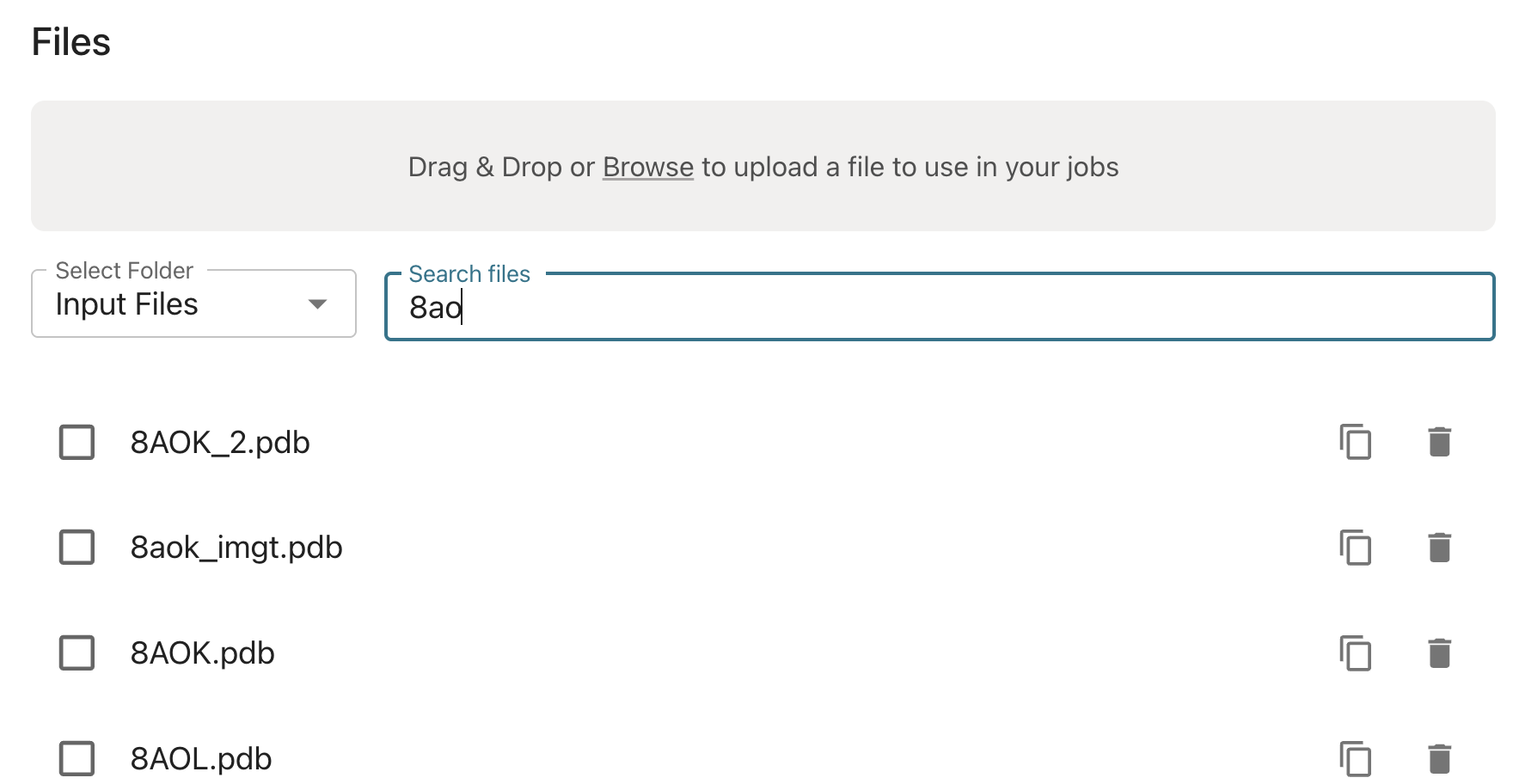 You can then select "My Files" to reuse previously uploaded files.
 2. API - Use the /upload PUT API endpoint to upload files and /files GET API endpoint to retrieve a list of file names available in your account
You can then use any path from your user directory as an input to a file setting, including pdb, cif, and sdf files. You can also directly use previous Tamarind job outputs as inputs without reuploading, using the path: JobName/output-file.txt.
2. API - Use the /upload PUT API endpoint to upload files and /files GET API endpoint to retrieve a list of file names available in your account
You can then use any path from your user directory as an input to a file setting, including pdb, cif, and sdf files. You can also directly use previous Tamarind job outputs as inputs without reuploading, using the path: JobName/output-file.txt.